AI Video Quality Repair fix blur, noise and compression
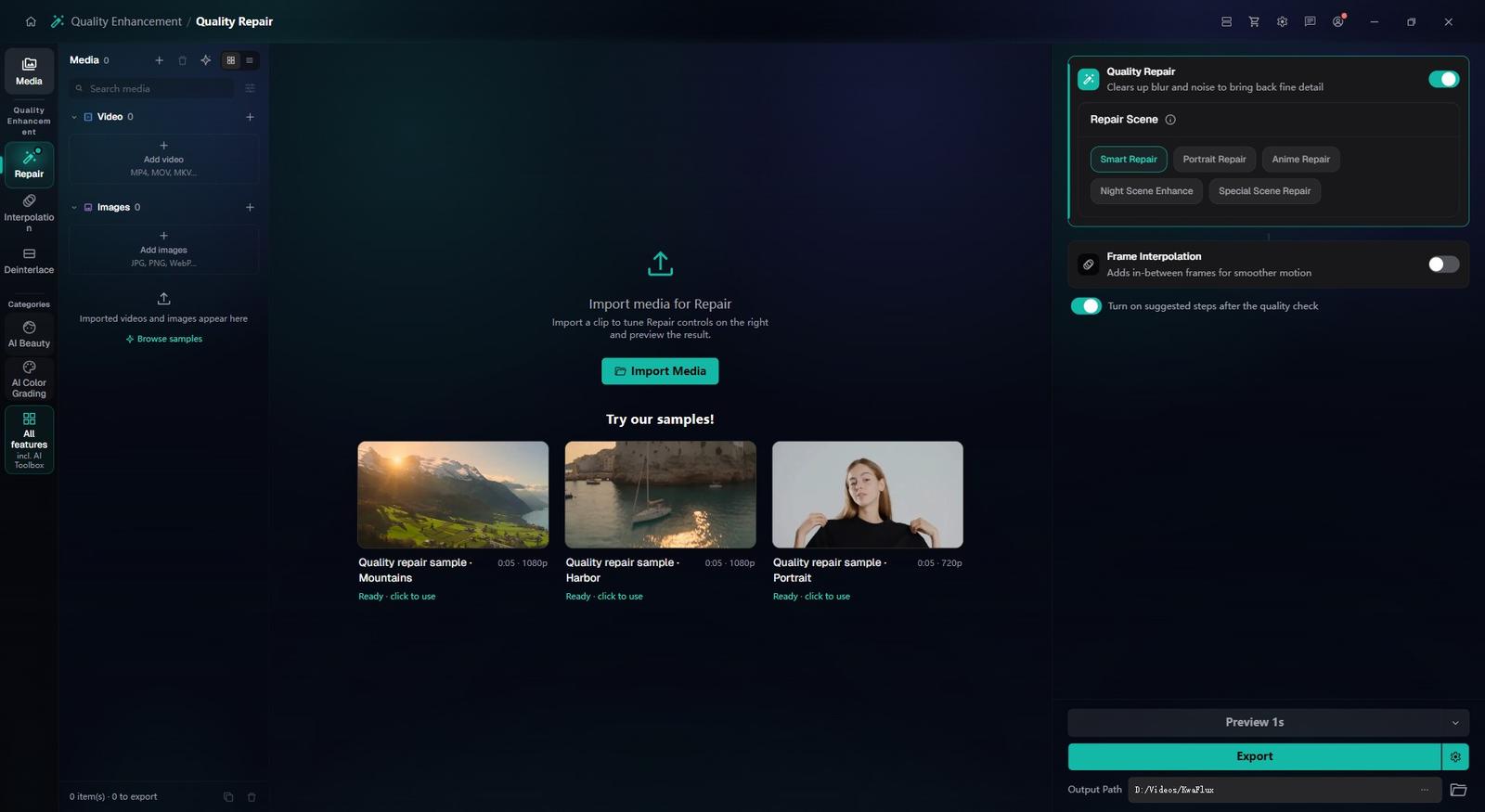
Quality Repair cleans up blur, noise and compression damage in one pass. Smart Repair reads each clip and decides what to fix, faces included; Special Scene Repair handles anime, night shots, haze, rain, black-and-white footage and film grain. Set the output size in the same pass, up to 8K.
- Free preview
- 1, 3 or 5 seconds of video; the whole picture on a photo · No account needed.
- Needs a paid plan
- Export, convert, repair a file, download a file from a link
- Smart Repair, plus six scene types in Special Scene Repair
- Faces are restored automatically, with no separate portrait mode
- Output size in the same pass, up to 8K with H.265 or AV1

Compression cleanup
Clean up blocky social-media video without a cloud queue
Noise removal and detail recovery run on your GPU. Preview the worst section first.
§01What it does
What Quality Repair fixes
Compression damage
Blocky edges and mosquito noise from chat apps, downloads and repeated re-encodes. Smart Repair reads the quality check and cleans them up.
Noise and grain
Smart Repair denoises everyday footage. For dark shots, pick Night Scene in Special Scene Repair; for scanned film, Film Grain Removal.
Blur and soft faces
Smart Repair sharpens soft footage and restores faces in the same pass, with no separate portrait option.
§02
Built for modern files that got crushed
Most footage that looks bad isn't old: it's a phone clip squeezed by a chat app, a screen recording, or an export of an export. Quality Repair is built for that kind of damage.
Tapes and film scans fail differently — interlacing, film grain, black-and-white — and start on Restore Old Video.
§03
Clean up and upscale in one pass
Because cleanup and upscaling run in the same pass, compression blocks are removed rather than enlarged along with the picture.
Set 1080p or 4K as the output, or 8K with H.265 or AV1; the AI Video Enhancer page covers how far each source can go.
§04How to use
How to repair a video in KwaFlux
Open Quality Repair and import
In the sidebar, open Quality Enhancement and pick Quality Repair, then drag in your clip. Run quality detection to see what it needs.
Pick a repair and preview
Choose Smart Repair, or Special Scene Repair with a type such as Night Scene or Film Grain Removal. Render a free 1, 3 or 5-second preview of the worst part and compare it with the original.
Set the output size and export
Pick the output resolution and export; the job runs in Task Center. For several clips, set up one, use Apply params to others, then Export all.
§05Requirements
System requirements
| Operating system | Windows 10 (64-bit, 1809+) or Windows 11; macOS 12 or newer (Apple Silicon)Apple Silicon only. macOS 12 runs in Standard Mode. |
|---|---|
| GPU | 2016 or later Intel, AMD, or NVIDIA GPU — integrated or discreteDirectX 12 Feature Level 12_0. Windows only. macOS uses Apple Silicon. |
| Memory | 8 GB RAMEnough to launch, preview, and export. Long clips and stacked modules will be slower. |
| Storage | SSD workspaceUse an SSD for the app, cache, and temp files. |
Windows 10 (64-bit, 1809+) or Windows 11; macOS 12 or newer on Apple Silicon.
§06FAQ
Frequently Asked Questions
- What does AI Video Quality Repair fix?
- Blur, noise, compression blocks and soft faces in digital footage, plus the specific cases Special Scene Repair covers: anime, night shots, haze, rain, black-and-white and film grain. It can't add detail the camera didn't record.
- Should I use Quality Repair or the old-video tools for my footage?
- Phone clips, downloads and screen recordings that are soft, blocky or noisy go straight to Smart Repair. Interlaced tape transfers go through Deinterlacing first, and film scans or black-and-white footage use the Film Grain Removal and Colorize scene types. All of it comes with the same license.
- Do I need an account to preview?
- No. Install KwaFlux, import a clip and render 1, 3 or 5-second previews without an account. Exporting, converting, repairing a file and downloading a file from a link need sign-in and a paid plan.
- Why does my video look worse or "AI-looking" after enhancing?
- Enhancement can't add detail the camera didn't record, so on very soft or heavily compressed sources a model may smooth textures or make faces look waxy. Try a different repair type or a smaller output size and compare with the original on a short preview; a lighter repair often looks more natural.
Download the app, import a clip and render a free preview. You need a paid plan only to export, convert, repair a file or download a file from a link.