AI Video Enhancer upscale to 1080p, 4K or 8K
AI Video Enhancer takes 480p and 720p footage to 1080p, 4K or 8K, rebuilding texture and edges instead of stretching pixels. It is the output size of Quality Repair, so cleanup and upscaling happen in the same pass, on your own graphics card.
- Free preview
- 1, 3 or 5 seconds of video; the whole picture on a photo · No account needed.
- Needs a paid plan
- Export, convert, repair a file, download a file from a link
- 480p and 720p sources to 1080p, 4K or 8K
- Smart Repair for everyday footage and faces; Special Scene Repair for anime, night shots and more
- Runs on your own graphics card; media isn't uploaded for processing
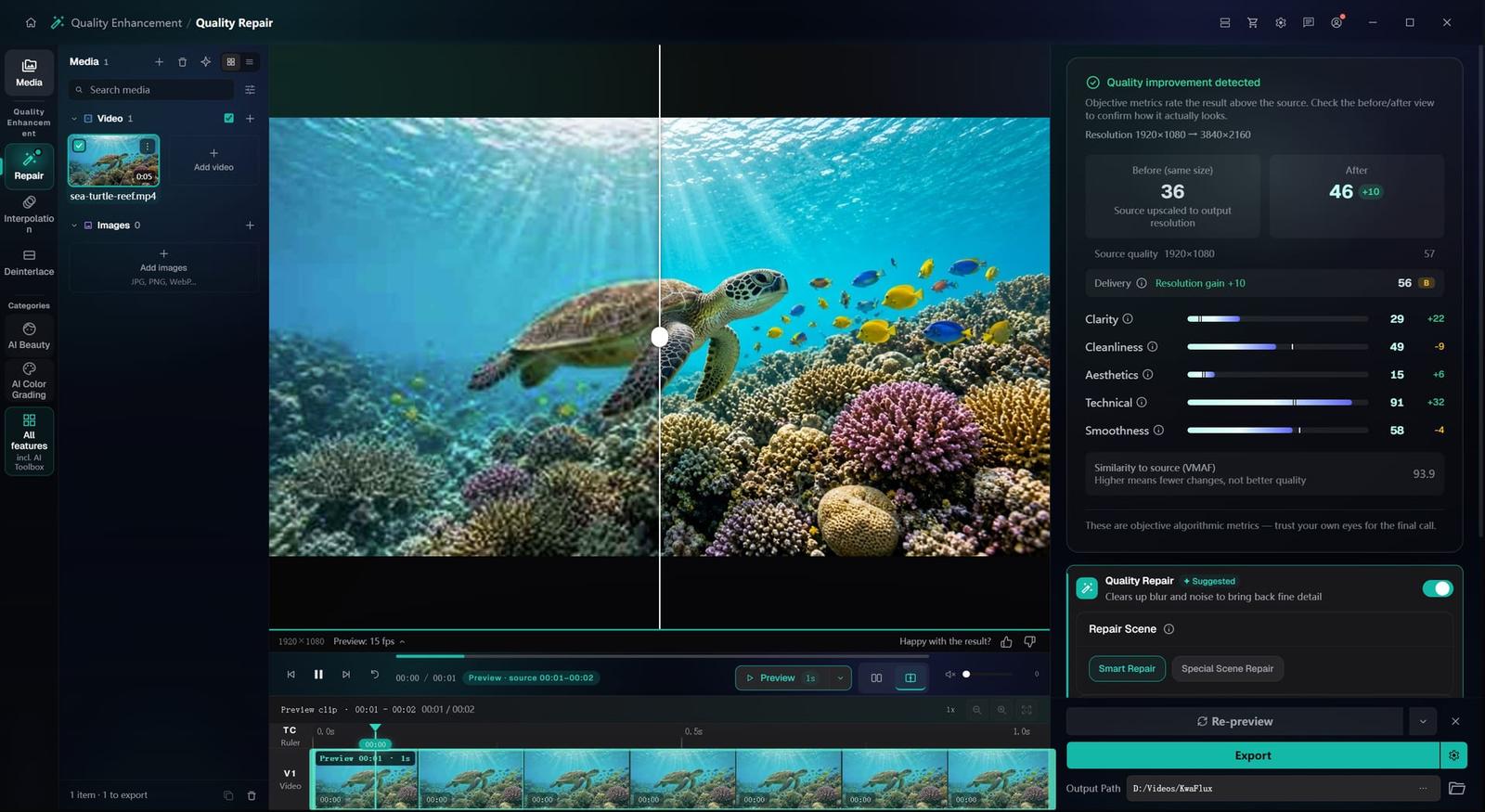
From soft source to delivery-ready detail
Demo preview — enhanced locally in KwaFlux. Upscale with Smart Repair, or with Special Scene Repair for anime and night shots.


Local detail
Rebuild detail instead of stretching pixels
A plain scaler makes soft footage bigger and just as soft. These models rebuild texture and edges on your own graphics card. Preview a few seconds first, then export the whole clip.
§01What it does
Repair types for different footage
Smart Repair
Combines what quality detection finds — denoise, sharpen, color and brightness, upscale — and restores faces automatically. Start here for camera footage, screen recordings and compressed exports.
Special Scene Repair
For footage with one specific problem: pick Anime, Night Scene, Dehaze, Rain Removal, Colorize or Film Grain Removal.
Anime
Keeps line art crisp and flat colors clean, with a speed tier to choose. Unlike the other scene types, it doubles the resolution on its own.
Night Scene
Cuts noise and lifts shadows in dark footage, where a plain scaler would enlarge the grain. It keeps the source size unless you choose an output resolution.
Output size
1080p or 4K, or 8K (7680×4320) when you export with H.265 or AV1. Set it in the same pass as the repair.
§02
What AI upscaling recovers
A plain resize spreads the same pixels over a bigger frame: larger, not sharper. The models in Quality Repair rebuild the texture and edges — hair, fabric, text — that compression smeared away.
They can't invent what wasn't captured: 720p and 1080p sources with a decent bitrate get closest to native 4K, while a badly degraded sub-480p clip improves but stays short of it.
§03
Upscaling on your own graphics card
Upscaling runs on your own GPU, so large masters don't wait in an upload queue or burn per-minute credits, and media isn't uploaded for processing.
For clips from Sora, Kling or Veo, Quality Enhancement also has an AI-Generated Video card — see how to upscale AI-generated clips. If the color still looks flat after upscaling, AI Color Grading is the next step.
§04How to use
How to upscale a video in KwaFlux
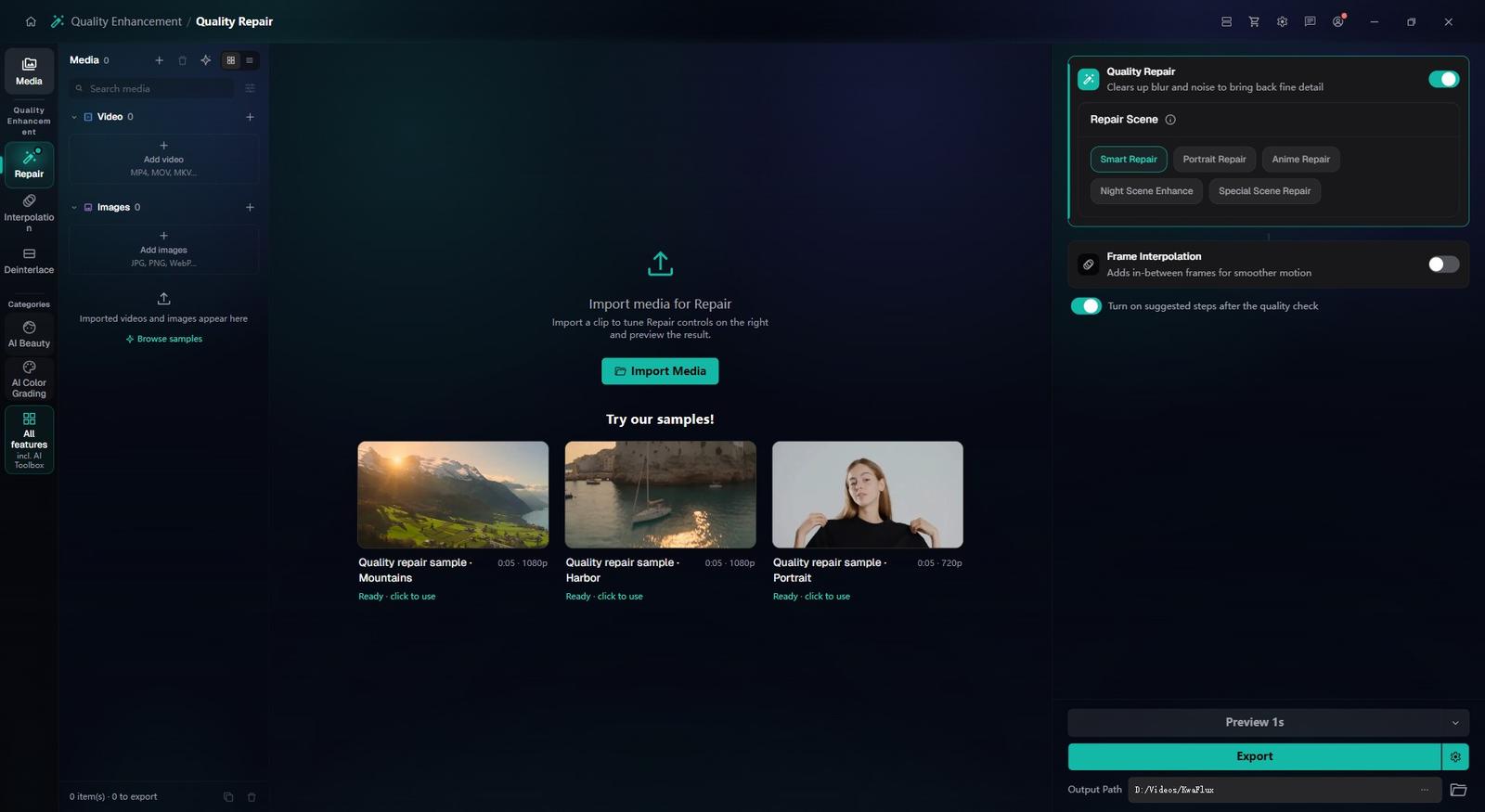
Open Quality Repair and import
In the sidebar, open Quality Enhancement and pick Quality Repair, then drag in the video. The output resolution you choose there sets the upscale.
Pick a repair type and resolution
Choose Smart Repair, or Special Scene Repair with a type such as Anime or Night Scene, and set 1080p, 4K or 8K (8K needs H.265 or AV1). Compare a 1, 3 or 5-second preview with the original before you commit.
Export one clip or a series
Export renders the full clip on your GPU, and the job runs in Task Center. For a series, load the clips together, set up one, use Apply params to others, then Export all.
§05Requirements
System requirements
| Operating system | Windows 10 (64-bit, 1809+) or Windows 11; macOS 12 or newer (Apple Silicon)Apple Silicon only. macOS 12 runs in Standard Mode. |
|---|---|
| GPU | 2016 or later Intel, AMD, or NVIDIA GPU — integrated or discreteDirectX 12 Feature Level 12_0. Windows only. macOS uses Apple Silicon. |
| Memory | 8 GB RAMEnough to launch, preview, and export. Long clips and stacked modules will be slower. |
| Storage | SSD workspaceUse an SSD for the app, cache, and temp files. |
Windows 10 (64-bit, 1809+) or Windows 11; macOS 12 or newer on Apple Silicon.
§06FAQ
Frequently Asked Questions
- Can AI really turn 480p into 4K?
- It can output a 4K frame from a 480p source that looks clearly better than player scaling, but it can't recover detail the camera didn't record. Expect a clean, watchable picture rather than native 4K; from 720p or 1080p, results get much closer.
- Which repair type should I pick?
- Start with Smart Repair: it adapts denoising, sharpening and detail to each clip and restores faces automatically. Switch to Special Scene Repair when the footage has one specific problem: Anime, Night Scene, Dehaze, Rain Removal, Colorize or Film Grain Removal.
- Why do faces look waxy or plastic after AI upscaling, and how do I avoid it?
- Usually the face was too small, blurry or compressed to rebuild, so the model smooths it or fills in a generic one. Keep the output size within what the source can carry and check the closest face on a short preview before exporting.
- Can I upscale to 8K?
- Yes. Choose H.265 or AV1 as the video codec, then 8K (7680×4320) as the resolution; H.264, VP9 and ProRes stop at 4K. Only go that far when the source has the detail: 8K from a soft source is bigger, not sharper, and takes much longer to render.
- Can I try it before buying?
- Yes, with no account or card. Free previews last 1, 3 or 5 seconds in video modules, 5, 15 or 30 seconds in Video Stabilization, the whole picture for images and the opening 5 to 30 seconds for audio; file tools such as the Converter have no effect preview. Exporting, converting, repairing a file and downloading a file from a link need sign-in and a paid plan, and there's no time-limited trial.
Download the app, import a clip and render a free preview. You need a paid plan only to export, convert, repair a file or download a file from a link.