
Audio cleanup workflow
Clean up audio in video less noise, less echo
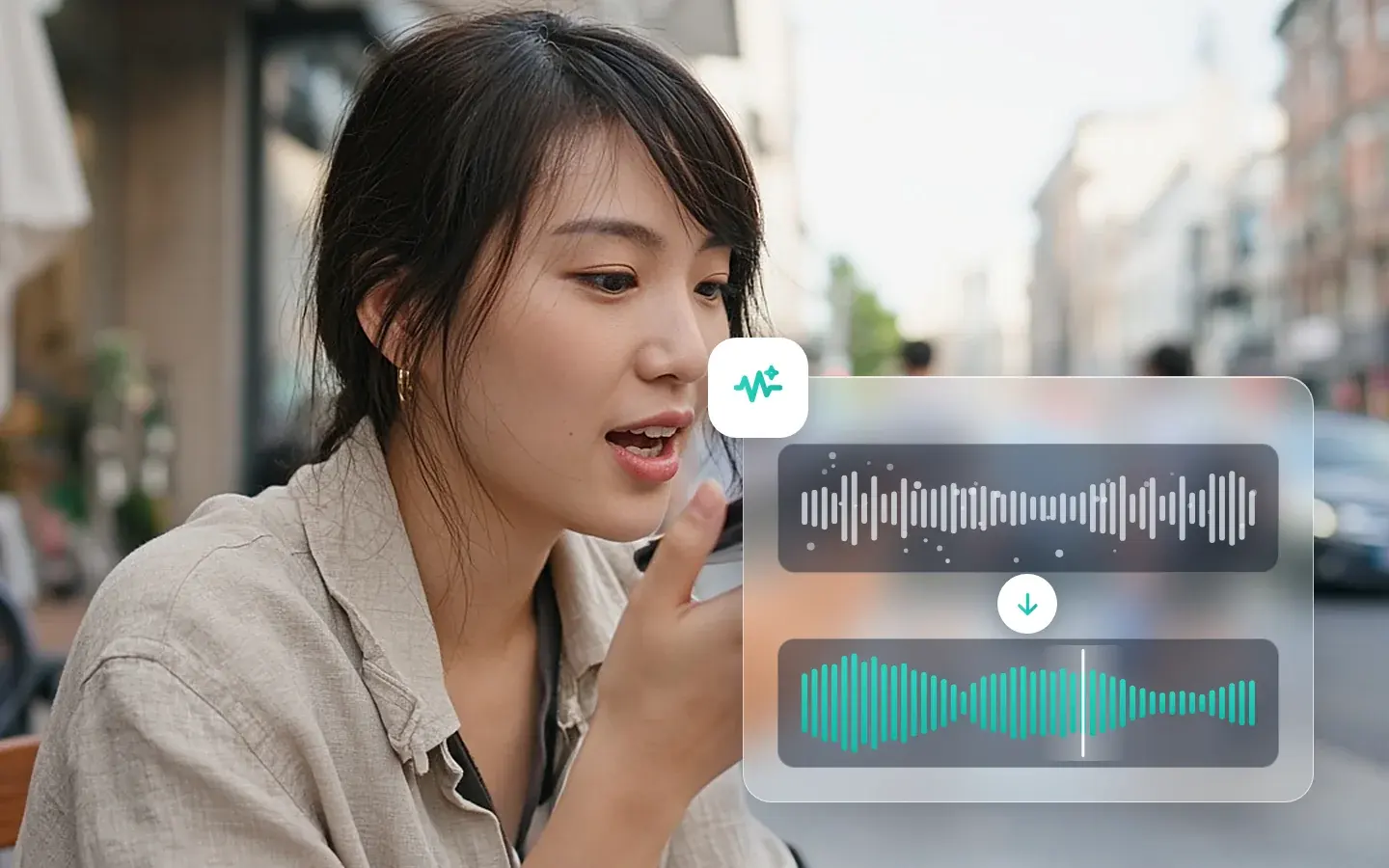
Hiss, hum, wind and room echo make good footage hard to watch. AI Audio Denoise works on the video file itself: Audio Denoising for steady noise, Voice Enhancement for echoey rooms. Quality Repair can tidy the picture and the Converter writes the delivery file, all on your own computer.
Free preview: The opening 5 to 30 seconds · No account needed.
Illustrative atmosphere for this workflow — not a KwaFlux before/after or product UI.
§01Why
Why dialogue needs its own cleanup pass
- 01Steady noise such as hiss, hum, wind or air conditioning sits under every word, and headphones make it obvious.
- 02Noise and echo are different problems. Audio Denoising removes steady noise; Voice Enhancement makes speech clearer and reduces room echo.
- 03You don’t extract the track first. Import the video, clean the sound, and the cleaned track stays attached to the picture on export.
- 04Interviews and client recordings are often private, so they are processed on your own computer rather than uploaded to an audio service.
§02Workflow
One timeline, from source to delivery.
Follow the playhead through each step. Every block is a module you'll find in the app, running on your own computer.
Steps
- AI Audio Denoise: Audio Denoising or Voice EnhancementAudio Enhance
- Optional: Quality Repair for the pictureAI Video Quality Repair
- Converter for the delivery fileVideo Converter
Illustration of the order of steps; the clip is a demo built into the app.
§03Settings
Recommended KwaFlux settings
- AI Audio Denoise: Audio Denoising or Voice EnhancementAudio Denoising for hiss, hum, wind and air conditioning; Voice Enhancement for echoey rooms. The free preview plays the opening 5 to 30 seconds.Open feature
- Optional: Quality Repair for the pictureIf the image is soft or blocky too, Smart Repair cleans it and restores faces. Set 1080p or 4K here only if the platform asks for it.Open feature
- Converter for the delivery fileRewrite the finished file as H.264, H.265 or AV1 in MP4, MKV or MOV, whatever the platform or client expects.Open feature
KwaFlux local path
Import the video, clean the voice, listen to the free preview and export with the track still on the picture.
Typical cloud path
Extract the track, upload it to an audio service, download the clean version, then line it back up with the picture.
§04Steps
Three-step workflow
Import the video
Open AI Audio Denoise and import the video file itself; there’s no need to extract the track.
Pick the module and listen
Audio Denoising for hiss and hum, Voice Enhancement for echo. The free preview plays the opening 5 to 30 seconds.
Export, then finish the file
Export with the cleaned track on the picture. Run Quality Repair if the image needs it, then the Converter for the platform’s format.
Dialogue cleanup
Clean the voice, keep the picture
Audio previews play the opening 5 to 30 seconds with no account; the export processes the whole file.
§05More
More finishing workflows
- Fix old home video
- Repair then upscale
- Social repurpose
- Course & interview finishing
- Talking-head background
- Short-drama localization
- Stabilize, then slow motion
- Restore old photos
- SDR to HDR video







AI generator upscale pages
§06FAQ
Frequently asked questions
- Do I need to extract the audio track first?
- No. Import the video file into AI Audio Denoise. On export, the cleaned track stays attached to the picture, so there’s nothing to line up again in your editor.
- Can it pull a voice out from under music?
- Vocal Separation, in the same audio group, splits a track into vocals and accompaniment. How cleanly it separates depends on how dense the mix is, so listen to the preview before you export.
- Will it fix clipped or distorted audio?
- No. Clipping is distortion recorded when the level was too high, and the audio modules aren’t built to repair it. Steady noise and room echo are what they handle.
- Can I run several clips through the same settings?
- Yes. Load the clips into one workspace, set the parameters on one, apply them to the rest and Export all. The Converter also takes a whole folder at once.
- Is my footage uploaded anywhere?
- No. The AI processing runs on your own GPU, and your clips are not uploaded for processing — there are no per-minute cloud fees or upload queues. KwaFlux still goes online for sign-in and license checks, app updates and model downloads (plus the GPU Acceleration Component on Mac), downloading a file from a link, and the crash and diagnostic reports described in our Privacy Policy.
Features used here
- AI Audio DenoiseRemove hiss and hum, reduce room echo
- AI Video Quality RepairClean up a soft or blocky picture
- Video ConverterMP4, MKV or MOV with H.264, H.265 or AV1
- Subtitle EditBurn in or add the SRT/ASS file you have
Guides & comparisons
- Audio EnhanceRemove background noise from video or standalone audio files
- Course & interview finishingFinish course and interview videos locally
- Short-drama localizationShort-drama language versions from one master
- Short-drama localization on one GPU: most middle-processing steps do not need a cloud pipelineVolcano Engine's AI MediaKit pitch is right about the bottleneck — versioning, not shooting — and wrong that it needs a cloud. What one workstation covers, and what it does not.
These workflows use the same local KwaFlux app as AI Video Quality Repair, Video Converter and AI Video Enhancer. Free previews need no account; sign-in and a paid plan are needed to export, convert, repair a file, or download a file from a link.
KwaFlux is a local media finishing toolkit. Feature availability depends on your license and installed modules.