KwaFlux feature
AI frame interpolation for smoother motion
KwaFlux inserts frames between the ones you already have. Choose 2x, 3x, or 4x the source frame rate, or a custom target. A 24 fps clip at 2x becomes 48 fps, not 60. Preview 1, 3, or 5 seconds with no account. Export needs a paid plan.
- 2x, 3x, or 4x the source frame rate
- Custom targets: 30, 50, 60, 90, 120, or 144 fps, when the source rate can reach them
- Slow motion at 2x, 4x, or 8x from ordinary footage, on your GPU
Frame rate
Add frames on your GPU, then read the number the button actually sends
General handles larger motion. Fast is a bit quicker at 1080p. Preview before a full export.
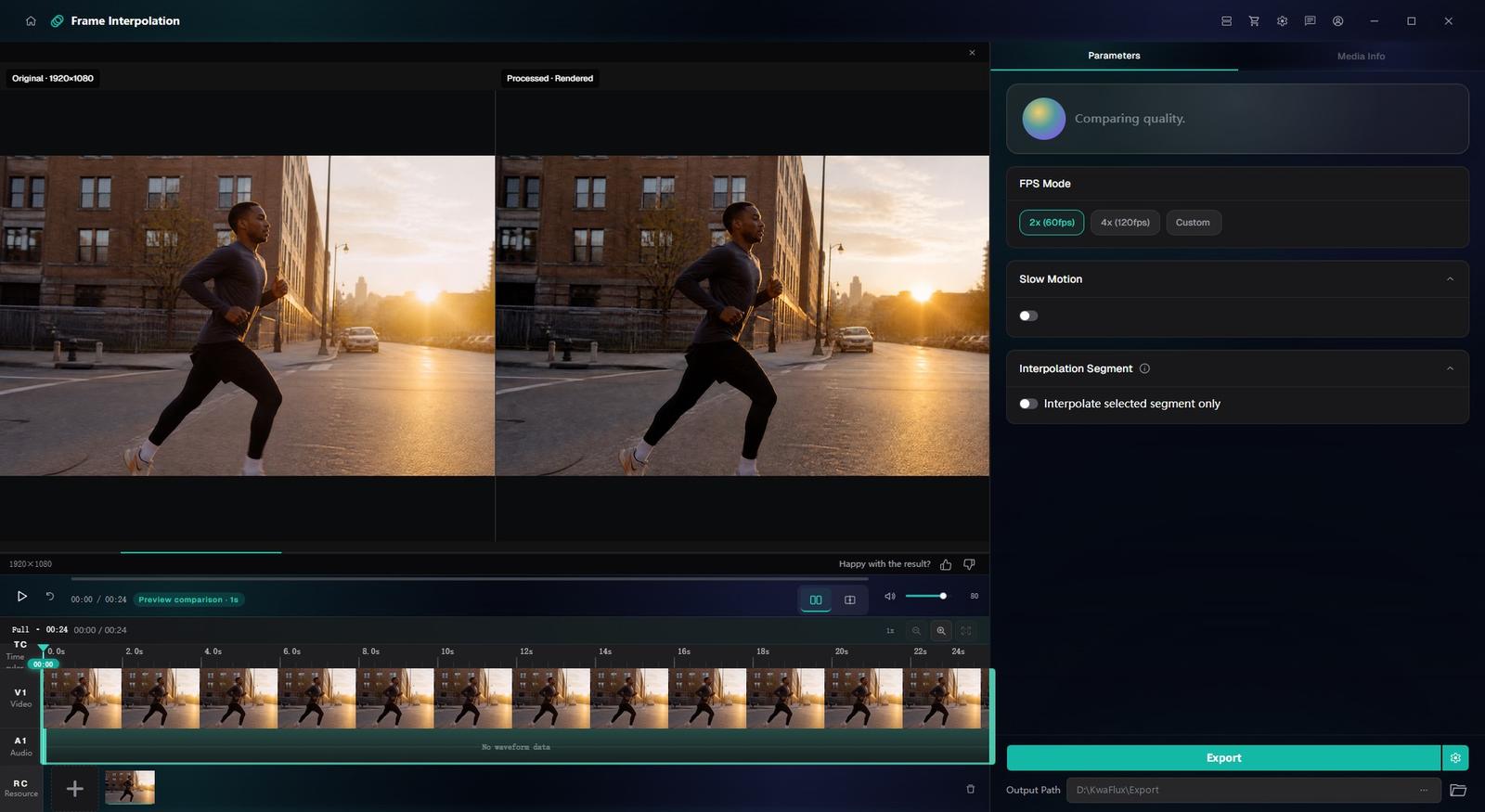
What the workbench actually sets
Multiples
- 2x, 3x, and 4x are relative to the source. The label is the factor, not a promise of 60 fps.
Custom fps
- 30, 50, 60, 90, 120, and 144 cover delivery and display rates a whole multiple cannot hit.
Slow motion
- A separate toggle at 2x, 4x, or 8x. It does not need a high-speed camera.
Read the factor, not a guessed 60
The multiple buttons do not print a fixed output rate. If the source is 24 fps, 2x is 48 fps and 3x is 72 fps. Use custom when you need 50 fps for PAL or 60 fps for a 60 Hz screen.
Preview the worst motion first
Fast motion, flashing lights, and hard cuts can look wrong. Render a 1-, 3-, or 5-second preview on that passage before you export the whole clip.
How to interpolate frames in KwaFlux
01
Import the clip
Open Frame Interpolation and import the video.
02
Pick the factor
Use 2x, 3x, or 4x, or a custom fps. Turn on slow motion only if you want the new frames played slowly.
03
Preview, then export
Check 1, 3, or 5 seconds on the hardest motion. Signing in and paying is required only for the full export.
System requirements
- Operating system
- Windows 10 (64-bit, 1809+) or Windows 11; macOS 12 or newer (Apple Silicon)
- Apple Silicon only. Offline installer package. macOS 12 runs in standard mode.
- GPU
- 2016 or later Intel, AMD, or NVIDIA GPU — integrated or discrete
- DirectX 12 Feature Level 12_0. Windows only. macOS uses Apple Silicon.
- Memory
- 8 GB RAM
- Enough to launch, preview, and export. Long clips and stacked modules will be slower.
- Storage
- SSD workspace
- Use an SSD for the app, cache, and temp files.
Windows 10 (64-bit, 1809+) or Windows 11; macOS 12 or newer on Apple Silicon.
Frequently Asked Questions
Is my footage uploaded to the cloud?
- No. The AI processing runs on your own GPU and your media files are not uploaded — there is no queue and no per-minute cloud fee. The network is used only for sign-in and license checks (needed to export on a paid plan) and for updates.
Can I try it before buying?
- Yes. Download KwaFlux and render 1-, 3-, and 5-second effect previews across all AI modules without creating an account. You only sign in and pick a paid plan when you want to export or convert, and there is a $199.99 Perpetual License if you prefer to skip subscriptions.
How many devices can I use?
- Each license can be used on up to 2 devices. Sign in on a new device to activate it; if you are already at the limit, the least recently used device may be signed out automatically. You can also revoke devices from your dashboard at any time.
What are the pricing options?
- The Perpetual License is $199.99 one-time. Subscriptions are also available at $29.99/month, $49.99/quarter, and $79.99/year. All plans include the full local desktop feature set.
Related workflows
Video enhancer for flat color and choppy motion
SDR-to-HDR conversion, smart color enhancement, and filter grading
OpenAI Video Stabilization that rescues handheld footage
Three stabilization strengths: from subtle smoothing to locked-down
OpenAI Video Upscaler that recovers real detail — locally
Upscale 480p / 720p sources to 1080p or 4K output
Open