
Photo restoration workflow
Restore old photos repaired and enlarged locally
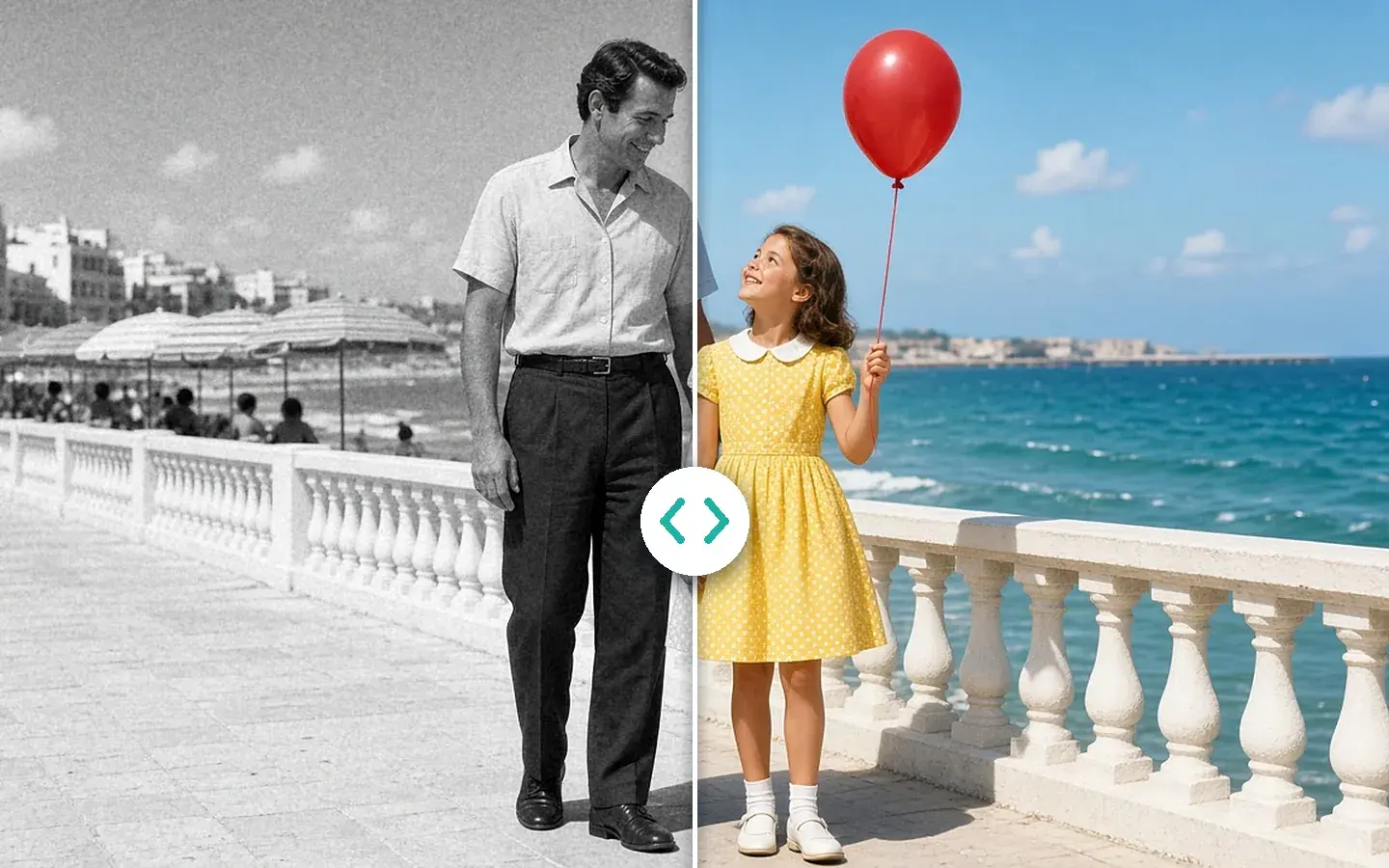
Scanned prints come out faded, grainy and soft. In AI Image Enhancer, Smart Repair cleans them up and restores faces, Colorize in Scene Repair suits black-and-white prints, and Smart Color lifts faded color. The free preview shows the whole picture, and Export all takes care of the album.
Free preview of the whole picture · No account needed.
Illustrative atmosphere for this workflow — not a KwaFlux before/after or product UI.
§01Why
Why scanned prints need more than a sharpen filter
- 01Scanned prints carry several problems at once: fading, grain, softness and the scanner’s own noise.
- 02A filter that only sharpens sharpens the grain too. Smart Repair cleans and enlarges in the same pass, at 1x, 2x, 4x, 2K or 4K.
- 03Family photos are private. They are processed on your own computer, not uploaded to a restore website.
- 04The free preview shows the whole picture next to the original, so you can check every face before you export.
§02Workflow
One timeline, from source to delivery.
Follow the playhead through each step. Every block is a module you'll find in the app, running on your own computer.
Steps
- Smart Repair, output 2x, 4x, 2K or 4KAI Image Enhancer
- Scene Repair → Colorize for black-and-white printsAI Image Enhancer
- Smart Color for faded color printsAI Color Grading
Illustration of the order of steps; the clip is a demo built into the app.
§03Settings
Recommended KwaFlux settings
- Smart Repair, output 2x, 4x, 2K or 4KCleans scan noise and softness, corrects color and brightness and restores faces in one pass. Prints scanned at about 1 to 8 megapixels respond well; a small thumbnail won’t become a poster.Open feature
- Scene Repair → Colorize for black-and-white printsAdds plausible color to a black-and-white photo. Compare it with Smart Repair on the same preview and keep the version that looks right to you.Open feature
- Smart Color for faded color printsIn AI Color Grading, Smart Color fixes casts, flatness and exposure with no sliders. Run it after the repair pass.Open feature
KwaFlux local path
Repair, check the whole picture and export the album on your own computer.
Typical cloud path
Upload the family album to a restore website, wait, then download copies you can’t adjust any further.
§04Steps
Three-step workflow
Scan and import the prints
Scan at a resolution that keeps the detail, or photograph each print flat, then import the files into AI Image Enhancer.
Repair and check the whole picture
Run Smart Repair, or Colorize for black-and-white prints, and compare the full-picture preview with the original.
Apply to the album and export
Use Apply params to others for the rest of the scans, then Export all. Each photo runs in Task Center.
Family photos
Clean up and enlarge in one pass
Images preview the whole picture free, with no account, so you can judge faces and edges before you export the album.
§05More
More finishing workflows
- Fix old home video
- Repair then upscale
- Social repurpose
- Course & interview finishing
- Talking-head background
- Short-drama localization
- Clean up video audio
- Stabilize, then slow motion
- SDR to HDR video



AI generator upscale pages
§06FAQ
Frequently asked questions
- Can KwaFlux scan my prints?
- No. Scan them, or photograph each print flat in even light, then import the files. If a scan won’t open, Image File Repair can try to fix the file.
- Should I colorize a color print that has faded?
- No. Colorize is meant for black-and-white photos. For faded color, use Smart Color in AI Color Grading after the repair, and check skin tones in the preview.
- Can I restore a whole album at once?
- Yes. Load the scans into one workspace, set the repair on one, use Apply params to others, then Export all. The jobs run in Task Center while you do something else.
- Are my photos uploaded anywhere?
- No. The AI processing runs on your own computer, and your photos are not uploaded for processing. KwaFlux still goes online for sign-in and license checks, app updates and model downloads (plus the GPU Acceleration Component on Mac), downloading a file from a link, and the crash and diagnostic reports described in our Privacy Policy.
Features used here
- AI Image EnhancerSmart Repair or Scene Repair for photos
- AI Color GradingSmart Color for faded or color-cast prints
- File RepairFor scans and photos that won’t open
- Restore Old VideoFor the family tapes in the same box
Guides & comparisons
- Restore Old VideoColorize, denoise, and deinterlace archival footage locally
- Fix old home videoFix old home video without uploading family archives
- Repair then upscaleRepair then upscale video locally
- How to restore old video with AI — grain and colorStep-by-step guide to AI-powered old video restoration: removing grain, fixing color fading, and recovering detail from vintage or damaged footage.
These workflows use the same local KwaFlux app as AI Video Quality Repair, Video Converter and AI Video Enhancer. Free previews need no account; sign-in and a paid plan are needed to export, convert, repair a file, or download a file from a link.
KwaFlux is a local media finishing toolkit. Feature availability depends on your license and installed modules.