
HDR delivery workflow
SDR to HDR video a wider range for HDR screens
Standard footage doesn’t use the extra range an HDR TV, monitor or phone can show. SDR to HDR in AI Color Grading widens it: brighter highlights, clearer shadows, more vivid color. Smart Color corrects the grade first and Quality Repair handles a soft source, all on your own computer.
Free 1s/3s/5s previews · no account
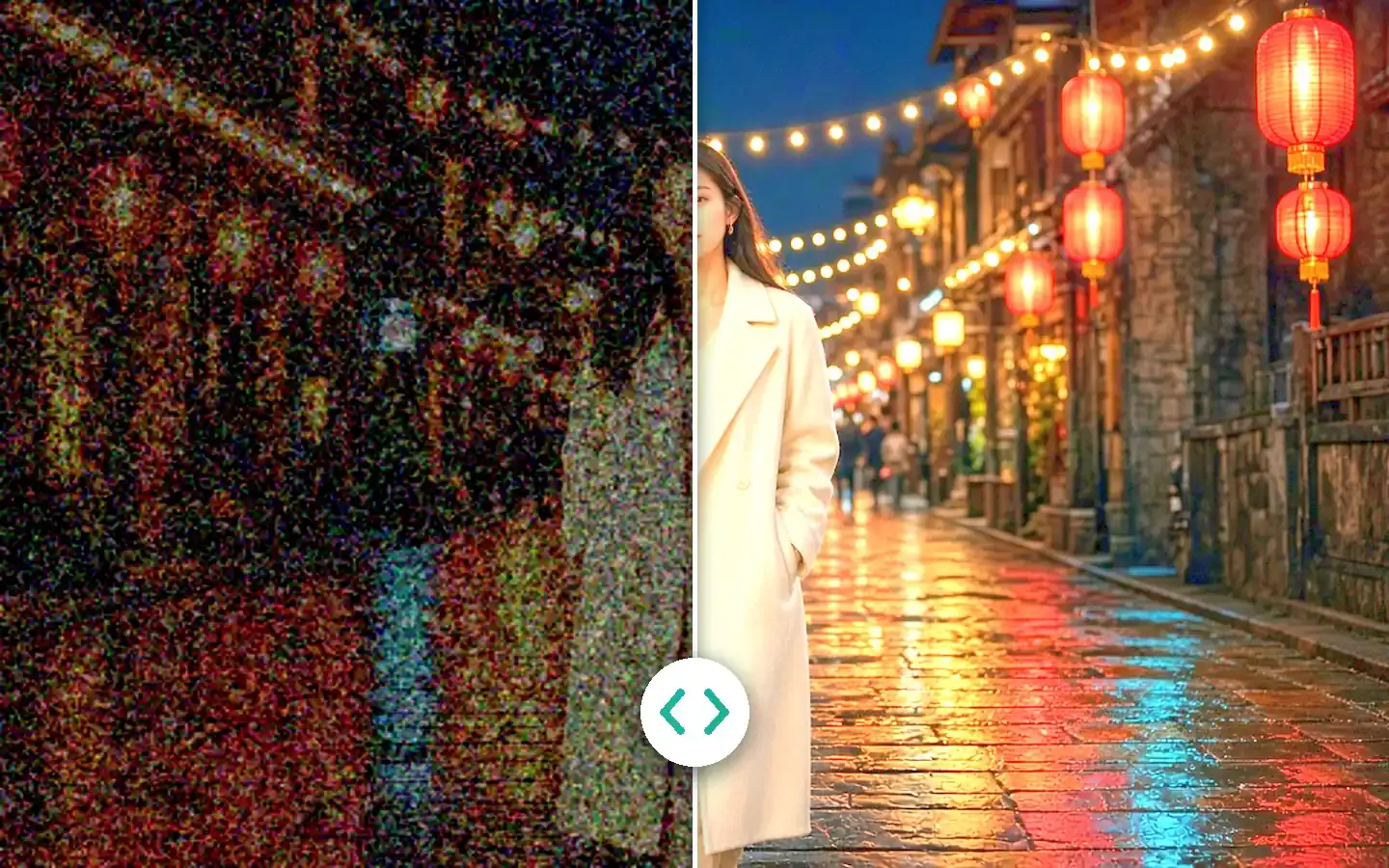
Illustrative atmosphere for this workflow — not a KwaFlux before/after or product UI.
§01Why
When an SDR to HDR pass is worth it
- 01HDR screens can show brighter highlights and deeper shadows than standard footage was made for.
- 02SDR to HDR widens the dynamic range of a finished clip, so you don’t have to regrade it by hand for the HDR version.
- 03Range doesn’t fix color or detail. Correct a cast with Smart Color and a soft picture with Quality Repair before the HDR pass.
- 04HDR can only be judged on an HDR-capable display. Check the result on the kind of screen you’re delivering for, and keep the SDR master for everything else.
§02Workflow
One timeline, from source to delivery.
Follow the playhead through each step. Every block is a module you'll find in the app, running on your own computer.
Steps
- If the source is soft: Quality Repair firstAI Video Quality Repair
- Optional: Smart Color for casts and flat colorAI Color Grading
- SDR to HDR for HDR screensAI Color Grading
Illustration of the order of steps; the clip is a demo built into the app.
§03Settings
Recommended KwaFlux settings
- If the source is soft: Quality Repair firstSDR to HDR works on range and color, not detail. Smart Repair cleans blur, noise and compression and can set 1080p or 4K in the same pass.Open feature
- Optional: Smart Color for casts and flat colorSmart Color in AI Color Grading fixes casts, flatness and exposure without sliders. Correct the grade before you widen the range.Open feature
- SDR to HDR for HDR screensWidens the dynamic range: brighter highlights, clearer shadows, more vivid color. Preview 1, 3 or 5 seconds free, on an HDR display if you can.Open feature
KwaFlux local path
Widen the range on your own GPU, preview a few seconds free, then export the HDR version.
Typical path
Regrade the clip by hand for HDR, or upload it to an online converter, wait in a queue and download the result.
§04Steps
Three-step workflow
Check the source
If the clip is soft or blocky, run Quality Repair first; SDR to HDR works on range and color, not detail.
Correct the color, then widen the range
Use Smart Color for a cast or a flat grade if needed, then SDR to HDR. Preview 1, 3 or 5 seconds free, on an HDR display if you can.
Export the HDR version
Export on your computer and keep the SDR master for standard screens. For several clips, use Apply params to others and Export all.
HDR delivery
A wider range on a clean picture
Repair the source if it needs it, correct the color, then widen the range with SDR to HDR. Each pass gets a free 1s/3s/5s preview.
§05More
More finishing workflows
- Fix old home video
- Repair then upscale
- Social repurpose
- Course & interview finishing
- Talking-head background
- Short-drama localization
- Clean up video audio
- Stabilize, then slow motion
- Restore old photos



AI generator upscale pages
§06FAQ
Frequently asked questions
- Do I need an HDR screen?
- To judge the result, yes. A standard monitor can’t show the wider range, so check the export on an HDR TV, monitor or phone. The player or platform it goes to also has to support HDR; keep the SDR master for everywhere else.
- Does SDR to HDR work on photos?
- No. SDR to HDR is for video only. For photos, AI Color Grading offers Smart Color and Filter Grading.
- Will SDR to HDR sharpen a soft clip?
- No. It widens range and color, not detail. Run Quality Repair first if the clip is soft, noisy or blocky, then do the HDR pass on that file.
- Can I run several clips through the same settings?
- Yes. Load the clips into one workspace, set the parameters on one, apply them to the rest and Export all. The Converter also takes a whole folder at once.
- Is my footage uploaded anywhere?
- No. The AI processing runs on your own GPU, and your clips are not uploaded for processing — there are no per-minute cloud fees or upload queues. KwaFlux still goes online for sign-in and license checks, app updates and model downloads (plus the GPU Acceleration Component on Mac), downloading a file from a link, and the crash and diagnostic reports described in our Privacy Policy.
Features used here
- AI Color GradingSDR to HDR, Smart Color and Filter Grading
- AI Video Quality RepairClean a soft source before the HDR pass
- AI Video EnhancerTake the clip to 1080p or 4K
- Frame InterpolationSmoother motion on a large screen
Guides & comparisons
- AI Color GradingSDR to HDR, Smart Color, and Filter Grading
- AI Image EnhancerUpscale and restore photos up to 4K on your GPU
- AI Video StabilizationFix shaky footage after the fact, on your own GPU
- Social repurposeRepurpose social video locally
These workflows use the same local KwaFlux app as AI Video Quality Repair, Video Converter and AI Video Enhancer. Free previews need no account; sign-in and a paid plan are needed to export, convert, repair a file, or download a file from a link.
KwaFlux is a local media finishing toolkit. Feature availability depends on your license and installed modules.