Repair → upscale workflow
Repair then upscale video locally
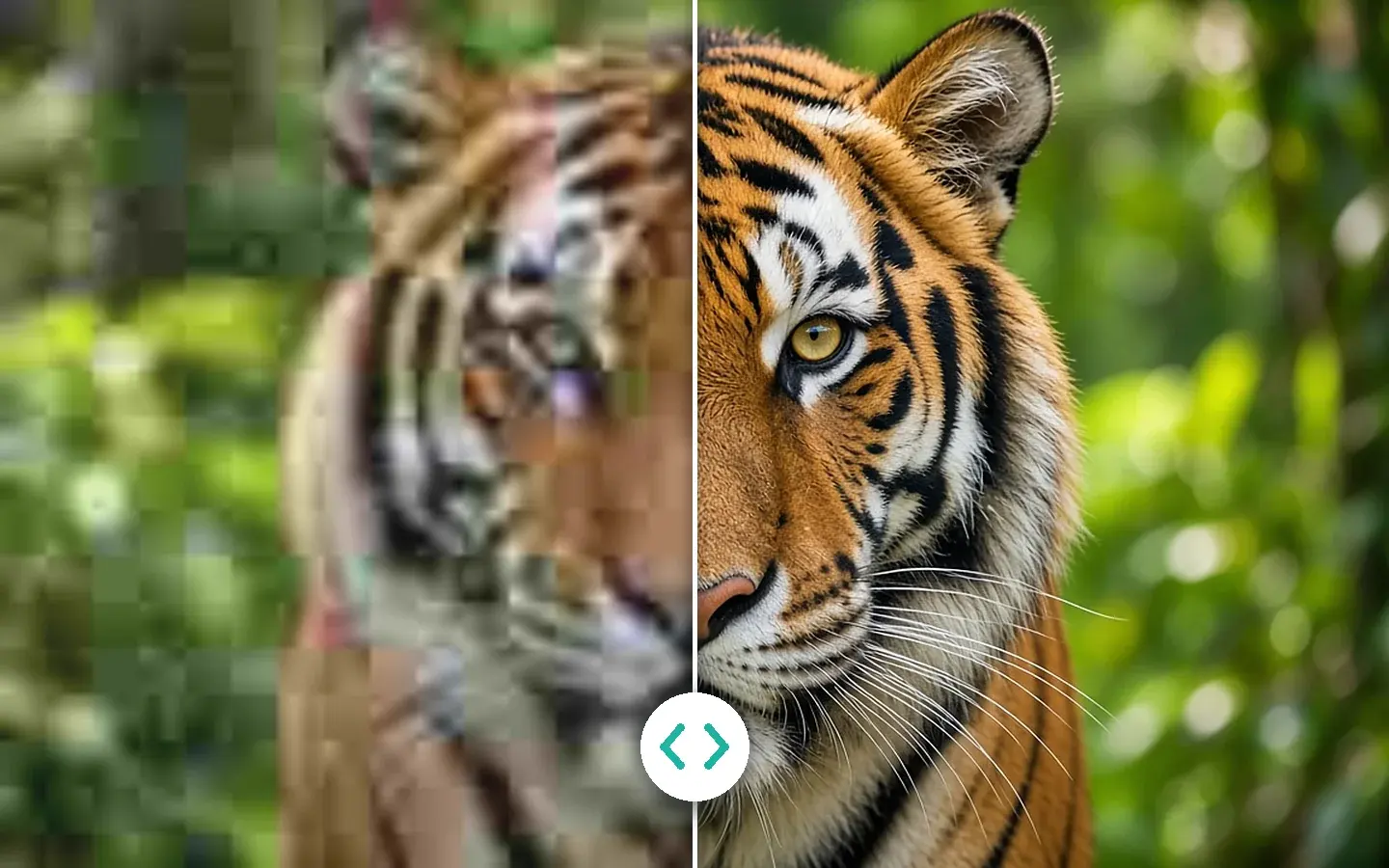
Upscaling a blocky frame only gives you bigger blocks. AI Video Quality Repair cleans the picture and sets the 1080p or 4K output in the same pass, with a free preview before you export.
Free 1s/3s/5s previews · no account
§01Why
Why repair before you upscale
- 01Re-encoded downloads and chat exports play fine but carry compression blocks. Enlarging them first bakes the blocks into a bigger file.
- 02Most “make it sharper” jobs are two jobs: cleanup and sizing. In KwaFlux both happen in one Quality Repair pass.
- 03With separate cloud tools you upload again between passes. Locally, you adjust and preview again on the same file.
- 04Tape transfers need a different first pass: Restore Old Video handles interlacing and film grain before any resizing.
§02Workflow
One timeline, from source to delivery.
Follow the playhead through each step. Every block is a module you'll find in the app, running on your own computer.
Steps
- Compressed or noisy footage → Smart RepairAI Video Quality Repair
- Tape transfers → Restore Old VideoRestore Old Video
- Delivery size → 1080p or 4K outputAI Video Enhancer
§03Settings
Recommended KwaFlux settings
- Compressed or noisy footage → Smart RepairSmart Repair cleans blocks, noise and blur and restores faces. For night, haze, rain or anime footage, pick the matching Special Scene Repair type instead.Open feature
- Tape transfers → Restore Old VideoDeinterlace camcorder combing and remove film grain first; AI Color Grading can lift a faded transfer afterwards.Open feature
- Delivery size → 1080p or 4K outputThe output resolution sets how far the same pass enlarges the frame. Preview the worst section first; detail is rebuilt from what the frame holds.Open feature
KwaFlux local path
Preview the repair and the output size on your computer, then export once.
Typical cloud path
Upload, wait in a queue, then upload again for the next pass.
§04Steps
Three-step workflow
Import and name the damage
Open the clip and decide what dominates: compression blocks, noise, blur or tape damage. That decides the first pass.
Repair and preview
Run Quality Repair, or Restore Old Video for tape transfers, and check a free 1s/3s/5s preview on the worst section.
Set the output size and export
Choose 1080p or 4K in the same Quality Repair pass and export once on your computer.
Clean before you enlarge
Clean and resize in one pass
Preview 1s, 3s or 5s free on your own computer before you export.
§05More
More finishing workflows
- Fix old home video
- Social repurpose
- Course & interview finishing
- Talking-head background
- Short-drama localization
- Clean up video audio
- Stabilize, then slow motion
- Restore old photos
- SDR to HDR video



AI generator upscale pages
§06FAQ
Frequently asked questions
- Why not upscale first?
- An upscaler rebuilds detail from what is already in the frame. If the frame is mostly compression blocks, enlarging it first makes the blocks bigger and harder to remove. Quality Repair cleans and enlarges in the same pass.
- Can AI unblur my video?
- Partly. It helps most when detail was lost to low resolution or compression; missed focus improves less, and heavy motion blur least. Check the worst section in a free preview.
- Do I need separate tools for repair and upscaling?
- No. Repair and upscaling are one Quality Repair pass, and Restore Old Video is in the same app under the same license.
- Can I run several clips through the same settings?
- Yes. Load the clips into one workspace, set the parameters on one, apply them to the rest and Export all. The Converter also takes a whole folder at once.
- Is my footage uploaded anywhere?
- No. The AI processing runs on your own GPU, and your clips are not uploaded for processing — there are no per-minute cloud fees or upload queues. KwaFlux still goes online for sign-in and license checks, app updates and model downloads (plus the GPU Acceleration Component on Mac), downloading a file from a link, and the crash and diagnostic reports described in our Privacy Policy.
Features used here
- AI Video Quality RepairSmart Repair and Special Scene Repair in one module
- AI Video EnhancerUpscale to 1080p or 4K
- Restore Old VideoDeinterlace, remove film grain, colorize
- File RepairFor files that won’t open or play
Guides & comparisons
- Restore Old VideoColorize, denoise, and deinterlace archival footage locally
- How to fix blurry or pixelated video with AIFive ways to fix blurry, soft, or pixelated video — from free sharpening to local AI unblur — and how to pick the right method.
- How to denoise video with AI without plastic facesWhen grain should stay, which footage cleans up well, and a free 1s/3s/5s preview. Previews need no account.
- How to fix a video that won't open or playVideo File Repair diagnoses unplayable MP4s locally. Auto, Quick, Deep, and Smart modes — plus an optional same-camera reference. Not an enhancer.
This workflow pairs AI Video Quality Repair with the KwaFlux AI Video Enhancer. If you searched for how to fix a blurry or pixelated video, start with the blurry-video guide. Free previews need no account; sign-in and a paid plan are needed to export, convert, repair a file, or download a file from a link.
KwaFlux is a local media finishing toolkit. Feature availability depends on your license and installed modules.