
Action footage workflow
Stabilize shaky action then slow it down
Bikes, sport, kids and pets: the moments worth keeping are often the shakiest. AI Video Stabilization steadies the take first, then AI Slow Motion makes a 2x, 4x or 8x version, or Frame Interpolation smooths it at normal speed, all on your own computer.
Free preview · No account needed.
Illustrative atmosphere for this workflow — not a KwaFlux before/after or product UI.
§01Why
Why shaky action needs two passes
- 01Action shot on the move shakes most where the action is, and that’s the part people replay.
- 02Slowing a shaky clip slows the shake as well, so steady it before any new frames are added.
- 03Ordinary 30 fps footage has no frames to spare. AI Slow Motion builds in-between frames for a 2x, 4x or 8x version without a high-speed camera.
- 04Stabilizing trims the edges, and rolling-shutter wobble from fast pans can stay. Check the roughest stretch in a free 5, 15 or 30-second preview.
§02Workflow
One timeline, from source to delivery.
Follow the playhead through each step. Every block is a module you'll find in the app, running on your own computer.
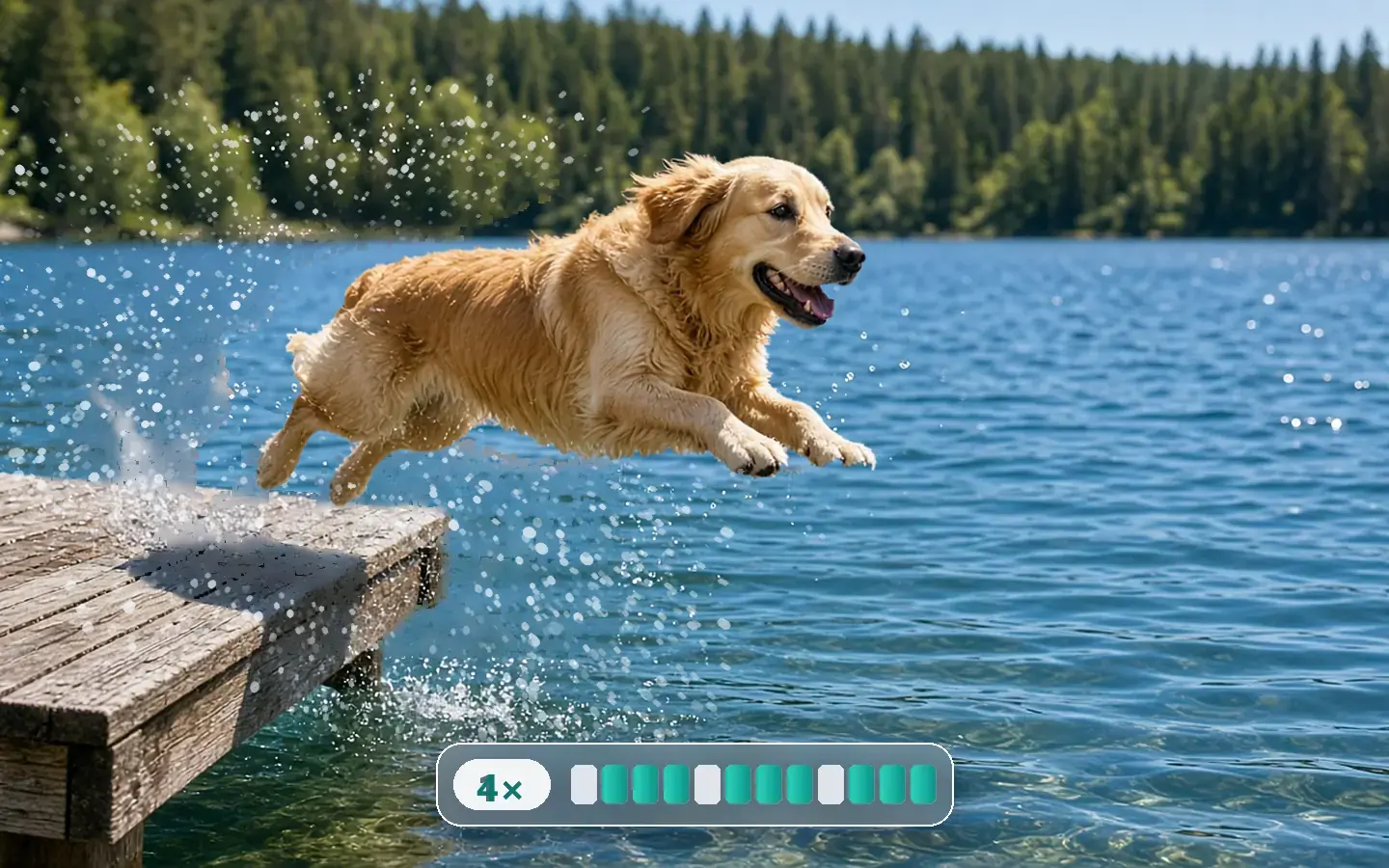
Steps
- Video Stabilization: Automatic or Subject LockAI Video Stabilization
- AI Slow Motion at 2x, 4x or 8xSmart Effects
- Or Frame Interpolation for smoother motion at normal speedFrame Interpolation
Illustration of the order of steps; the clip is a demo built into the app.
§03Settings
Recommended KwaFlux settings
- Video Stabilization: Automatic or Subject LockAutomatic smooths handheld shake and keeps the camera moves you meant; Subject Lock holds a subject you box on the paused preview. Previews run 5, 15 or 30 seconds.Open feature
- AI Slow Motion at 2x, 4x or 8xIn Smart Effects, run it on the steadied file: choose 2x, 4x or 8x and General or Fast mode. Smooth, continuous movement slows down most cleanly.Open feature
- Or Frame Interpolation for smoother motion at normal speedWhen the clip should play in real time, add frames instead: 2x, 3x or 4x, or a custom 60 fps. General mode suits big movement.Open feature
KwaFlux local path
Steady, slow down and export on one computer, with a free preview for each pass.
Typical cloud path
Upload the take to one service to stabilize it, download it, then upload it again somewhere else for slow motion.
§04Steps
Three-step workflow
Import the action clip
Bring in the handheld take. Cut it down to the moment in your editor first; KwaFlux has no timeline.
Stabilize and preview
Pick Automatic, or Subject Lock and box the subject on the paused preview. Check a free 5, 15 or 30-second preview on the roughest stretch.
Slow it down or smooth it, then export
Run AI Slow Motion at 2x, 4x or 8x on the steadied file, or Frame Interpolation for a higher frame rate, then export.
Action footage
Steady first, then slow it down
Stabilization previews run 5, 15 or 30 seconds and slow-motion previews 1, 3 or 5 seconds, free and without an account.
§05More
More finishing workflows
- Fix old home video
- Repair then upscale
- Social repurpose
- Course & interview finishing
- Talking-head background
- Short-drama localization
- Clean up video audio
- Restore old photos
- SDR to HDR video





AI generator upscale pages
§06FAQ
Frequently asked questions
- Why does stabilizing crop the picture?
- A stabilizer shifts the frame against the shake and needs spare edge to do it. Automatic trims a fixed margin; Subject Lock trims as much as the clip drifts. Leave room around the action when you shoot.
- Should I stabilize before slow motion?
- Yes. Steady the take first and run AI Slow Motion on that file, so the new frames are built from steady movement instead of shake.
- Slow motion or Frame Interpolation: which do I need?
- AI Slow Motion makes the action play 2x, 4x or 8x slower. Frame Interpolation keeps normal speed and raises the frame rate, for example from 24 fps to a custom 60 fps.
- Can I run several clips through the same settings?
- Yes. Load the clips into one workspace, set the parameters on one, apply them to the rest and Export all. The Converter also takes a whole folder at once.
- Is my footage uploaded anywhere?
- No. The AI processing runs on your own GPU, and your clips are not uploaded for processing — there are no per-minute cloud fees or upload queues. KwaFlux still goes online for sign-in and license checks, app updates and model downloads (plus the GPU Acceleration Component on Mac), downloading a file from a link, and the crash and diagnostic reports described in our Privacy Policy.
Features used here
- AI Video StabilizationAutomatic or Subject Lock
- Smart EffectsAI Slow Motion at 2x, 4x or 8x
- Frame Interpolation2x, 3x, 4x or a custom 30–144 fps
- Video ConverterA GIF of the moment, or a file per platform
Guides & comparisons
- AI Color GradingSDR to HDR, Smart Color, and Filter Grading
- AI BeautyOverall retouch with 9 preset styles, gender-adaptive by default
- AI Image EnhancerUpscale and restore photos up to 4K on your GPU
- AI Video StabilizationFix shaky footage after the fact, on your own GPU
These workflows use the same local KwaFlux app as AI Video Quality Repair, Video Converter and AI Video Enhancer. Free previews need no account; sign-in and a paid plan are needed to export, convert, repair a file, or download a file from a link.
KwaFlux is a local media finishing toolkit. Feature availability depends on your license and installed modules.