Temporal Consistency in Video: Why Restored Footage Flickers, Shimmers, and Ghosts
Why processed video flickers, shimmers, leaves trails, or shows double images after frame interpolation, how to measure it, and tested FFmpeg fixes.
Key takeaways
Temporal consistency means that an object looks the same from one frame to the next unless it really changes. Video processing breaks it in four common ways: brightness flicker, fine texture that shimmers or crawls, trails behind moving objects, and double images from frame interpolation. Each has its own cause, so each needs its own fix.
- Temporal consistency means an object looks the same from frame to frame unless it really changes. Processing breaks it in four ways: flicker, shimmer, trails, and double images.
- Processing each frame on its own is the root cause of most flicker and shimmer, because small differences between frames lead to different decisions.
- Averaging frames removes noise but smears anything that moves. In our test, plain averaging on a moving drone shot scored worse than the noisy input; an adaptive filter scored 2.7 dB better.
- Blending frames for interpolation gives double images; motion-compensated interpolation scored 35.5 dB on a smooth drone shot, against 29.6 dB for blending, and lost its lead on shaky footage.
- Judge temporal problems at the source frame rate, in motion. A single frame hides all of them.
What temporal consistency means
A still image only has to look right once. A video frame has to look right and agree with the frames around it, because the eye is very sensitive to change: a texture that sits still in one frame and moves in the next reads as shimmer even when each frame looks fine on its own.
| Failure | What you see | Typical cause |
|---|---|---|
| Brightness flicker | The whole picture pulses brighter and darker | Lighting that pulses, old film exposure, per-frame auto adjustments |
| Shimmer or texture crawl | Fine detail boils or swims while the scene is still | A model rebuilding texture independently in each frame |
| Trails | Moving objects drag a faint copy behind them | Averaging frames without accounting for motion |
| Double images and warping | Two overlapping copies, or bent edges, in new frames | Blended or poorly matched frame interpolation |
| Judder or stutter | Motion jumps instead of flowing | Frame rate conversion or dropped frames |
Judder and dropped frames are timing problems more than consistency problems; how to fix choppy or stuttering video covers them.
Why per-frame processing flickers
Image models and filters don't know that frame 101 follows frame 100. Run on each frame separately, they make a fresh decision every time. Noise, compression, and small movements differ between frames, so the decisions differ too: a sharpener emphasizes slightly different edges, a generative model invents slightly different pores and leaves, and an automatic grade picks slightly different levels. Lai and colleagues summed it up in their 2018 paper: applying image processing algorithms to each frame independently often leads to results that are inconsistent over time.
There are three ways out:
- Use a model that sees several frames. Multi-frame and recurrent restoration models align neighboring frames and reuse what they agree on, so detail appears once and then stays put. Why AI restoration looks plastic describes how they work and where they fail.
- Stabilize the result afterwards. Research on blind temporal consistency takes the original video and the per-frame result and produces a steadier version. Lai's method trains a recurrent network with short-term and long-term temporal losses; Deep Video Prior trains a network on just the one video, without a large dataset or optical flow.
- Lower the strength. The less a per-frame process changes the picture, the less there is to flicker. That's why light settings often look calmer in motion than strong ones, even when the strong ones look better on a still.
For clips from video generators, where texture crawl is common, see how to reduce flicker in AI-generated video.
Brightness flicker and the deflicker filter
Whole-frame flicker usually comes from the source, not from processing:
- Lighting. Sony's flicker guide notes that older fluorescent lights flicker 100 or 120 times per second, while LED lighting can flicker hundreds or thousands of times per second. When the shutter speed doesn't match the cycle, frames catch the light at different moments.
- Film. Each frame of a film scan was exposed separately, and small exposure and density differences pulse when played back; 8mm and 16mm film scans covers the full clean-up.
- Automatic adjustments. Auto exposure, auto white balance, or any per-frame auto-level filter can hunt from frame to frame.
FFmpeg's deflicker filter measures each frame's average brightness, computes a moving average over neighboring frames, and scales each frame toward it. We added a strong flicker to a bundled sample clip and measured how much the average brightness jumped between consecutive frames:
| Version | Frame-to-frame jump (standard deviation) |
|---|---|
| Original clip | 0.27 |
| Flicker added | 8.71 |
deflicker=size=5:mode=pm | 1.30 |
deflicker=size=9:mode=am | 1.22 |
deflicker=size=15:mode=pm | 0.67 |
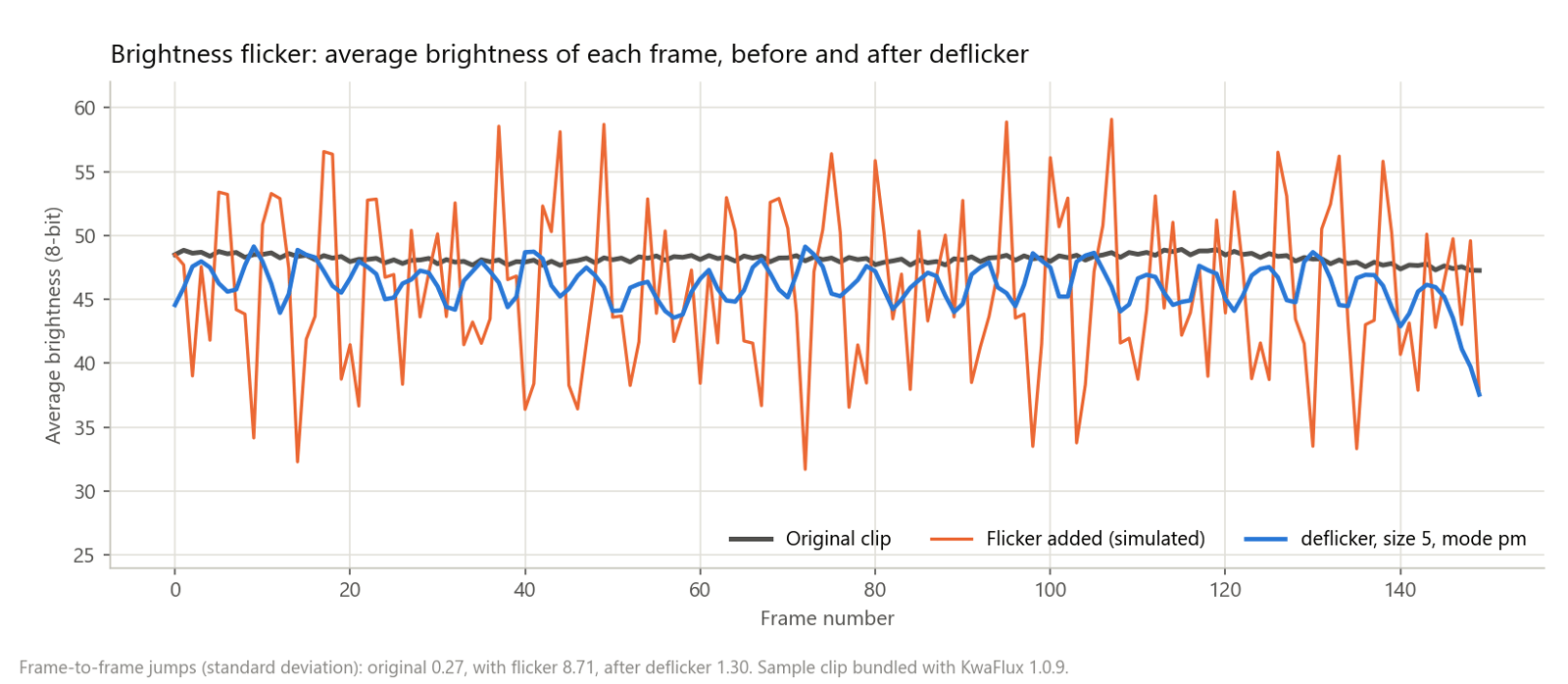
A wider window smooths more, but it also flattens brightness changes you want, such as a fade, a cloud passing, or a light switched on. Start with the default size of 5 frames:
ffmpeg -i input.mp4 -vf "deflicker=size=5:mode=pm" -c:v libx264 -crf 18 -c:a copy deflickered.mp4Deflicker evens out the whole frame. It can't fix bands that roll through the picture, which come from a rolling shutter catching the light mid-pulse; for those, matching the shutter speed to the light while shooting is the real fix.
Temporal denoising and ghost trails
Temporal denoising is powerful because noise changes from frame to frame and the scene mostly doesn't. The catch is in "mostly": wherever something moves, averaging the same pixel position across frames mixes in an object that has moved on, and leaves a ghost behind it.
We added noise to a smooth drone shot and compared plain frame averaging with an adaptive temporal filter that stops averaging where a pixel changes too much:
| Filter | PSNR against the clean clip |
|---|---|
| Noisy input | 30.3 dB |
tmix=frames=3 (plain average of 3 frames) | 29.8 dB |
tmix=frames=5 (plain average of 5 frames) | 28.1 dB |
hqdn3d=8:6:12:9 (spatial and temporal) | 33.0 dB |
atadenoise (adaptive temporal average) | 33.1 dB |
Plain averaging scored worse than doing nothing: the noise went down, but the smearing on the moving landscape cost more than it saved. On a faster subject, the trails are plain to see.
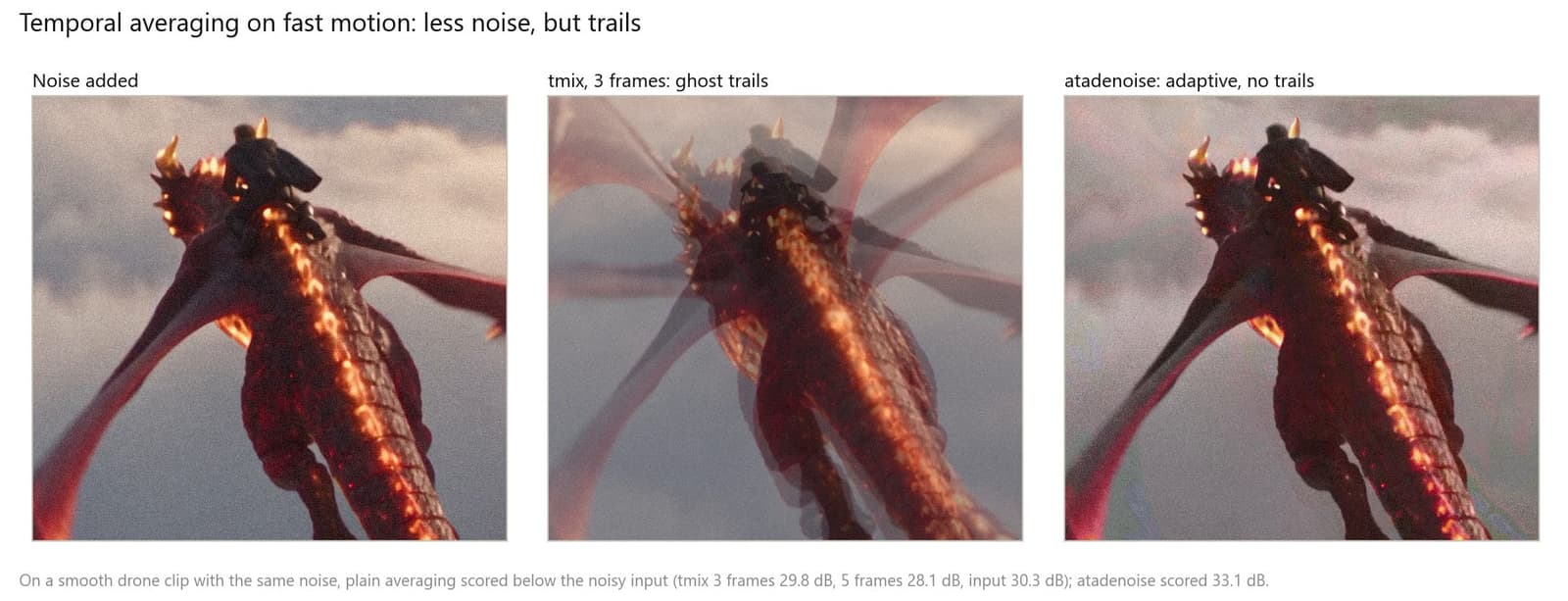
So use temporal filters that adapt to motion, keep their temporal strength moderate, and check moving edges, not just the flat background:
ffmpeg -i input.mp4 -vf "atadenoise=0a=0.1:0b=0.2:1a=0.1:1b=0.2:2a=0.1:2b=0.2" -c:v libx264 -crf 18 -c:a copy denoised.mp4The thresholds decide when atadenoise considers a pixel changed and stops averaging it. Higher thresholds remove more noise and risk more trails. For the spatial side of denoising, see denoise, deblock, sharpen, correct color.
Frame interpolation: duplicate, blend, motion-compensated, AI
Frame interpolation creates frames that the camera didn't record, to raise the frame rate or to slow motion down. There are four ways to make the in-between frame:
- Duplicate repeats the previous frame. Nothing new is invented, but motion stays as jerky as before.
- Blend mixes the two neighboring frames. Anything that moves appears twice, at half strength: the double image.
- Motion-compensated interpolation estimates where each block of pixels moves and draws it halfway along that path. Done well, the result is a single sharp object in the right place; where the estimate fails, at edges, occlusions, and repeated patterns, edges bend and fragments tear.
- AI interpolation estimates the motion with a network and synthesizes the frame. RIFE estimates intermediate flows directly and runs in real time on a GPU; FILM uses a single network built for large motion between frames.
To measure the first three, we dropped frames from two bundled sample clips, rebuilt them with FFmpeg, and compared the rebuilt frames with the real ones:
| Method | Smooth drone shot, 4× (6 to 24 fps) | Shaky handheld shot, 2× (15 to 30 fps) |
|---|---|---|
Duplicate (fps) | 26.9 dB | 24.2 dB |
Blend (framerate) | 29.6 dB | 25.5 dB |
Motion-compensated (minterpolate, mci) | 35.5 dB | 25.2 dB |
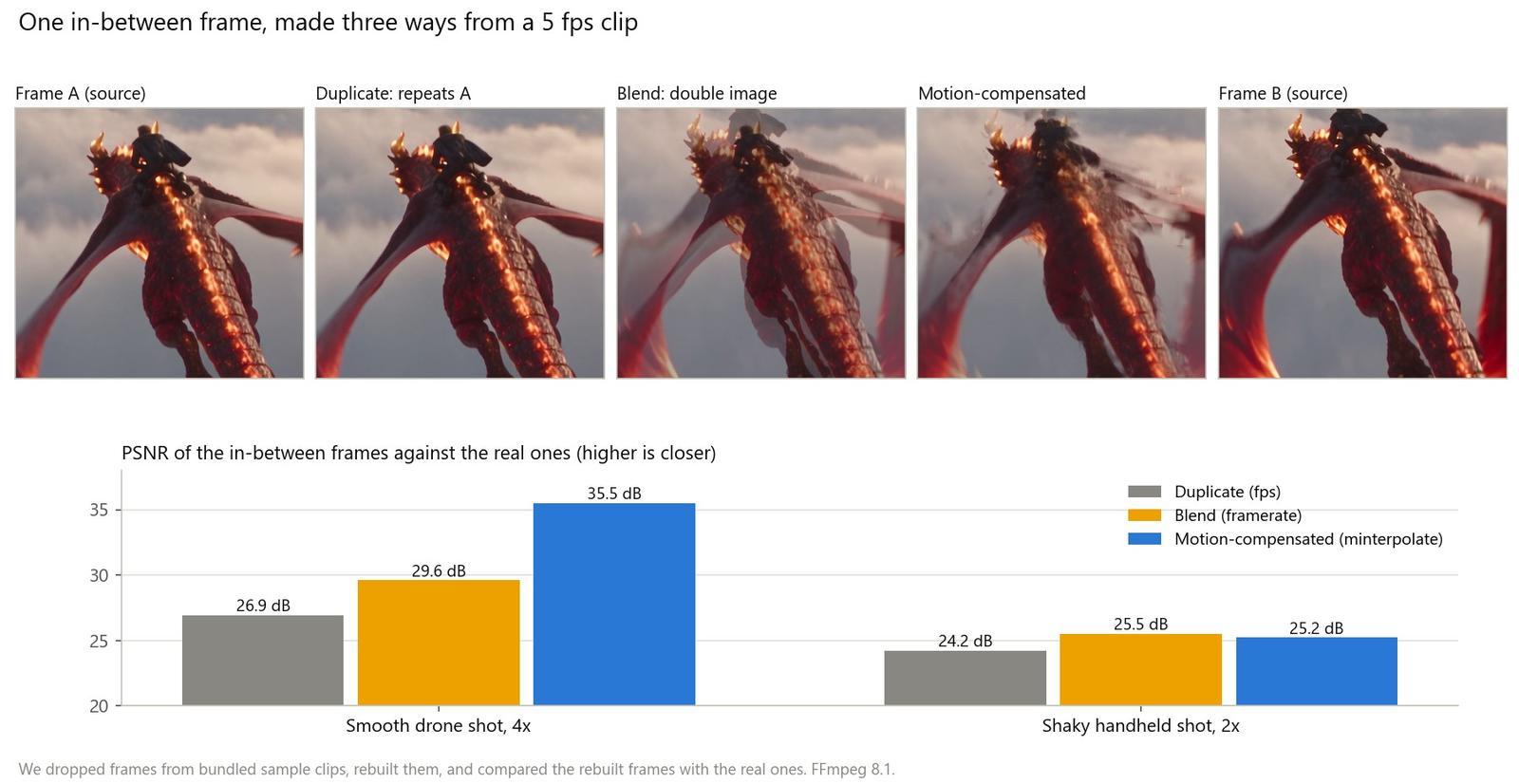
Two lessons. On smooth motion, motion compensation was far ahead: about 6 dB over blending. On shaky handheld footage, every method struggled, because interpolation assumes the motion between two frames is smooth, and shake reverses direction from frame to frame. If the camera shakes, stabilize the shot first with Video Stabilization or another stabilizer, then interpolate.
FFmpeg's motion-compensated mode, with scene-change detection so it doesn't morph across cuts:
ffmpeg -i input.mp4 -vf "minterpolate=fps=60:mi_mode=mci:mc_mode=aobmc:me_mode=bidir:vsbmc=1:scd=fdiff" -c:v libx264 -crf 18 -c:a copy smooth60.mp4It's slow on a CPU: on our laptop, 5 seconds of 1080p at 24 fps took 134 seconds to convert to 60 fps. The blend version is fast, and fine for slow pans where double images are hard to see:
ffmpeg -i input.mp4 -vf "framerate=fps=60" -c:v libx264 -crf 18 -c:a copy blend60.mp4Interpolation artifacts cluster in predictable places: fast hands and feet, spinning wheels, fences and other repeated patterns, objects passing in front of each other, and scene cuts. For when to raise the frame rate at all, see how to convert video to 60 fps.
How to check temporal consistency
You can't judge any of these failures from a still. Three checks catch most of them:
- Watch at the source frame rate, at 100% zoom. Look at flat areas for crawling texture, at moving edges for trails, and at new frames for double images.
- Plot the average brightness of each frame. A smooth line is fine; a sawtooth is flicker:
ffmpeg -i input.mp4 -vf "signalstats,metadata=print:key=lavfi.signalstats.YAVG:file=yavg.txt" -f null -The text file lists the average luma (YAVG) of every frame, ready for a spreadsheet chart.
- Look at the difference between consecutive frames. In a still scene, a processed clip should change no more than the source. Shimmer lights up as speckle in flat areas:
ffmpeg -i input.mp4 -vf "tblend=all_mode=difference,eq=contrast=4" -c:v libx264 -crf 18 -an diff.mp4Run the same commands on the source and the result, and compare.
What's changing
- Video models replace image models. Video super-resolution and restoration now propagate information across many frames rather than processing pairs, and diffusion-based upscalers add temporal layers or start from video generators so that detail is generated consistently over time.
- Interpolation is getting faster and handles larger motion. Real-time flow estimation (RIFE) and single-network designs for large motion (FILM) moved interpolation from offline experiments into players and editors.
- Consistency is measured, not assumed. Research on blind temporal consistency gave the field ways to quantify flicker, so it's becoming a reported metric next to sharpness.
How KwaFlux handles this
- Smart Repair works from neighboring frames. In Quality Repair, Smart Repair draws on neighboring frames instead of rebuilding each frame from scratch. Scene Repair types work frame by frame, so preview them in motion before you export.
- Frame Interpolation runs last. The Quality Repair workbench runs Deinterlacing, then Quality Repair, then Frame Interpolation, so new frames are made from the repaired picture. Choose 2x (the default), 3x, 4x, or a Custom target from 30 to 144 fps, with the General or Fast mode.
- Quality detection scores smoothness. Its Smoothness axis covers "stutter, jitter, flicker, and whether the frame rate is adequate," and it can suggest a target frame rate for interpolation.
- Preview at the real frame rate. AI previews are capped at 15 fps by default; choose Match source before you judge flicker or shimmer. Previews with interpolation play at the output frame rate.
- Fix source flicker first. For brightness flicker from lights or film, run the
deflickercommand above before you import, then repair and interpolate.
Common problems
| Problem | Likely cause | Fix |
|---|---|---|
| Restored texture boils in flat areas | Per-frame processing inventing detail | Use a multi-frame restorer, lower the strength, judge at the source frame rate |
| Whole picture pulses | Light or exposure flicker in the source | deflicker with a 5-frame window; match the shutter to the light next time |
| Faint copies trail behind movement | Temporal averaging without motion handling | Switch to an adaptive filter such as atadenoise; lower the temporal strength |
| Double images in new frames | Blended interpolation | Use motion-compensated or AI interpolation |
| Bent edges or torn fragments in new frames | Motion estimation failed at occlusions or repeated patterns | Lower the multiplier, or skip interpolation for that shot |
| A morph between two shots | Interpolation across a cut | Enable scene-change detection, or cut the clip first |
| Interpolation looks worse on shaky footage | Motion reverses between frames | Stabilize first, then interpolate |
What this can't do
- No interpolation recovers motion the camera didn't record. New frames are estimates, and fast or hidden motion is guessed.
- Deflicker can't fix rolling-shutter bands or brightness changes that differ across the frame.
- Temporal smoothing can't separate fast motion from noise. Push it far enough and moving detail smears.
- Multi-frame models reduce shimmer but can't remove it where alignment fails, such as in water, smoke, or crowds.
Final thoughts
Temporal consistency is what separates video that looks processed from video that looks filmed. Fix flicker at the source, choose filters and models that look across frames, keep strength moderate, and judge every result in motion at the source frame rate.
KwaFlux runs Frame Interpolation on your own GPU. AI processing runs locally on your GPU — media files are not uploaded for processing. It runs on Windows 10 (64-bit, version 1809 or later), Windows 11, and macOS 12 or newer on Apple Silicon. Previews need no account: render a 1-, 3-, or 5-second preview on any clip. Signing in with an active paid plan is required only to export, convert, repair a file, or download a file from a link.
Experience on Your Own Footage
Download KwaFlux and preview effects on your own footage for free before you pay — no account needed, and your media is processed on your GPU, not uploaded. Video previews run 1, 3, or 5 seconds; stabilization previews run 5, 15, or 30 seconds.
Frequently asked questions
Why does AI-enhanced video flicker?
Because the model processes each frame on its own and makes slightly different decisions every time, so texture and brightness change from frame to frame. Multi-frame models that reuse aligned neighboring frames reduce it, and lowering the strength helps.
Can FFmpeg remove flicker from a video?
Partly. The deflicker filter evens out whole-frame brightness changes and cut frame-to-frame jumps by about 85% in our test, but it can't fix rolling bands or texture that shimmers. Those need a steadier source or a multi-frame restorer.
Why does frame interpolation create ghosting?
Because blending two frames shows a moving object twice, and motion-compensated methods tear or bend edges where they misjudge motion, such as at occlusions or repeated patterns. Fast, shaky, or partly hidden motion is the hardest case; see how to convert video to 60 fps.
Is temporal denoising better than spatial denoising?
It depends on the motion. On static areas, averaging frames removes noise without softening detail; on motion, plain averaging leaves trails and, in our test, scored below the noisy input. Adaptive temporal filters combine the two and scored highest.
Should I stabilize before or after frame interpolation?
Before. Interpolation assumes the motion between two frames is smooth, and camera shake breaks that assumption. In our handheld test, motion compensation lost its lead over simple blending; stabilizing first gives it smooth motion to work with.
Sources
- Lai et al., "Learning Blind Video Temporal Consistency," ECCV 2018 (per-frame processing is inconsistent over time; short-term and long-term temporal losses) (accessed 2026-10-22)
- Lei, Xing, and Chen, "Blind Video Temporal Consistency via Deep Video Prior," NeurIPS 2020 (trained on one video pair, no optical flow) (accessed 2026-10-22)
- Huang et al., "Real-Time Intermediate Flow Estimation for Video Frame Interpolation" (RIFE) (accessed 2026-10-22)
- Reda et al., "FILM: Frame Interpolation for Large Motion" (single network for large motion) (accessed 2026-10-22)
- Chan et al., "BasicVSR++: Improving Video Super-Resolution with Enhanced Propagation and Alignment" (propagation across frames) (accessed 2026-10-22)
- Zhou et al., "Upscale-A-Video: Temporal-Consistent Diffusion Model for Real-World Video Super-Resolution" (temporal layers in a diffusion upscaler) (accessed 2026-10-22)
- Sony, "Understanding flicker" (fluorescent lights at 100 or 120 Hz, LED lighting faster; shutter speed and the flicker cycle) (accessed 2026-10-22)
- FFmpeg Filters Documentation (`deflicker`, `tmix`, `atadenoise`, `framerate`, `minterpolate`, `signalstats`, `tblend`) (accessed 2026-10-22)
MoMore in Motion & Stabilization
