How do I remove a video background without a green screen?
How AI-powered video cutout isolates subjects frame by frame for compositing, background replacement, and clean cutouts — without studio setup.
The short answer
You can remove a video background without a green screen by using AI cutout, which separates the person from an ordinary background and keeps edges consistent from frame to frame. Even light and a background unlike the hair color give cleaner edges; fine hair and fast motion remain the hardest cases. Locally, use AI Smart Cutout.
Green screen vs local AI cutout
The table below has the details; this is the quick version.
Green screen
Studio · even light · planned
- Precise edge control
- Needs kit + wardrobe
- Not for archival / UGC
Local AI cutout
Doc · outdoor · NDA · already shot
- No upload / metered cloud
- Preview hair & hands
- Export alpha to NLE
| Situation | Prefer |
|---|---|
| Controlled studio, even light, wardrobe planned | Green screen / chroma |
| Doc / outdoor / archival / UGC already shot | AI cutout in KwaFlux |
| NDA footage that cannot upload | Local AI — not a browser tool |
- Feature deep-dive: AI Smart Cutout
- Related cleanup: restore before cutout if the plate is noisy
- Try on your clip: download

Why green screens are not always an option
Chroma-key compositing with a green screen is the standard approach for isolating subjects in video. It works well in controlled environments — studios with even lighting, proper distance between subject and screen, and a color that does not appear in wardrobe or props.
But many real-world shooting situations cannot accommodate a green screen. Documentary footage, outdoor interviews, run-and-gun corporate video, user-generated content, and archival material were all shot without compositing in mind. Yet the need to isolate the subject — for background replacement, clean cutouts, or multi-layer composites — comes up constantly in post-production.
AI-powered video cutout solves this by analyzing each frame and generating a per-pixel alpha matte based on the visual difference between the subject and the background. No physical screen, no special lighting, no advance planning.
How AI cutout works
The matting model processes each frame independently (or with temporal smoothing across frames) to classify every pixel as foreground, background, or an intermediate transparency value. The result is an alpha channel — a grayscale image where white is fully opaque (subject) and black is fully transparent (background).
Modern cutout models handle the hard cases that chroma-key struggles with: fine hair strands, semi-transparent fabric, glasses reflections, and motion blur at the edges. They are not perfect: very thin structures, or subjects that closely match the background color, can still produce rough edges, so check those frames in a preview before a full render.
KwaFlux's cutout module applies these models to video at full resolution on your GPU.
Common use cases
Background replacement is the most obvious application — placing a speaker in front of a branded backdrop, putting an interview subject into a different environment, or creating a thumbnail with a clean isolated figure.
Social media content creation uses matting heavily. Short-form video platforms reward visual variety, and the ability to quickly isolate a subject and place them in a new context speeds up the production cycle significantly.
VFX compositing benefits from AI cutout when the original shoot did not use a green screen. Instead of spending hours rotoscoping by hand, a production assistant can run the footage through the cutout module, check free 1s/3s/5s previews, and export a usable alpha channel.
Archival and documentary work sometimes needs to isolate a historical figure from their surroundings for a motion-graphics sequence. AI cutout makes this feasible even when the source footage is low-resolution or heavily compressed.
Getting clearer results
The quality of the matte depends on how clearly the subject separates from the background in the original footage. High contrast between subject and background produces cleaner edges. Uniform, out-of-focus backgrounds are easier than busy, textured ones.
Lighting matters even without a green screen. Subjects lit from the front with the background slightly darker or lighter produce better mattes than subjects silhouetted against a bright window or standing in front of a similarly-colored wall.
In KwaFlux, run free 1s/3s/5s previews before a full render — check edges around hair, fingers, and any semi-transparent elements. If the edges are rough, try processing at native resolution rather than upscaling first — cutout models work more cleanly on clean, unscaled input.
Exporting and compositing
On an active paid plan, KwaFlux exports matted video with an embedded alpha channel in formats compositing software expects — ProRes 4444 MOV or WebM with alpha. Import the result into After Effects, Fusion, Nuke, or any NLE that supports alpha channels, and layer it over your new background.
For a quick background swap without a separate compositor, choose a solid color, an image, or a blur as the background in AI Smart Cutout and export the finished composite in one step.
Try It on Your Own Footage
Download KwaFlux and preview effects on your own footage for free before you pay — no account needed, and your media is processed on your GPU, not uploaded for processing. Video previews run 1, 3, or 5 seconds; stabilization previews run 5, 15, or 30 seconds.
Frequently asked questions
Do I need a green screen to remove a video background?
No. AI cutout separates people from ordinary backgrounds and keeps neighboring frames consistent, so edges flicker less than a photo tool run frame by frame. Fine hair against a busy background and fast motion blur are still the hardest cases.
Can I export the cutout with a transparent background?
Yes. Transparent exports use MOV with ProRes 4444 — for editors such as Premiere Pro, DaVinci Resolve, or After Effects — or WebM with VP9 for lighter web use.
Why do hair edges shimmer after background removal?
Fine hair, motion blur, and busy backgrounds give the model mixed signals from frame to frame. Light the subject evenly, avoid backgrounds close to hair color, and check the worst frames on a preview before the full export.
Sources
- Sengupta et al. (2020), Background Matting: The World is Your Green Screen (accessed 2026-10-11)
- Xu et al. (2017), Deep Image Matting (accessed 2026-10-11)
- Apple: Apple ProRes white paper (accessed 2026-10-11)
Related articles
AI Smart Cutout
Isolate subjects without a green screen
OpenHow do I put an AI-generated character into live-action footage?
No green screen needed: isolate AI characters frame-by-frame on your GPU and composite them cleanly into live-action NLE timelines.
OpenSky Replace
Swap the sky
OpenTalking-head background
Replace talking-head backgrounds locally
OpenCtMore in Cutout & Cleanup
Keep reading
Halloween Party Cleanup: Remove Photobombers and Background Noise with AI
A stranger's legs in your costume photo, a toast lost in party noise: how to remove photobombers and clean up Halloween party audio, and what AI can't fix.
Spooky Halloween Video Effects with AI: Slow Motion, Haunted Backgrounds, and Stormy Skies
Make ordinary Halloween clips spooky: AI slow motion for a cape or a flame, a moonlit pumpkin background behind a costume, and storm clouds over the house.
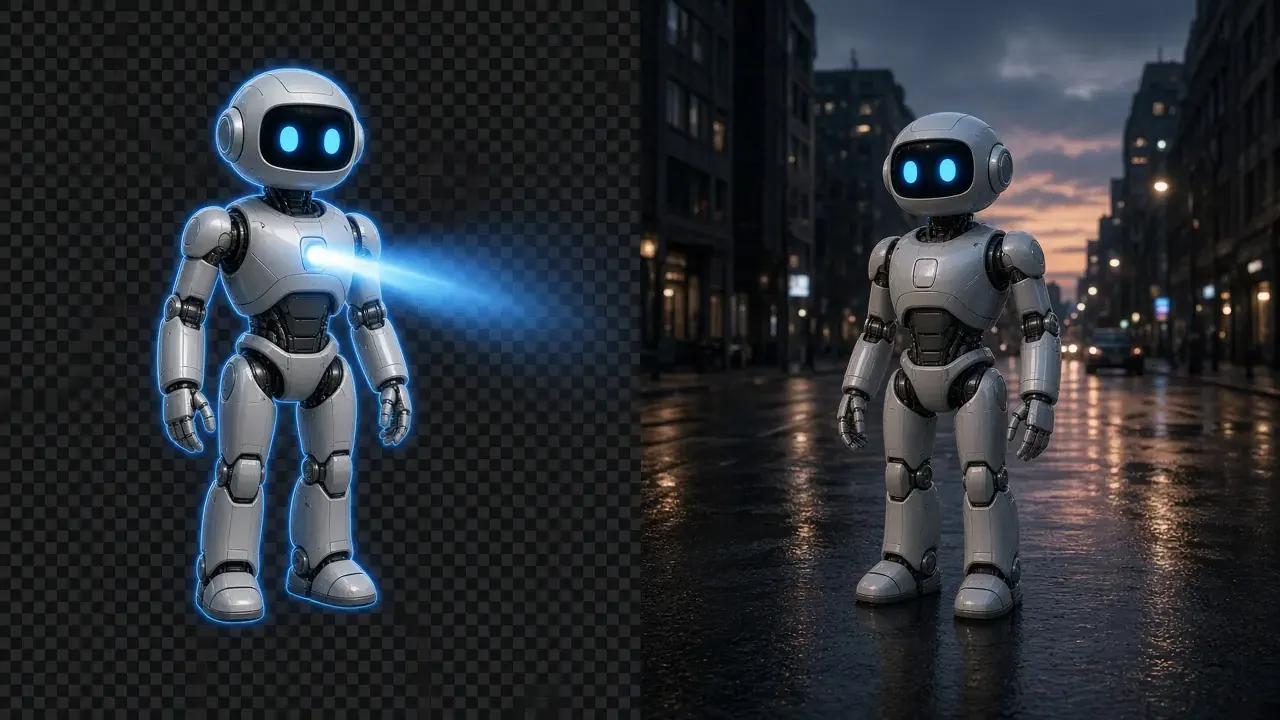
How do I put an AI-generated character into live-action footage?
No green screen needed: isolate AI characters frame-by-frame on your GPU and composite them cleanly into live-action NLE timelines.