Spooky Halloween Video Effects with AI: Slow Motion, Haunted Backgrounds, and Stormy Skies
Make ordinary Halloween clips spooky: AI slow motion for a cape or a flame, a moonlit pumpkin background behind a costume, and storm clouds over the house.
Key takeaways
- Three AI effects do most of the work for spooky Halloween clips: slow motion, a new background behind a person or a pet, and a new sky.
- Slow motion suits short moments with clear motion, like a cape swirl, a swing, or a flame. Pick 2x or 4x for most clips.
- A background swap puts your costume in front of a moonlit pumpkin scene; KwaFlux ships one called Halloween night.
- A sky swap turns a flat gray afternoon into storm clouds, and suits daytime clips with open sky.
- Fix shake and darkness first, then add the effect.
You can make ordinary Halloween clips spooky with three AI effects: slow motion for a dramatic moment, a new background behind a person or a pet, and a stormy sky over a decorated house. Each one works on footage you already shot, and none of them needs a green screen.
In this guide, you'll learn which effect suits which clip, how to make each one in KwaFlux, and where they struggle, so you can pick your shots before you start.
Halloween offer: from October 24 to November 2, the KwaFlux Perpetual License is $169.99 instead of $199.99, and the yearly and monthly plans have a lower first-year and first-month price. The full offer is at the end of this post.
Contents
- What are AI video effects?
- Which effect fits your clip?
- Effect 1. AI slow motion
- Effect 2. A Halloween background behind a person
- Effect 3. A Halloween background behind a pet or a prop
- Effect 4. A stormy sky
- What these effects can't do
- KwaFlux Halloween offer
- FAQ
What are AI video effects?
AI video effects are edits that a model makes by understanding the picture: it can tell a person from the background, the sky from the trees, or how a hand moves between two frames. That's why you can swap a background without a green screen or slow down a clip that was shot at a normal frame rate.
For Halloween, the effect is only half the job. The other half is choosing a clip the model can read clearly.
Which effect fits your clip?
| Effect | Works on | Good Halloween shots | Struggles with |
|---|---|---|---|
| AI Slow Motion | Video | Cape swirl, swinging prop, leaves kicked up, a flame, a jump scare reaction | Strobe lights, fast flicker, crowds crossing each other |
| Portrait Background Removal | Video and photos | A costume portrait, a selfie video, a short greeting to camera | Fog, smoke, veils, and long loose hair at the edges |
| Object Background Replace | Video and photos | A pet in costume, a carved pumpkin, a prop | Subjects that blend into the background |
| Sky Replace | Video | A decorated house or yard in daylight with open sky | Night shots, scenes with little or no sky, dense branches |
Effect 1. AI slow motion
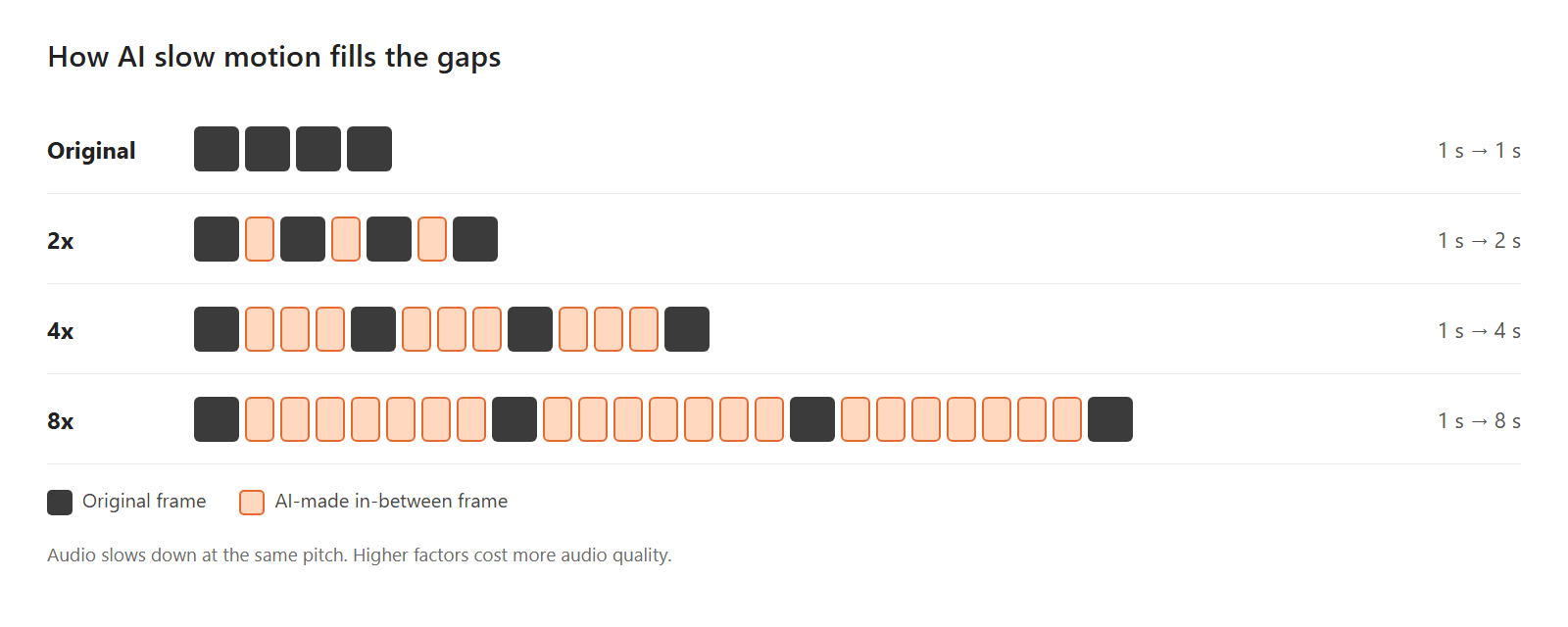
Slowing a clip down by playing it slower shows the same frames for longer, so motion stutters. AI slow motion makes new in-between frames instead, so the slowed clip stays smooth.
- Open AI Slow Motion. In the sidebar, open AI Toolbox, go to Smart Effects, and click AI Slow Motion ("Slows the action with AI-made in-between frames").
- Import a short clip. Two to five seconds around the moment is plenty. Slow motion stretches time, so a 3-second cape swirl becomes 12 seconds at 4x.
- Choose the Slow-down Factor. 2x, 4x, or 8x. As the panel puts it, 4x turns 1 second into 4 seconds. 2x or 4x looks natural on most phone clips; keep 8x for very short, clean moments.
- Choose the Interpolation Mode. General is the default and handles large motion and things passing in front of each other more naturally. Fast is slightly quicker at 1080p and fine for gentle motion.
- Preview the peak of the action. Step through it frame by frame and look at hands, edges of capes, and the background right behind them.
- Check the sound. Audio slows down at the same pitch, and higher factors cost more audio quality. Many creators mute a 4x or 8x clip and add music.
- Export. The frame rate of the export is set by the factor, so there's nothing else to choose there.
Pro tip: Stabilize before you slow down. Shake gets more noticeable in slow motion; see how to stabilize shaky Halloween videos.
Effect 2. A Halloween background behind a person
Portrait Background Removal "cuts out people and swaps in any image or video background", on video and on photos.
- Open it. Go to AI Toolbox › Segment & Replace and choose Portrait Background Removal.
- Import your clip or photo. A costume portrait or a short greeting to camera works well, especially with a plain wall behind.
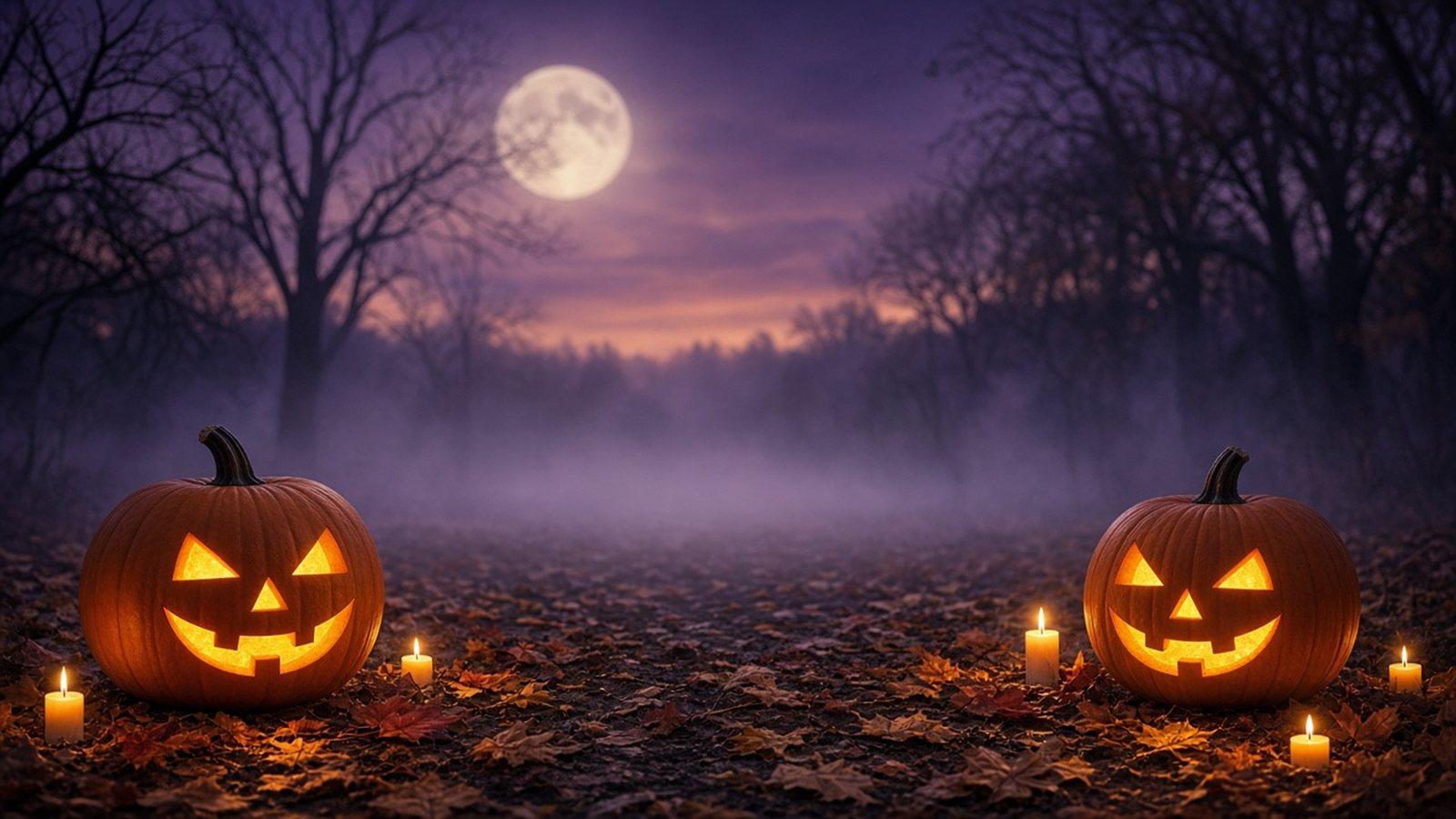
- Open the Gallery. Under Background Options, set the Background type to Gallery, open the Holiday category, and pick Halloween night: a full moon over a misty forest with two glowing jack-o'-lanterns. You can also pick a Local image of your own (PNG, JPG, BMP, or WEBP).
- Turn on Smart Color Blend. It matches the color temperature and tone of the person to the new background, so a person lit by a white kitchen light doesn't look pasted onto a purple night.
- Adjust the edges if needed. Matting Sensitivity trades edge detail for a cleaner cutout: lower keeps more of the hair, higher cuts tighter.
- Preview and export. For photos, the Quality Tier can be Fast or High Quality; video uses General.
Sidenote: Want to composite the person yourself? Choose Transparent as the background type. Transparent video exports as MOV with Apple ProRes 4444 or as WebM with VP9, the two formats that keep the alpha channel.
For more on background swaps, see how to replace a video background without a compositor.
Effect 3. A Halloween background behind a pet or a prop
Portrait tools look for people. For a dog in a pumpkin costume or a carved jack-o'-lantern, use Object Background Replace, which keeps any subject you click.
- Open it. Go to AI Toolbox › Segment & Replace and choose Object Background Replace ("Pick a subject, keep it and replace the background").
- Click the subject. Left-click to select it and right-click to exclude areas that got included by mistake, such as a leash or a person's hand. Press Regenerate after changing your clicks.
- Check the mask. The mask preview shows what will stay. Include the whole costume, ears, and tail.
- Pick the background. The same Background Options apply: Gallery › Holiday › Halloween night, a local image, a solid color, blur, or transparent.
- Export. In video, AI tracks the subject from the frame you clicked.
Effect 4. A stormy sky
Sky Replace "finds the sky and swaps in clear blue or a sunset", and it has darker options too. It works on video.
- Open it. Go to AI Toolbox › Segment & Replace and choose Sky Replace.
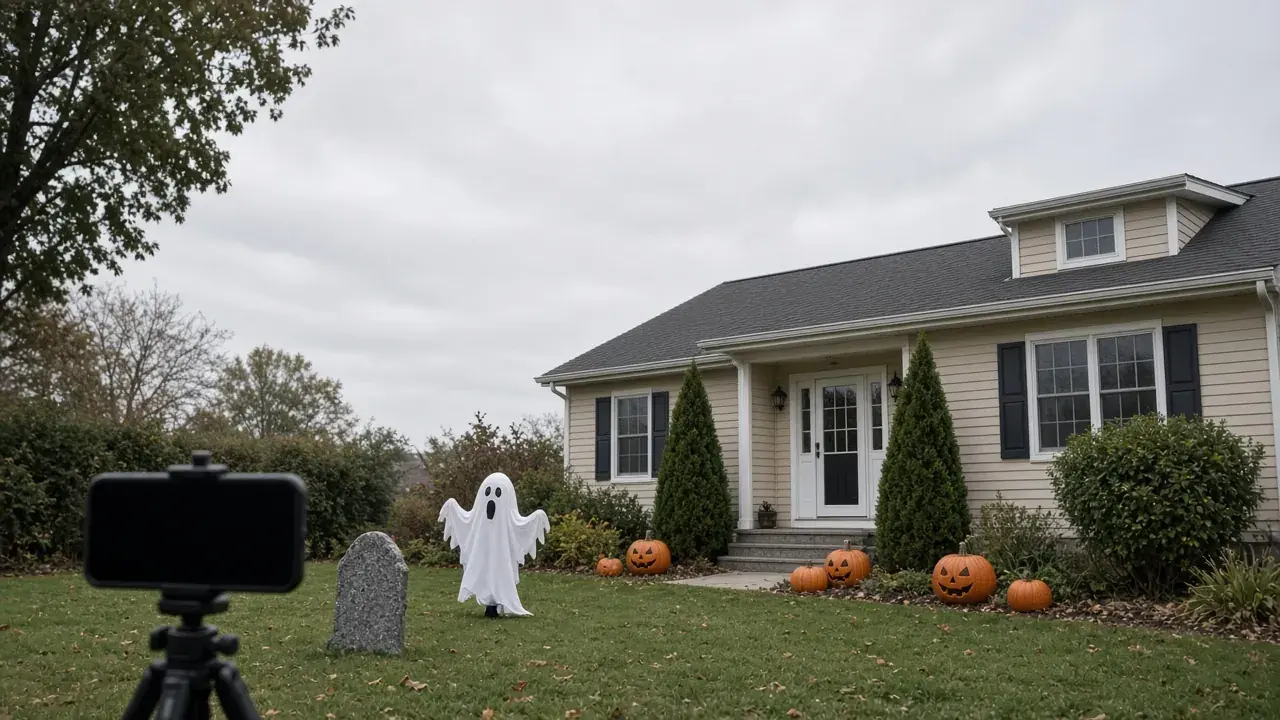
- Import a daytime clip with open sky. A decorated house, a pumpkin patch, or a cemetery-style yard under a flat white sky is ideal.
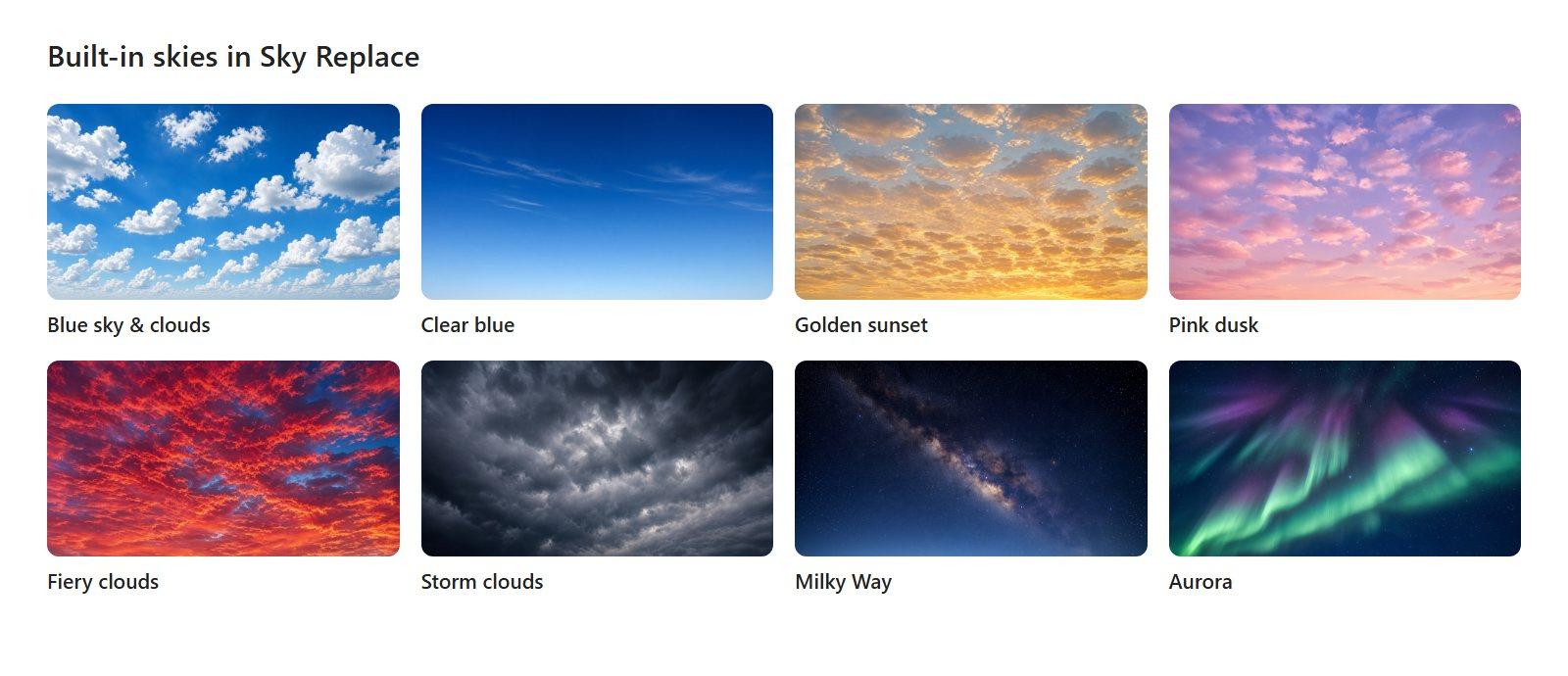
- Pick the sky. Under Sky Image, the Built-in skies include Storm clouds, Fiery clouds, and Milky Way. A Local image works too; the sky image is stretched to fill the frame, so use a 16:9 image that shows only sky.
- Keep Match Sky to Scene on. It adjusts the new sky's brightness and color to the rest of the picture and leaves the foreground unchanged.
- Preview and export. Look along rooftops, tree lines, and inflatable decorations, where sky and foreground meet.
For more on sky swaps, see how to replace the sky in a video.
What these effects can't do
- Slow motion can't recover motion that wasn't recorded. If a fast movement is a blur in the original, the in-between frames will be blurry too. Shoot in good light for slow-motion moments.
- Strobes and flicker confuse interpolation. A flashing light changes the whole frame between two frames, so the model may blend or smear it.
- Fog, smoke, and veils are hard to cut out. They're partly see-through, so a new background shows through in odd ways.
- A sky swap doesn't relight the scene. Storm clouds over a sunny yard can look off, because shadows on the ground stay sharp. Pick overcast footage.
- Night skies are a poor match for Sky Replace. In a dark clip, the model has little sky to find. For night shots, brighten them first; see how to brighten dark Halloween photos and videos.
KwaFlux Halloween offer
From October 24 to November 2, 2026, KwaFlux is on sale. Every plan includes every feature and works on 2 computers at once, Windows and Mac in any mix.
| Plan | Halloween price | After the offer |
|---|---|---|
| Perpetual License | $169.99 one-time, instead of $199.99 | No renewal: you pay once |
| Yearly | $79.99 for the first year | Renews at $99.99 a year |
| Monthly | $29.99 for the first month | Renews at $35.99 a month |
Prices exclude tax. The Perpetual License includes free updates within the current major version. Details are on the plans page.
Final thoughts
Good spooky effects start with the right clip: clear motion for slow motion, a clean outline for a background swap, and open daytime sky for a storm. Fix shake and darkness first, add one effect, and preview the hardest frames before you export.
Make your Halloween clips spookier
KwaFlux runs background removal, sky replacement, and AI slow motion on your own computer. AI processing runs locally on your GPU — media files are not uploaded for processing. It runs on Windows 10 (64-bit, version 1809 or later), Windows 11, and macOS 12 or newer on Apple Silicon. Previews need no account: the whole picture for photos, and 1, 3, or 5 seconds for video. Signing in with an active paid plan is required only to export, convert, repair a file, or download a file from a link.
Try It on Your Own Footage
Download KwaFlux and preview effects on your own footage for free before you pay — no account needed, and your media is processed on your GPU, not uploaded for processing. Video previews run 1, 3, or 5 seconds; stabilization previews run 5, 15, or 30 seconds.
Frequently asked questions
How do I make a Halloween video look spooky?
Pick one strong effect and keep the rest simple. A slowed-down cape or flame, a dark background behind your costume, or storm clouds over the house each set a mood, while cool, darker color and quiet sound do the rest. Too many effects at once look busy rather than scary.
What frame rate should I film for slow motion?
As high as your phone allows in good light. 60 fps gives AI slow motion twice as many real frames to work from as 30 fps, so 4x looks smoother. In the dark, a higher frame rate means a darker clip, so use it where there's light.
Can I put a Halloween background behind me without a green screen?
Yes. AI background removal separates a person from the background in ordinary footage. Stand a little away from the wall, avoid backlight from a window, and keep loose hair and props inside the frame for cleaner edges. See how to replace a video background.
Can I change the sky in a photo?
It depends on the tool. Some sky tools work on video only, so check before you start. For a photo, a background replacement tool that keeps the person or object you select can put a new scene, including a night sky, behind it.
Why does my slow-motion video look warped?
Usually because something passed in front of something else, or the motion was blurred in the original. The model has to guess what was hidden. Try a lower factor, a shorter clip, or a shot with clearer motion.
Is it okay to use these effects on photos of other people's kids?
Yes, with their parents' permission. Background and sky swaps change where someone appears to be, and Halloween photos often include other families' children. Ask before you share edited photos of them.
CtMore in Cutout & Cleanup
Keep reading
Halloween Party Cleanup: Remove Photobombers and Background Noise with AI
A stranger's legs in your costume photo, a toast lost in party noise: how to remove photobombers and clean up Halloween party audio, and what AI can't fix.
How do I put an AI-generated character into live-action footage?
No green screen needed: isolate AI characters frame-by-frame on your GPU and composite them cleanly into live-action NLE timelines.
How to remove an object from video — locally, not in the cloud
Dynamic Tracking Removal follows a person or car as it moves. Static Object Removal fills in things that stay put. Both erase only the objects you mark in your own footage.