Halloween Party Cleanup: Remove Photobombers and Background Noise with AI
A stranger's legs in your costume photo, a toast lost in party noise: how to remove photobombers and clean up Halloween party audio, and what AI can't fix.
Key takeaways
- After a Halloween party, two problems show up most: strangers or clutter in your favorite photos, and speech you can't hear in your videos.
- AI removal fills in what was behind a stranger, a trash bag, or an extension cord. It works well when the object is small and the background is simple.
- Match the audio tool to the noise: denoising for wind, hiss, and hum; voice enhancement for echo; vocal separation when music drowns the voice.
- No tool can pull one voice out of a crowd of other voices.
- Keep the original files. Cleanup is for memories, not for changing what happened.
The two most common Halloween party problems are a stranger in your favorite photo and a speech you can't hear in your video. AI removal fills in what was behind a photobomber, and AI audio tools lift a voice out of wind, hum, echo, or music, as long as the problem is small next to what you keep.
In this guide, you'll learn how to remove photobombers and clutter from Halloween photos and videos, which audio tool fits which kind of party noise, how to do both in KwaFlux, what they did on real Halloween footage, and how to shoot cleaner next time.
Halloween offer: from October 24 to November 2, the KwaFlux Perpetual License is $169.99 instead of $199.99, and the yearly and monthly plans have a lower first-year and first-month price. The full offer is at the end of this post.
Contents
- What is AI object removal?
- What can you remove from a party photo?
- How to remove photobombers from Halloween photos in KwaFlux
- Remove a passerby from a party video
- Which audio fix does your party video need?
- How to clean up Halloween party audio in KwaFlux
- Before and after: an outdoor speech
- What cleanup can't fix
- Tips for cleaner party photos and video
- KwaFlux Halloween offer
- FAQ
What is AI object removal?
AI object removal erases something you mark in a photo or video and fills the gap with what the model predicts was behind it. A clone stamp copies pixels from somewhere else by hand; a removal model looks at the whole picture and paints in pavement, grass, or wall that fits.
At a Halloween party, that "something" is usually a stranger's legs, a bright exit sign, a trash bag, or the cord of a fog machine.
What can you remove from a party photo?
| What's in the way | Size in the frame | How well removal works |
|---|---|---|
| Cord, cup, sign, trash bag | Small | Usually well |
| A stranger's legs or arm at the edge | Small to medium | Usually well on plain ground |
| A whole person behind your group | Medium | It depends on what's behind them |
| A person overlapping your subject | Medium to large | Poorly: the model has to invent part of your subject |
| Most of the background | Large | Use a background swap instead, see spooky Halloween video effects |

How to remove photobombers from Halloween photos in KwaFlux
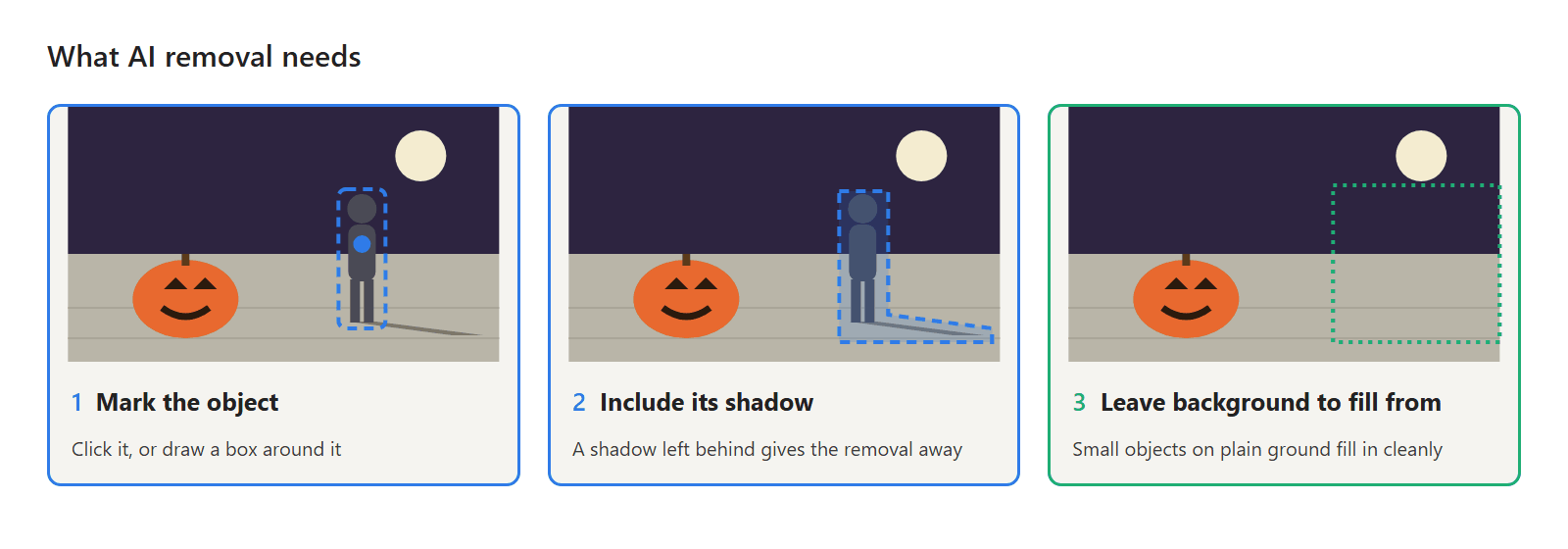
- Open Static Object Removal. In the sidebar, open AI Toolbox › Object Removal and choose Static Object Removal ("Box or click fixed clutter like signs or wires to remove it"). It works on photos and on objects that stay in place in a video.
- Import the photo. Use the original, not a chat copy.
- Choose the Marking Method. Points builds a mask from your clicks: left-click the object and right-click to exclude anything that got included by mistake, such as your own dog's tail. Box draws a rectangle around it.
- Include shadows and reflections. Click the stranger's shadow too. A shadow left on the pavement is the clue that gives a removal away.
- Check the Mask List. Every mask you make is listed there, and "all masks will be merged for processing during export". Use Clear Markers to start over and Regenerate to rebuild the mask.
- Pick the Repair Tier. Quick Repair is faster, Standard Repair is the usual choice, and High Quality Repair takes longer for better results.
- Export. Choose the Output Format and Export Quality, keep Output Resolution at Original (1x), and under Metadata choose Keep camera info or Remove all.
Pro tip: Remove one thing per pass on busy photos. Export, open the result, and mark the next object. Each pass then has more real background to fill from.
Remove a passerby from a party video
For video, the choice depends on whether the thing moves.
- It stays put (a sign, a cooler, a parked stroller): use Static Object Removal on the video, the same way as on a photo.
- It moves (a person walking through the shot): use Dynamic Tracking Removal ("Click the target on the first frame; AI tracks and removes it frame by frame, with mid-stream correction"). It carries an Experimental badge, so test a few seconds before you export the whole clip.
Mark the person on the first frame where they appear, include anything they carry, and check the moments where they pass behind someone else. For a full walkthrough, see how to remove an object from a video.
Which audio fix does your party video need?
| What you hear | Likely cause | Tool to try |
|---|---|---|
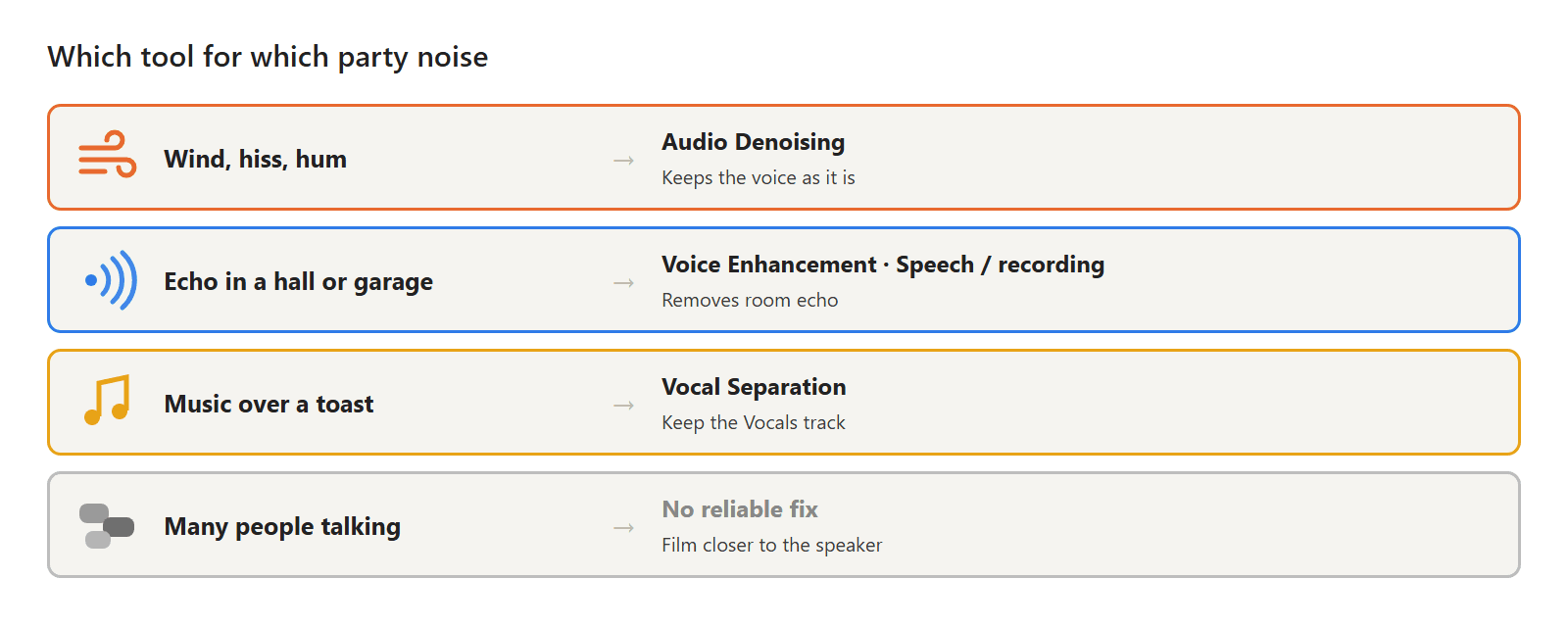
| Wind rumble on an outdoor trick-or-treat walk | Wind on the phone's mic | Audio Denoising |
| Steady hiss or hum from a fog machine or lights | Electrical or fan noise | Audio Denoising |
| Voice sounds hollow and distant in a garage or hall | Room echo | Voice Enhancement, with Speech / recording |
| A toast or costume contest drowned out by music | Music louder than the voice | Vocal Separation, then keep the Vocals track |
| Many people talking at once | Other voices | Nothing reliable: voices can't be told apart |
How to clean up Halloween party audio in KwaFlux
All three tools are under AI Toolbox › Audio Enhancement in KwaFlux's audio tools, and they work on video files as well as audio.
- Open the tool and import the video. Start with Audio Denoising ("Removes background hiss, wind and electrical hum") for outdoor wind and steady noise. It's fully automatic, with nothing to tune, and keeps the voice as it is.
- For echo, use Voice Enhancement. Set the Material to Speech / recording, which removes room echo, and adjust the Enhancement Strength: lower values keep more of the original tone.
- For music, use Vocal Separation. It "splits vocals and backing music into two tracks", Vocals and Background. Under Export Tracks, keep the vocals, or keep both and lower the music in your editor. Lyrics count as vocals, so a song with singing stays in the vocal track.
- Limit the range if needed. Processing Range is set to Whole clip; drag on the waveform to switch to Selection only, for example just the toast.
- Preview and compare. Click Preview first Ns (5 to 30 seconds from the start, depending on length) and use Compare to switch between original and processed at the same point.
- Export with the picture. In the export settings, pick an Output Format marked With video to keep the picture, or an audio format for the sound alone.
Pro tip: If a clip has both wind and echo, run Audio Denoising first, then Voice Enhancement on the result. Each tool then has one job to do.
For more on noisy video, see how to remove background noise from video and how to make dialogue clearer.
Before and after: an outdoor speech
The speech comes from a public-domain U.S. Navy video of an open-base trick-or-treat night. We only cut the video. The credit is under Sources. The results are straight exports from KwaFlux 1.0.14.
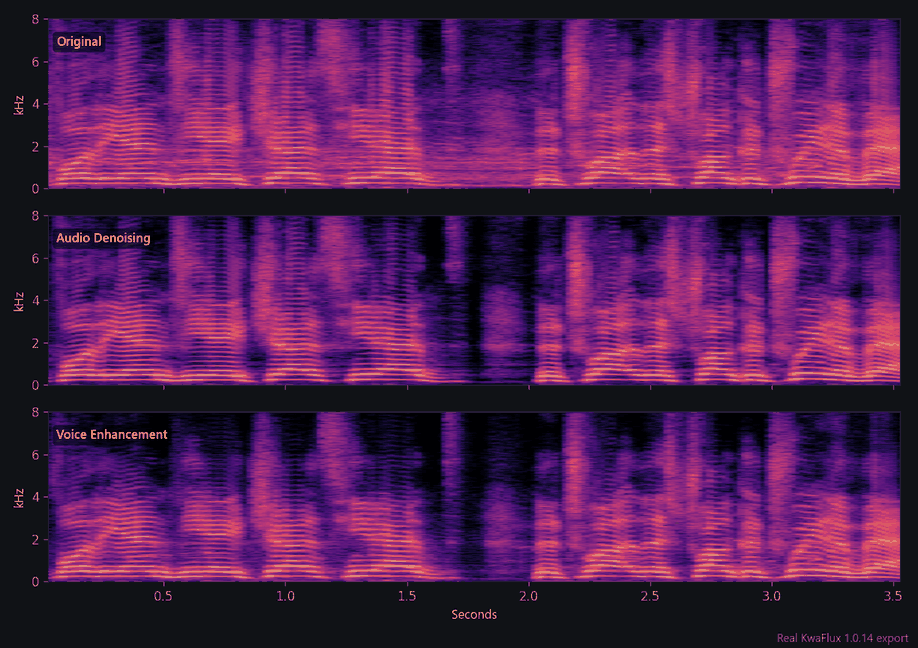
A speech at a busy outdoor event. In a spectrogram, the voice shows as stacked horizontal bands and noise as a gray haze around them. Audio Denoising darkened the haze between words, most visibly between 1.6 and 2 seconds, and Voice Enhancement cleared more of it above the voice bands. A spectrogram shows the noise, not how natural the voice sounds, so listen to both before you pick.
What cleanup can't fix
- A stranger over your subject. If a passerby covers half of your kid's costume, the model has to invent that half. Look for another frame instead.
- Large crowds behind you. Removing ten people leaves too little real background to fill from. A background swap or a crop works better.
- One voice among many. Audio tools tell a voice from noise and from music. They can't tell your friend's voice from the person next to them.
- Clipped audio. If the voice was so loud it distorted, the distortion is part of the recording. Denoising won't undo it.
- Changing what happened. Removing a person who was part of the moment changes the record of the event. Keep the original, and don't edit people out of photos you share as news or evidence.
Tips for cleaner party photos and video
- Take one step. Moving one step left or crouching down often removes a stranger, a sign, or a cord from the frame before you press the shutter.
- Shoot a burst. People walk through the background; one of ten frames will be clear.
- Get close to the speaker. The phone's mic is the most important part of a party video. Half the distance is a big improvement in clarity.
- Ask for the music to go down. For a toast or a costume contest, ten seconds of quieter music is easier than any fix afterward.
- Block the wind. Turn your back to the wind and keep a finger off the mic hole.
For the rest of the night's photos and videos, see our Halloween photo and video editing guide.
KwaFlux Halloween offer
From October 24 to November 2, 2026, KwaFlux is on sale. Every plan includes every feature and works on 2 computers at once, Windows and Mac in any mix.
| Plan | Halloween price | After the offer |
|---|---|---|
| Perpetual License | $169.99 one-time, instead of $199.99 | No renewal: you pay once |
| Yearly | $79.99 for the first year | Renews at $99.99 a year |
| Monthly | $29.99 for the first month | Renews at $35.99 a month |
Prices exclude tax. The Perpetual License includes free updates within the current major version. Details are on the plans page.
Final thoughts
Party cleanup works when the problem is small: a stranger's legs at the edge, a steady hum, a song under a toast. Mark carefully, include shadows, match the audio tool to the noise, and keep the original files.
Clean up your Halloween party photos and videos
KwaFlux runs object removal and audio enhancement on photos, videos, and audio on your own computer. AI processing runs locally on your GPU — media files are not uploaded for processing. It runs on Windows 10 (64-bit, version 1809 or later), Windows 11, and macOS 12 or newer on Apple Silicon. Previews need no account: the whole picture for photos, 1, 3, or 5 seconds for video, and the opening 5 to 30 seconds for audio. Signing in with an active paid plan is required only to export, convert, repair a file, or download a file from a link.
Try It on Your Own Footage
Download KwaFlux and preview effects on your own footage for free before you pay — no account needed, and your media is processed on your GPU, not uploaded for processing. Video previews run 1, 3, or 5 seconds; stabilization previews run 5, 15, or 30 seconds.
Frequently asked questions
How do I remove a person from a photo?
Mark the person, including their shadow, and let an AI removal tool fill in the background. It works well when the person is small and the background is simple, like pavement or grass. If they overlap your subject, pick another frame.
Can you remove a photobomber from a group photo?
Usually, if they're behind the group and not overlapping anyone. Mark them, check the edges of the people next to them after the removal, and zoom in on any repeated patterns in the background.
How do I get rid of wind noise in a video?
Use an AI denoiser that targets wind, hiss, and hum; it lowers the rumble and keeps the voice. Next time, turn your back to the wind and keep fingers off the mic. More in how to remove wind noise from video.
Why does my party video sound so echoey?
Because hard walls, floors, and ceilings bounce the sound back to the mic, and a phone across the room hears more echo than voice. A voice enhancement tool can reduce the echo, but filming closer to the speaker helps more.
Can AI separate a voice from music?
Usually, yes. Vocal separation splits a recording into vocals and backing music, so you can lower the music under a toast or an announcement. Singing counts as vocals too, so it stays in the vocal track.
Can AI remove crowd noise but keep one person talking?
Partly. It can reduce steady noise and music, but other people talking are voices too. The closer the speaker was to the phone, the better the result.
Sources
CtMore in Cutout & Cleanup
Keep reading
Spooky Halloween Video Effects with AI: Slow Motion, Haunted Backgrounds, and Stormy Skies
Make ordinary Halloween clips spooky: AI slow motion for a cape or a flame, a moonlit pumpkin background behind a costume, and storm clouds over the house.
How do I put an AI-generated character into live-action footage?
No green screen needed: isolate AI characters frame-by-frame on your GPU and composite them cleanly into live-action NLE timelines.
How to remove an object from video — locally, not in the cloud
Dynamic Tracking Removal follows a person or car as it moves. Static Object Removal fills in things that stay put. Both erase only the objects you mark in your own footage.