How to Test Any KwaFlux Tool for Free Before You Buy
No account or card needed: what you can test in KwaFlux for free, how long each preview runs, how to judge a result fairly, and what a plan adds.
Key takeaways
You can test KwaFlux's AI tools on your own footage before you buy anything. Download the app, import a clip, and render short previews of the result: no account, no card, and no time limit. The useful part is how you test.
Pick the hardest few seconds of the clip you actually need to fix, compare the preview with a plain resize at the same size, and watch it at the real frame rate.
- You can test KwaFlux without an account or a card: import your own files, run quality detection, and render previews.
- Previews run 1, 3, or 5 seconds on video modules; 5, 15, or 30 seconds for Video Stabilization; the whole picture for images; and the opening 5 to 30 seconds for audio.
- Judge a preview on the hardest moment of your own footage, against the Before (same size) baseline, and at the source frame rate.
- Converter, Compressor, Repairer, and Downloader don't render AI previews, but you can set up a conversion or a compression and run a repair diagnosis for free.
- There's no time-limited trial. Every plan unlocks the same features, and first purchases have a 14-day refund window if you haven't materially used paid export.
What's free and what needs a plan
| What you can do | Account needed? |
|---|---|
| Browse the dashboard, open any workspace, import files | No |
| Run quality detection and see AI Suggestions | No |
| Render previews and compare before and after | No |
| Download AI models and app updates | No |
| Run a file diagnosis in Repairer | No |
| Export, convert or compress, repair a file, or download a file from a link | Yes |
Signing in with an active paid plan is required only to export, convert or compress, repair a file, or download a file from a link. There's no time-limited trial; the previews take its place.
Before you start
- Check the requirements. Windows 10 (64-bit, version 1809 or later) or Windows 11 with an Intel, AMD, or NVIDIA GPU from 2016 or later, or a Mac with Apple Silicon and macOS 12 or newer. See the system requirements, and on a Mac, KwaFlux on Mac.
- Expect a few model downloads. Some features download their AI model the first time you use them. It's free and needs no account; see which features download models.
- Have your own files ready. A demo clip tells you little about your footage.
Step 1. Start from the problem
The dashboard groups tools by the problem they solve, such as Smart Repair, Anime, Home Videos, Old Film, or Night & Low Light under Quality Enhancement. Pick the card that matches your footage.
If you're not sure, import the clip into Smart Repair and wait for quality detection. Its AI Suggestions propose a fix, such as Smart Repair, Brighten, Tame Highlights, or Frame Interpolation to a target frame rate, or report "Quality is already good. No repair needed".
Step 2. Use your own hardest footage
Test the clip you actually need to fix, and within it, the moments that are hardest to get right:
- Faces and small text, where invented detail shows first
- Fast motion, where compression and shimmer show
- Dark areas, where noise turns into speckles
- Fine texture such as hair, grass, water, or fabric
If a tool handles those, the easy parts of the clip will be fine.
Step 3. Read quality detection
Quality detection runs on import and scores the clip on Clarity, Cleanliness, Aesthetics, Technical, and Smoothness (stutter, jitter, flicker, and whether the frame rate is adequate). The Overall grade is the lower of the content grade and a cap set by resolution, so a clean but small clip can still score modestly.
Previews wait until detection finishes ("Waiting for analysis to preview"). As KwaFlux itself puts it, "These are objective algorithmic metrics — trust your own eyes for the final call."
Step 4. Preview the hardest moment
Move the playhead to the moment you want to judge, then render a preview. The timeline marks where it starts and how long it runs.
| Preview | Length | What it's good for |
|---|---|---|
| Video modules | Preview 1s, 3s, or 5s | 1 second for a face or title at a paused frame; 3 seconds to see whether texture swims as the camera moves; 5 seconds for a motion you'd deliver |
| Video Stabilization | Preview 5s, 15s, or 30s | Long enough to see a whole camera move settle; a shorter clip uses the entire clip |
| Images | The whole picture | Check corners and edges as well as the subject |
| Audio | The opening 5 to 30 seconds | About a third of the clip, at least 5 and at most 30 seconds |
Step 5. Judge it fairly
- Compare against the right baseline. For upscaling, switch the comparison to Before (same size), described in the app as "Source upscaled to output resolution". It shows what an ordinary resize would give you at the same size, so you see what the AI adds.
- Zoom in on fine detail. Faces, text, and edges show the difference between real detail and invented texture.
- Watch it play. AI previews are capped at 15 fps by default ("Preview capped at 15 fps · export unaffected"). To judge motion, choose Match source in the preview frame-rate menu. Frame Interpolation previews run at the output frame rate.
- Read the scores, then trust your eyes. With Compare quality after preview turned on in Settings, KwaFlux scores the change after each preview. Its similarity score (VMAF) is labeled "Higher means fewer changes, not better quality". You can turn the comparison off on slower computers; previews still work.
Step 6. Change one thing at a time
Try one alternative per preview, so you know what made the difference:
- Repair type: Smart Repair for camera footage, Scene Repair's Anime for line art, Night Scene for dark, noisy shots.
- Quality tier, where a tool offers it (Fast, General, High Quality): "Higher tier = better quality, slower speed".
- Strength sliders, where a tool has them, such as AI Beauty effects.
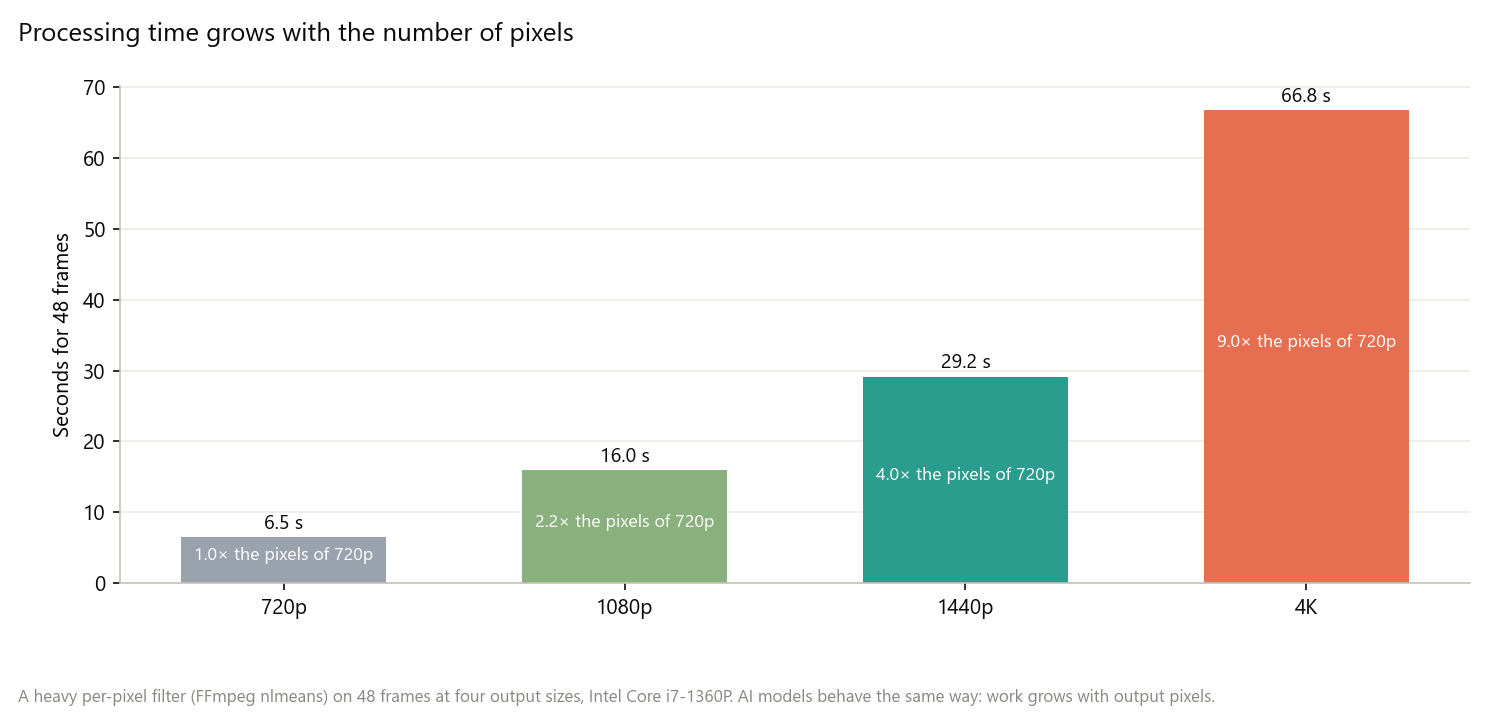
- Output size: 1080p sometimes looks better than 4K on a soft source, because there's less to invent.
Step 7. Time it on your computer
Previews run on your own GPU, so they show how your hardware handles a tool. While a preview renders, KwaFlux shows the time left. A full export of a long clip takes proportionally longer, and stacking several steps adds to it. On a Mac, the first runs may be in Standard Mode while the GPU Acceleration Component prepares. For how hardware affects speed, see which GPU you need for AI video enhancement.
Testing the tools that don't preview
- Converter: add files or a folder, pick an output format, and adjust the settings; before you start, it shows the estimated output size.
- **Compressor (added in 1.0.9): add files, choose Size first or Quality first**, and before you start it shows each file's estimated size and how much smaller it gets.
- Repairer: run the diagnosis on a damaged file to see what's wrong. For audio, KwaFlux can generate an audition clip when the file can be decoded; for images, an Image Preview appears.
- Downloader: you can open it, but parsing a pasted link already counts as downloading a file from a link.
The last step in each of these is one of the four actions in the table at the top.
When you're ready to buy
- Same features on every plan. Plans differ only in billing: monthly, yearly, or a one-time Perpetual License with free updates within the current major version. There are no credits or per-minute fees; see does KwaFlux use credits?
- Two devices. Each license works on up to 2 devices, Windows and Mac in any mix.
- Refunds. First purchases can be refunded within 14 days if you haven't materially used paid export; see the refund policy.
- After a subscription ends, previews keep working.
Compare the options on the pricing page. For a full overview of the app, see KwaFlux: everything you need to know.
Common problems
| Problem | Likely cause | Fix |
|---|---|---|
| The preview button waits | Quality detection is still running | Let "Waiting for analysis to preview" finish |
| A "Sign in to export" dialog appears | You clicked Export | Expected; previews and quality detection stay available without an account |
| The preview looks choppy | Previews are capped at 15 fps by default | Choose Match source in the preview frame-rate menu |
| A download button appears in the workbench | The feature's model isn't on your computer yet | Download it; it's free |
| The preview is shorter than the length you chose | The clip is shorter than the preview | Expected; the preview uses the entire clip |
| No scores after a preview | Compare quality after preview is turned off | Turn it on in Settings |
What a preview can't tell you
- How the whole clip behaves. Check several moments, especially the hardest ones, not just one.
- The exact export time and file size of a long clip; the preview time and the converter's estimate give you a guide.
- The final encode. Your export settings (codec, bitrate, frame rate) decide the delivered file; a preview capped at 15 fps doesn't change the export.
- How a platform will treat the upload. YouTube, TikTok, and others re-encode what you upload.
Final thoughts
Test KwaFlux the way you'll use it: your own clip, the hardest moment, a fair baseline, and the real frame rate. Change one setting at a time, and buy a plan only once a preview of your own footage shows the result you need.
Try it on your own footage
KwaFlux runs AI Video Quality Repair, the video upscaler, and its other tools on your own GPU. AI processing runs locally on your GPU — media files are not uploaded for processing. It runs on Windows 10 (64-bit, version 1809 or later), Windows 11, and macOS 12 or newer on Apple Silicon.
Experience on Your Own Footage
Download KwaFlux and preview effects on your own footage for free before you pay — no account needed, and your media is processed on your GPU, not uploaded. Video previews run 1, 3, or 5 seconds; stabilization previews run 5, 15, or 30 seconds.
Frequently asked questions
Is KwaFlux free?
Partly: importing files, running quality detection, and rendering previews are free, with no account. The table at the top of this page shows what a plan adds.
Does KwaFlux have a free trial?
No, not a time-limited one. Previews are free with no account and no time limit instead, so you can test each tool on your own footage.
Do I need an account to preview?
No. Previews and quality detection work without an account.
How long are KwaFlux previews?
1, 3, or 5 seconds on most video modules; 5, 15, or 30 seconds for Video Stabilization; the whole picture for images; and the opening 5 to 30 seconds for audio.
Can I get a refund if KwaFlux doesn't work for me?
Yes, within 14 days of your first purchase if you haven't materially used paid export, for subscriptions and the Perpetual License. See the refund policy for the details.
Sources
- KwaFlux pricing page and FAQ (free use without an account, no trial, same features on every plan, prices, refunds, devices, what happens after cancelling) (accessed 2026-10-12)
- KwaFlux refund policy (14 days for first purchases without material use of paid export) (accessed 2026-10-12)
- KwaFlux download page (system requirements) (accessed 2026-10-12)
- KwaFlux docs, "Does KwaFlux use credits?" (accessed 2026-10-12)
- KwaFlux docs, "Which features download AI models the first time I use them?" (accessed 2026-10-12)
KwMore in Inside KwaFlux
Keep reading

KwaFlux: Everything You Need to Know (Features, Platforms, Pricing, Updates)
What KwaFlux is, what it includes, which systems it runs on, what is free and what is paid, how licenses work, and what changed in each version.
KwaFlux on Mac: Supported Macs, Setup, and Performance Tips
Which Macs run KwaFlux, how to install it, what the GPU Acceleration Component and Standard Mode mean, and how to keep AI video fast on Apple Silicon.
How to Make AI Video Enhancement Faster: Workflow, Settings, and Hardware
Why AI video enhancement is slow and how to speed it up: process less, pick the output size, order the steps, and use the GPU and app settings well.