Compress video and audio on your computer
The Compressor shrinks video and audio in a batch: a target size, a percent of each file, or a quality tier. It shows the estimate before you start. If compressing would not make a file smaller, the output is a copy of the original.
- Free preview
- The size estimate is free. Starting a job needs sign-in and a paid plan.
- Needs a paid plan
- Export, convert, repair a file, download a file from a link
- Size first, or Quality first
- An estimate for each file before you start
- Video and audio only; images are skipped
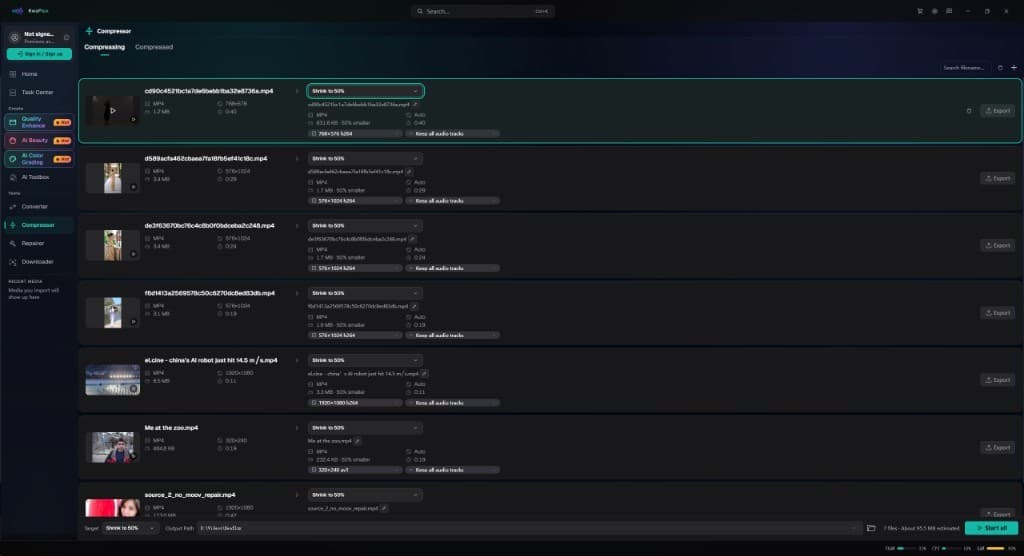
Local compress
The estimate is on the row before you start
Each file shows the size it would become. Opening this screen and reading that estimate need no account. Starting the batch needs sign-in and a paid plan.
§01What it does
What you can set
Size first
A percent of each file's own size, or one target size for the batch.
Quality first
High quality, Balanced, or Smallest file. Smaller files show more of the quality drop.
Original kept
When compressing would not make the file smaller, the output is a copy of the original.
§02
Video and audio, not images
Add video or audio. Image files are skipped; this workbench does not compress stills. The same screen is not Video Converter: conversion changes the container and codec, including images and GIFs, while compression is there to make a video or audio file smaller.
§03
The estimate is free; starting the job is not
Opening the Compressor, adding files, and reading each estimate need no account. There is no 1-, 3-, or 5-second effect preview, because this is not an AI effect. Starting the job needs sign-in and a paid plan, the same requirement as convert. Media files are not uploaded for processing.
§04How to use
How to compress a batch
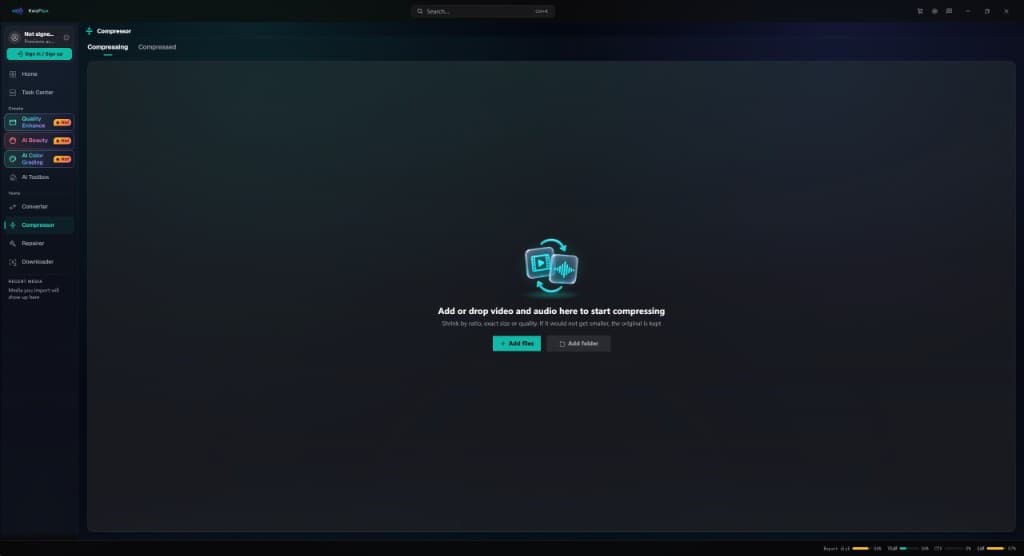
Add video or audio
Image files are left out. The list can hold more than one file.
Pick Size first or Quality first
Size first uses a percent of each file or a target size. Quality first uses High quality, Balanced, or Smallest file.
Read the estimate, then start
Each row shows the estimated size and how much smaller the file gets. Start needs sign-in and a paid plan.
§05Requirements
System requirements
| Operating system | Windows 10 (64-bit, 1809+) or Windows 11; macOS 12 or newer (Apple Silicon)Apple Silicon only. macOS 12 runs in Standard Mode. |
|---|---|
| GPU | 2016 or later Intel, AMD, or NVIDIA GPU — integrated or discreteDirectX 12 Feature Level 12_0. Windows only. macOS uses Apple Silicon. |
| Memory | 8 GB RAMEnough to launch, preview, and export. Long clips and stacked modules will be slower. |
| Storage | SSD workspaceUse an SSD for the app, cache, and temp files. |
Windows 10 (64-bit, 1809+) or Windows 11; macOS 12 or newer on Apple Silicon.
§06FAQ
Frequently Asked Questions
- Can I see the new size before I pay?
- Yes. Opening the Compressor, adding files, and reading the estimate need no account. Starting the job needs sign-in and a paid plan. There is no timed effect preview on this screen.
- What happens if the file would not get smaller?
- The output is a copy of the original. Compressing it would not have made a smaller file, so the original is what you keep.
- Does the Compressor take images?
- No. It handles video and audio. Image files are skipped.
The size estimate is free. Starting a job needs sign-in and a paid plan.