How to Make AI Video Enhancement Faster: Workflow, Settings, and Hardware
Why AI video enhancement is slow and how to speed it up: process less, pick the output size, order the steps, and use the GPU and app settings well.
Key takeaways
AI video enhancement is slow because a neural network processes every pixel of every frame, often several times over. To make it faster, process less (a shorter clip, a smaller output size, fewer steps), make sure the work runs on your GPU, and use the app's performance settings so nothing else competes for it.
- AI enhancement time grows with output pixels × frames × steps. Cutting any of the three saves more than any setting.
- In our test, processing at 4K took 10 times as long as at 720p and 4.2 times as long as at 1080p. Upscale only to the size you'll deliver.
- Cut the clip to the part you need before processing; a stream-copy cut takes seconds and loses nothing.
- Repair at the source size before upscaling, and change the frame rate last, because doubling the frames doubles the work for every later step.
- Keep the AI on the GPU, turn on hardware decoding, and pick the right resource mode; in our test, hardware decoding used about 2% of the CPU time of software decoding.
Where the time goes
An AI enhancement job has three stages:
- Decoding the source into frames.
- Running the AI model on each frame, often with neighboring frames for stability.
- Encoding the result into a video file.
The middle stage dominates. Its cost grows with three things multiplied together: the number of output pixels per frame, the number of frames, and the number of AI steps (repair, upscaling, interpolation). Halving any one of them roughly halves the time.
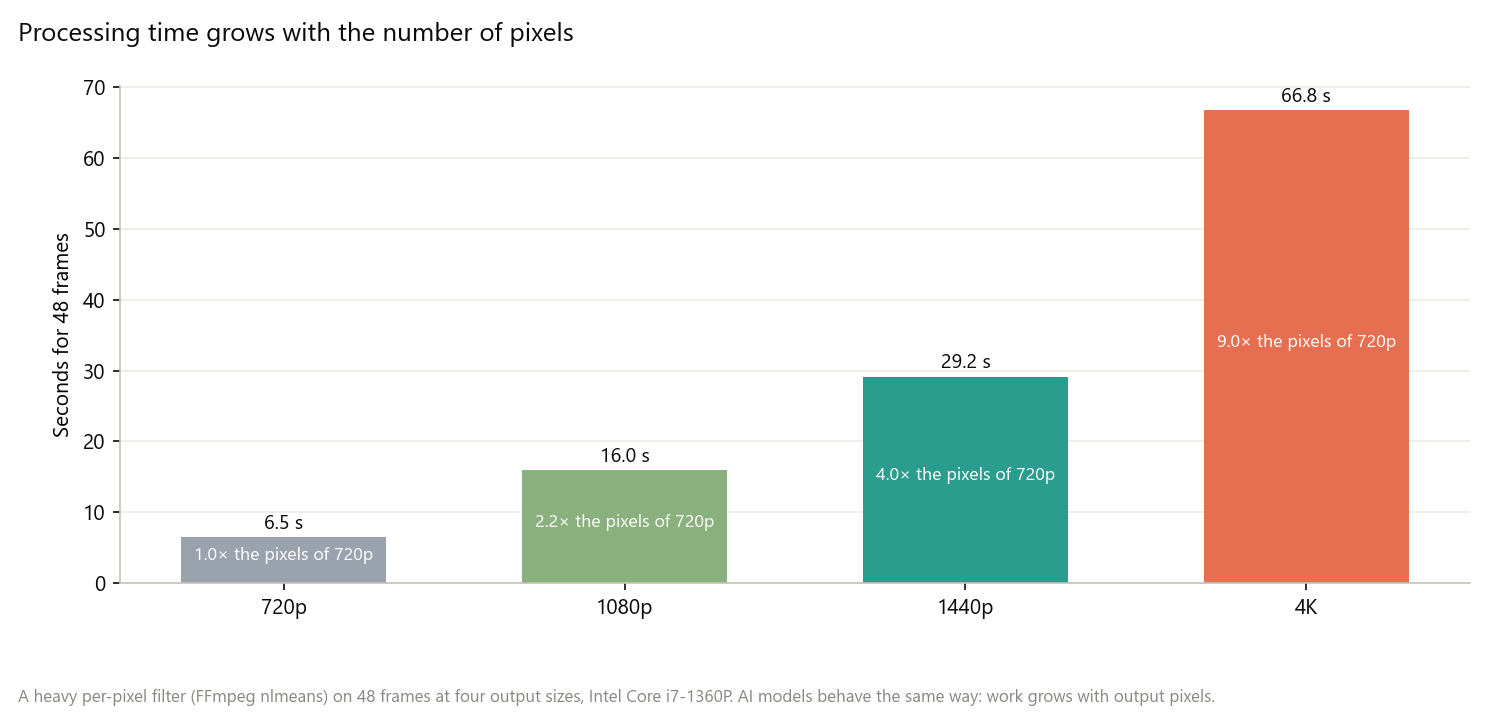
To show how much size matters, we timed a heavy per-pixel filter (FFmpeg's non-local means denoiser) on the same 48 frames at four output sizes. 4K took 66.8 seconds, 10 times the 720p time and 4.2 times the 1080p time, in line with the pixel counts. AI models behave the same way: work grows with the pixels they produce.
Measure before you change anything
Don't guess from the progress bar. Render a short preview of the hardest part of your clip, with the exact tools and output size you plan to use, and time it. In KwaFlux, previews need no account and come in 1-, 3-, and 5-second lengths; see test KwaFlux with free previews.
Then change one thing at a time (output size, a step, a setting) and render the same preview again. Short previews include start-up time, so compare previews of the same length rather than multiplying one by the clip's duration.
Process only the part you need
If you need 90 seconds of a 20-minute recording, cut those 90 seconds out first. A stream-copy cut doesn't re-encode, so it takes seconds and changes nothing:
ffmpeg -ss 00:01:00 -to 00:02:30 -i input.mp4 -c copy part.mp4With stream copy, the cut starts at the nearest keyframe, so leave a second or two of margin and trim precisely in your editor afterwards.
Choose the output size you'll deliver
The output size is the biggest lever after length.
| Output | Pixels per frame | Work compared with 1080p |
|---|---|---|
| 1080p | 2.1 million | 1× |
| 1440p | 3.7 million | About 1.8× |
| 4K | 8.3 million | About 4× |
| 8K | 33.2 million | About 16× |
If the video will be watched on phones or posted at 1080p, upscaling to 4K quadruples the time for nothing the viewer will see. For what each size means, see what 2K resolution means.
Put the steps in the right order
Each step multiplies the work of the steps after it.
- Repair before upscaling. Removing noise and compression damage at the source size costs less than at 4K, and the upscaler works better on a clean frame; see repair, then upscale.
- Change the frame rate last. Interpolating 30 fps to 60 fps doubles the frames, so any step that comes after it does twice the work.
- Skip steps you don't need. Render a preview with and without each step; if you can't see the difference, leave it out.
- Use faster modes where offered. Some tools have a faster setting, such as the Fast enhancement mode in Night Scene or the Fast tier in frame interpolation. Preview both.
Keep the work on the GPU
AI models run many times faster on a GPU than on a CPU.
- Set the AI processor to Auto or GPU. In KwaFlux, Settings › Performance & resources › AI Processor chooses the hardware; GPU is usually faster, and the change applies to the next preview or export.
- Watch for the CPU-fallback notice. If the GPU is unavailable or out of memory, KwaFlux says the run "uses CPU inference and will take noticeably longer". Fix the cause and restart the job rather than waiting.
- Use the discrete GPU on laptops with two. KwaFlux exports on compatible discrete GPUs and marks integrated graphics as not used for exports. On Windows, Settings › System › Display › Graphics sets which GPU an app prefers.
- Plug in. Laptop GPUs slow down on battery and when hot.
For what makes one GPU faster than another, see which GPU you need for AI video enhancement.
Use the performance settings
In KwaFlux, Settings › Performance & resources has the controls that matter for speed:
| Setting | What it does | For speed |
|---|---|---|
| AI export resource usage | Light use, Balanced (default), Full speed, or Custom | Full speed fills the selected GPUs and CPU within safe limits; other apps may slow down |
| GPUs for AI export | Which cards export; none selected = every compatible discrete GPU | Leave on automatic, or pick your quickest card |
| Max parallel streams on this GPU (Custom) | How many streams each card runs at once | More streams help on GPUs with plenty of memory |
| Hardware Accelerated Decoding | Decodes the source on the GPU's video engine | Keep it on; it frees the CPU (restart required) |
| Compare quality after preview | Scores each preview's quality change | Turn it off on slower computers |
| Max Concurrent Tasks | How many jobs run at once | One job at a time often finishes a single urgent export sooner |
No mode exceeds the app's safe limits for GPU memory and system memory, so Full speed is safe to try; the cost is that the computer is less responsive while it runs.
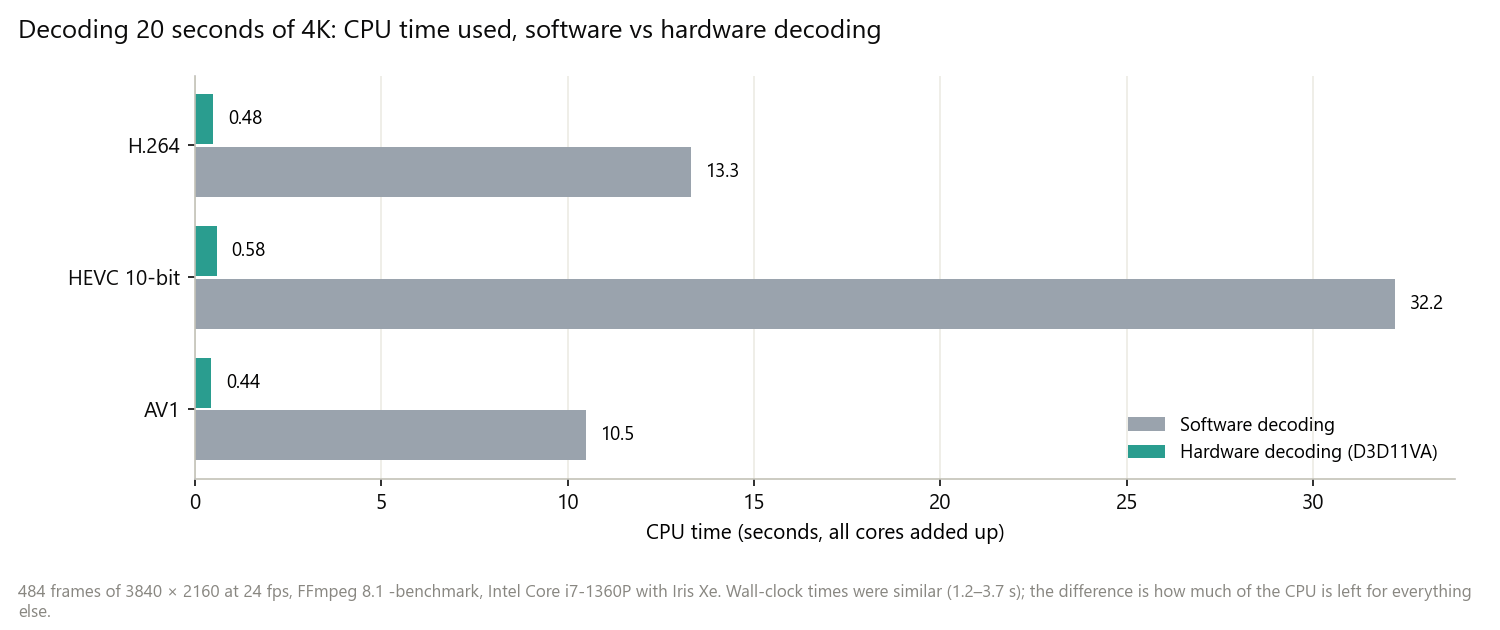
Hardware decoding matters most with 4K HEVC and AV1 sources. Decoding 20 seconds of 4K HEVC 10-bit in software kept the CPU busy for 32 core-seconds; hardware decoding needed 0.6. Both finished in a few seconds, but during an AI export, that CPU time is taken from everything else.
If the output also goes through the Converter, its GPU acceleration option encodes H.264 and HEVC on the graphics card; see software vs hardware encoding for the speed and quality trade-off.
Free up memory
- GPU memory. Large outputs need a lot of video memory. If KwaFlux reports "Not enough GPU memory", lower the output resolution, use a faster preset, choose another GPU, or close other GPU-heavy apps such as games and other video tools.
- System memory. When memory is tight, KwaFlux reduces a task to one lane to avoid failing; closing other apps restores speed.
- Disk. Multi-step jobs write temporary files; keep free space on a fast SSD.
The status bar shows video memory use and how many AI streams are running, so you can see whether a change helped.
On a Mac
On Apple Silicon Macs with macOS 13 or later, KwaFlux prepares its GPU Acceleration Component automatically after launch, and features speed up once it's ready. Until then, processing runs in Standard Mode, which is slower. If you start a long job right after installing, check that the component is ready first, or start in Standard Mode knowing it will take longer. On macOS 12, processing runs in Standard Mode.
Common problems
| Problem | Likely cause | Fix |
|---|---|---|
| Export is far slower than the preview suggested | More steps or a larger output in the export, or the CPU fallback | Match the export settings to the preview; check for the CPU notice |
| "uses CPU inference" notice | GPU unavailable or out of memory | Set AI Processor to Auto or GPU, close GPU-heavy apps, retry |
| GPU usage stays low on a laptop | The integrated GPU is driving the app, or the laptop is on battery | Plug in, set the discrete GPU in Windows Graphics settings |
| Computer becomes unresponsive during export | Full speed mode | Switch to Balanced or Light use |
| Task drops to one lane | Low system memory | Close other apps |
| Mac processing is slow right after install | GPU Acceleration Component still preparing | Wait until it's ready, then start the job |
Final thoughts
The quickest export is the one that processes the least: cut to the part you need, upscale only to the size you'll deliver, repair before upscaling, and change the frame rate last. Then keep the work on the GPU, turn on hardware decoding, and pick the resource mode that fits whether you're waiting for the export or working beside it.
Time it on your own footage
KwaFlux runs AI video upscaling and AI quality repair on your own GPU. AI processing runs locally on your GPU — media files are not uploaded for processing. It runs on Windows 10 (64-bit, version 1809 or later), Windows 11, and macOS 12 or newer on Apple Silicon. Previews need no account: 1, 3, or 5 seconds on video modules; 5, 15, or 30 seconds for Video Stabilization; the whole picture for images; and the opening 5 to 30 seconds for audio. Signing in with an active paid plan is required only to export, convert, repair a file, or download a file from a link.
Experience on Your Own Footage
Download KwaFlux and preview effects on your own footage for free before you pay — no account needed, and your media is processed on your GPU, not uploaded. Video previews run 1, 3, or 5 seconds; stabilization previews run 5, 15, or 30 seconds.
Frequently asked questions
Why is AI video upscaling so slow?
Because a neural network processes every pixel of every frame, often with neighboring frames. Time grows with output pixels × frames × steps, so 4K output takes about four times as long as 1080p.
Does a better GPU make KwaFlux faster?
Yes, usually. A newer, larger discrete GPU with more video memory runs AI models faster and can run more parallel streams. Before buying, time a preview on your current computer; see which GPU you need.
Should I upscale before or after frame interpolation?
Usually before, or at least don't interpolate first and then run heavy steps. Interpolation doubles or more the number of frames, so every step after it costs that much more.
Does hardware decoding speed up AI enhancement?
Sometimes. It mostly frees the CPU: in our test, decoding 4K HEVC in hardware used 0.6 core-seconds instead of 32. That helps most with 4K HEVC or AV1 sources on computers with fewer CPU cores.
Can I keep working while KwaFlux exports?
Yes. Choose Light use under AI export resource usage: it runs one stream on one GPU so other apps stay responsive, and the export takes longer.
Sources
- Microsoft Learn, "Introduction to DirectML" (GPU machine learning on all DirectX 12-compatible hardware) (accessed 2026-10-23)
- Apple Developer Documentation, "Core ML" (on-device models on the CPU, GPU, and Neural Engine) (accessed 2026-10-23)
- NVIDIA Control Panel Help, "Setting the Preferred Graphics Processor" (Windows Graphics Settings decides the GPU per app) (accessed 2026-10-23)
- FFmpeg Documentation, "ffmpeg" (`-ss`, `-to`, and stream copy) (accessed 2026-10-23)
- FFmpeg Filters Documentation (`nlmeans`, used for the size test) (accessed 2026-10-23)
KwMore in Inside KwaFlux
Keep reading

KwaFlux: Everything You Need to Know (Features, Platforms, Pricing, Updates)
What KwaFlux is, what it includes, which systems it runs on, what is free and what is paid, how licenses work, and what changed in each version.
KwaFlux on Mac: Supported Macs, Setup, and Performance Tips
Which Macs run KwaFlux, how to install it, what the GPU Acceleration Component and Standard Mode mean, and how to keep AI video fast on Apple Silicon.
How to Test Any KwaFlux Tool for Free Before You Buy
No account or card needed: what you can test in KwaFlux for free, how long each preview runs, how to judge a result fairly, and what a plan adds.