Blurry Halloween Photos and Videos? How to Sharpen Them with AI
Costume photos soft and parade clips blocky after the group chat? What makes Halloween photos and videos blurry, and how AI repair sharpens them.
Key takeaways
- Halloween photos blur for four reasons: the camera moved, the costume moved, the phone zoomed digitally, or a chat app compressed the file.
- AI repair is good at soft edges, compression blocks, low resolution, and soft faces. Strong motion streaks are a different problem.
- Start from the original file. A copy from the group chat has already thrown detail away.
- Check faces at full size after any repair: a sharper face should still look like the same person.
- Photos and videos go through the same repair.
Halloween photos come out blurry when the camera shakes in dim light, a costume moves too fast, the phone zooms digitally, or a chat app squeezes the file. AI repair can sharpen soft edges, clean up compression blocks, and restore faces. Strong motion blur is harder, so it helps to know which kind you have.
In this guide, you'll learn how to tell the kinds of blur apart, how to fix blurry Halloween photos and videos in KwaFlux, what to do when the blur comes from motion, and how to get sharper pictures on the night itself.
Halloween offer: from October 24 to November 2, the KwaFlux Perpetual License is $169.99 instead of $199.99, and the yearly and monthly plans have a lower first-year and first-month price. The full offer is at the end of this post.
Contents
- What is AI photo and video repair?
- Why Halloween photos come out blurry
- Which kind of blur can AI fix?
- How to fix blurry Halloween photos and videos in KwaFlux
- When the blur is motion
- Tips for sharper pictures on the night
- KwaFlux Halloween offer
- FAQ
What is AI photo and video repair?
AI photo and video repair is a set of trained models that look at what is wrong with a picture, such as noise, compression blocks, low resolution, or soft faces, and fix those problems together. A sharpening slider only boosts the contrast of edges; a repair model rebuilds detail it has learned to expect, which is why it can clean up a chat-app copy that sharpening alone would make crunchier.
Why Halloween photos come out blurry
- The camera moved. In dim light the shutter stays open longer, and a small hand movement smears the whole frame in one direction.
- The costume moved. Kids run between doors. The background is sharp and the witch is a streak.
- The phone zoomed in. Pinching to zoom on the school parade crops the sensor and enlarges the crop, so you get fewer real pixels and more of the phone's own sharpening.
- A chat app compressed it. Chat apps usually shrink photos and videos to save data, unless you pick an HD or original-quality option. The video your sister sent from the parade may be 480p at a low bitrate.
- The focus landed on the wrong thing. In the dark, autofocus often locks onto the brightest object, the jack-o'-lantern, and leaves the face soft.
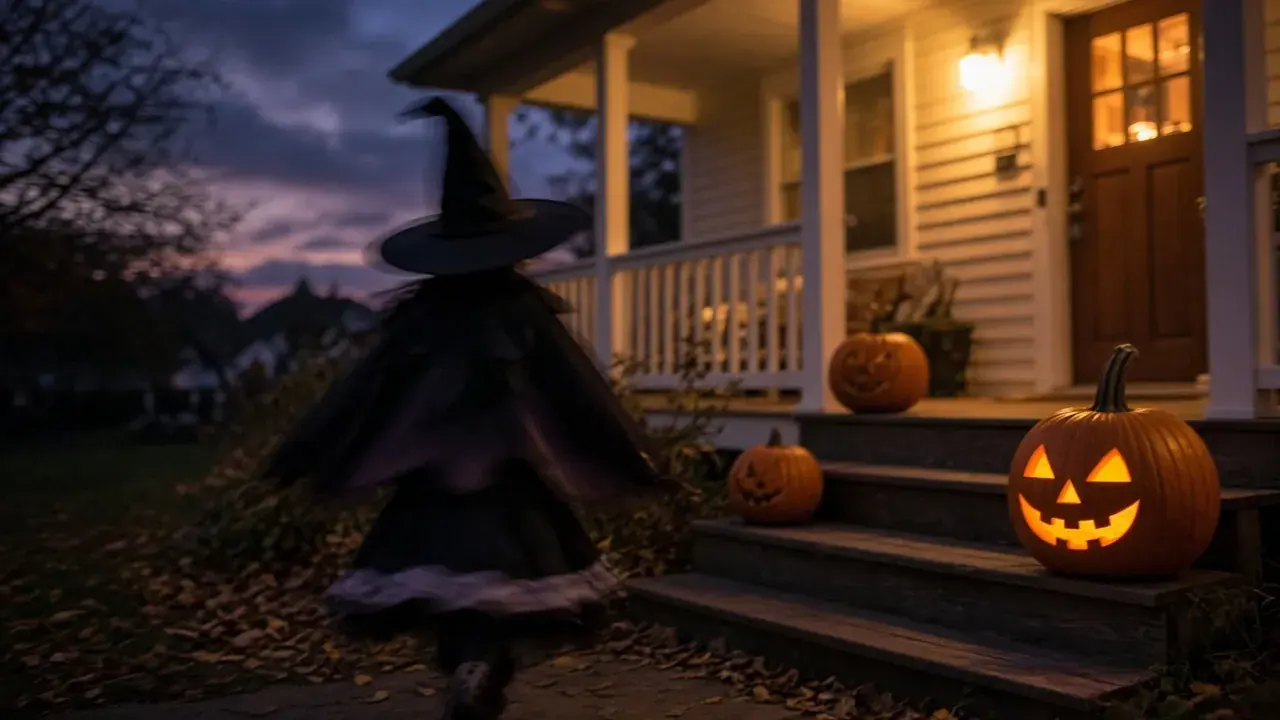
Which kind of blur can AI fix?
| What you see | Likely cause | Can AI repair fix it? |
|---|---|---|
| Everything a bit soft, blocky in flat areas | Chat-app compression or low resolution | Usually: this is the main job of repair |
| Soft, with halos around edges | Digital zoom | Usually: repair cleans up the halos and adds detail |
| Whole frame smeared a few pixels in one direction | Slight camera shake | Partly: sharper edges, some smear may stay |
| Long streaks, double edges | Strong camera or subject motion | Rarely: pick another frame from the burst or video |
| Face soft, background sharp | Missed focus | Often for faces, through face restoration |
| Dark and soft at the same time | Low light | Brighten first, see how to brighten dark Halloween photos |
How to fix blurry Halloween photos and videos in KwaFlux
KwaFlux's Smart Repair runs a quality check on each photo or clip and combines the repairs it needs.
- Open Smart Repair. In the sidebar, go to Quality Enhancement and pick the Smart Repair card ("Auto denoise, deblur and detail, tuned to each clip's quality"). It opens Quality Repair with Repair Scene set to Smart Repair.
- Add the original files. Photos and videos both work. If all you have is the chat copy, ask the sender for the original first; it will repair better.
- Let the quality check run. Smart Repair "combines repairs from the quality check: denoise, sharpen, correct color and brightness, upscale, and restore faces and fine detail", so there are no sliders to set.
- Preview at full size. A photo preview shows the whole picture; for video, render Preview 1s, 3s, or 5s from the playhead. Zoom into faces and into fine edges such as hair, fake cobwebs, and lettering.
- Check faces. Smart Repair restores faces automatically. The face should look sharper and still look like the same person. If it looks too smooth or slightly different, keep the original for that photo.
- Export. For video, raise the bitrate a step above the default so the restored detail isn't lost again in the export.
When the blur is motion
Strong motion blur is the one kind a repair can't reliably undo. When a costume moves during the exposure, the picture records a streak, and no sharp version of that moment exists in the file. Repair can tighten the edges of a light smear; for real streaks:
- Pick another frame. If you shot a burst, one frame is usually sharp. For video, step through the clip frame by frame and export the cleanest one as a still.
- Brighten first if the shot is also dark. Night blur often comes from a slow shutter. Brightening with Night Scene Enhance won't remove the smear, but it shows you which frames are worth keeping.
- Stabilize shaky video before you repair it. Repair works frame by frame, so a stable clip gives it more to work with. See how to stabilize shaky Halloween videos.
For more on video blur in general, see how to fix blurry video.
Tips for sharper pictures on the night
- Use the lens, not the pinch. If your phone has a 2x, 3x, or 5x camera, tap that button instead of pinching. Otherwise, shoot wide and crop later.
- Tap on the face. In the dark, tap the person you want sharp; the phone otherwise focuses on the brightest thing in the frame.
- Brace and breathe out. Lean on a door frame, hold the phone with both hands, and press the shutter as you breathe out.
- Shoot bursts. Kids in costumes don't hold a pose. One of ten frames will be sharp.
- Share the originals. Use a shared album or a cloud link instead of the group chat, or pick the chat app's HD option if it has one.
KwaFlux Halloween offer
From October 24 to November 2, 2026, KwaFlux is on sale. Every plan includes every feature and works on 2 computers at once, Windows and Mac in any mix.
| Plan | Halloween price | After the offer |
|---|---|---|
| Perpetual License | $169.99 one-time, instead of $199.99 | No renewal: you pay once |
| Yearly | $79.99 for the first year | Renews at $99.99 a year |
| Monthly | $29.99 for the first month | Renews at $35.99 a month |
Prices exclude tax. The Perpetual License includes free updates within the current major version. Details are on the plans page.
Final thoughts
Most blurry Halloween photos are soft, not ruined: compression, zoom, and missed focus are what AI repair handles well. Start from the original file, check the faces at full size, and keep a burst handy for the shots where the costume moved faster than the shutter.
For every other fix from the same night, from old family photos to spooky effects and party cleanup, see our Halloween photo and video editing guide.
Try it on your own Halloween shots
KwaFlux runs Smart Repair on photos and videos on your own computer. AI processing runs locally on your GPU — media files are not uploaded for processing. It runs on Windows 10 (64-bit, version 1809 or later), Windows 11, and macOS 12 or newer on Apple Silicon. Previews need no account: the whole picture for photos, and 1, 3, or 5 seconds for video. Signing in with an active paid plan is required only to export, convert, repair a file, or download a file from a link.
Try It on Your Own Footage
Download KwaFlux and preview effects on your own footage for free before you pay — no account needed, and your media is processed on your GPU, not uploaded for processing. Video previews run 1, 3, or 5 seconds; stabilization previews run 5, 15, or 30 seconds.
Frequently asked questions
Can AI fix a blurry photo?
Partly. AI repair is good at softness from compression, low resolution, digital zoom, and missed focus on faces. It can't reliably reverse strong motion blur, where the moment was recorded as a streak. If you shot a burst, look for a sharper frame first.
Why do my Halloween videos look blurry after I send them?
Because most chat apps re-encode videos at a lower resolution and bitrate to save data. Ask for the original file, or share through a cloud link. If you only have the compressed copy, an AI repair can clean up blocks; see how to fix pixelated video.
Is it better to zoom in or crop later?
Usually crop later, unless your phone has a telephoto lens. Digital zoom is a crop that the phone enlarges and sharpens on the spot; cropping the full photo afterward gives the same framing and leaves you the original.
Does sharpening make photos look worse?
Sometimes. Heavy sharpening draws bright halos along edges and turns noise into crunchy texture. A repair that removes noise and rebuilds detail usually looks more natural than a sharpening slider pushed to the end.
Can a blurry face in a group photo be fixed?
Often, if the face is soft rather than smeared. Face restoration rebuilds the eyes, lips, and skin texture of soft faces. Check every face at full size afterward, because a restored face should still look like the same person.
How do I take sharp photos of kids in costumes at night?
Light them, then freeze them. Stand them near a porch light, tap their face to focus, and shoot a burst. Turn off the flash for jack-o'-lanterns, but a flash or a phone light on the kids is fine when you want sharp faces over mood.
UpMore in Upscale & Repair
Keep reading
Halloween Photos Too Dark? How to Brighten Night Shots and Videos with AI
Trick-or-treat photos came out black and grainy? Why Halloween night shots fail, and how AI brightens dark photos and videos while keeping the candle glow.
Halloween Photo and Video Editing Guide: Fix, Retouch, and Share Your Spooky Night
Dark, blurry, shaky, noisy, or just plain: a step-by-step guide to fixing and editing Halloween photos and videos, in the order that works, with AI tools.
Denoise, Deblock, Sharpen, Correct Color: Video Restoration Filters in Depth
How denoising, deblocking, debanding, sharpening, white balance, and chromatic aberration fixes work, which order to run them in, with FFmpeg tests.