4K vs 8K: What Actually Changes on Screen, and When Upscaling to 8K Pays Off
4K vs 8K explained with pixel math, bitrates, and file sizes. See when 8K pays off, when 4K is enough, and how to export an 8K upscale.
Key takeaways
8K (7680 × 4320) has four times as many pixels as 4K (3840 × 2160). Whether anyone can see the difference depends on how big the screen is, how close they sit, and whether the source holds real detail at that size. For most viewing and publishing today, 4K is the practical target.
8K earns its cost when you need room to crop and reframe, when the picture goes on a very large screen viewed up close, or when a client's delivery spec requires it.
- 8K (7680 × 4320) has four times the pixels of 4K (3840 × 2160) and sixteen times the pixels of 1080p.
- The extra pixels only matter if three things line up: a screen big enough, a viewing distance close enough, and a source with real detail to fill them. On a 65-inch TV, close enough means nearer than about 1.3 m.
- In YouTube's upload recommendations, 8K needs about 2 to 4.5 times the bitrate of 4K, and storage grows with it.
- 8K pays off for cropping headroom, very large screens viewed up close, and delivery specs that ask for it. For most viewing and publishing, 4K is the practical target.
- An AI upscale to 8K adds plausible detail. It can't recover detail the camera didn't capture.
What is 4K?
4K usually means Ultra HD: 3840 × 2160 pixels, about 8.3 million pixels per frame, also called 2160p. It's four times the pixel count of 1080p.
You'll also see "4K" used for the cinema format (DCI 4K), which is 4096 × 2160. The difference is the aspect ratio, not the level of detail. Streaming services, TVs, and phones use 3840 × 2160.
What is 8K?
8K Ultra HD is 7680 × 4320 pixels, about 33.2 million pixels per frame. That's four times 4K and sixteen times 1080p. Each dimension doubles compared with 4K, so a 4K picture fits into one quarter of an 8K frame.
4K vs 8K: the numbers side by side
| Spec | 1080p | 1440p | 4K UHD | 8K UHD |
|---|---|---|---|---|
| Resolution | 1920 × 1080 | 2560 × 1440 | 3840 × 2160 | 7680 × 4320 |
| Pixels per frame | 2,073,600 | 3,686,400 | 8,294,400 | 33,177,600 |
| Relative to 1080p | 1x | 1.8x | 4x | 16x |
| YouTube SDR upload bitrate, 24 to 30 fps | 8 Mbps | 16 Mbps | 35 to 45 Mbps | 80 to 160 Mbps |
| YouTube SDR upload bitrate, 48 to 60 fps | 12 Mbps | 24 Mbps | 53 to 68 Mbps | 120 to 240 Mbps |
| Storage per minute at the 24 to 30 fps bitrate | 60 MB | 120 MB | 263 to 338 MB | 600 MB to 1.2 GB |
The bitrates are YouTube's recommendations for H.264 uploads. Storage per minute is bitrate × 60 seconds ÷ 8: for example, 45 Mbps × 60 ÷ 8 = 337.5 MB. Newer codecs such as H.265 and AV1 reach a similar look at lower bitrates, which is why 8K delivery files are usually H.265 or AV1. See H.264 vs H.265 vs AV1 for how to choose.
Can you see the difference? Pixel size, screen size, and distance
Resolution only becomes visible detail when individual pixels are large enough, relative to your distance from the screen, for your eyes to separate them. So start with pixel size. On a 16:9 screen, the picture width is about 0.87 times the diagonal:
| Screen (16:9) | Picture width | One 4K pixel | One 8K pixel |
|---|---|---|---|
| 32-inch monitor | 70.8 cm | 0.18 mm | 0.09 mm |
| 65-inch TV | 143.9 cm | 0.37 mm | 0.19 mm |
| 85-inch TV | 188.2 cm | 0.49 mm | 0.25 mm |
Two things stand out. An 8K pixel on an 85-inch TV is smaller than a 4K pixel on a 65-inch TV. And the farther you sit, the smaller every pixel looks. HandBrake's documentation makes the same point about compression flaws: they're more noticeable on larger displays and at closer viewing distances.
A standard gives a sharper answer. ITU-R BT.1845, the ITU's guidance on fitting TV pictures to different screens, takes normal visual acuity as 1 arcminute and defines the optimal viewing distance as the one at which a single pixel spans exactly that angle. For a 16:9 picture, that's 1.6 times the picture height for 4K and 0.8 times for 8K. On the screens above:
| Screen (16:9) | Picture height | 4K pixels merge beyond | 8K pixels separate within |
|---|---|---|---|
| 32-inch monitor | 39.8 cm | 0.63 m | 0.32 m |
| 65-inch TV | 80.9 cm | 1.29 m | 0.64 m |
| 85-inch TV | 105.8 cm | 1.68 m | 0.84 m |
Sit farther back than the 4K distance, and 8K can't look sharper to you: 4K pixels are already too small for your eyes to tell apart. Between the two distances, 8K adds some visible detail. A sofa 2.5 m from an 85-inch TV is well past the point where 8K helps; a 32-inch monitor about 60 cm away sits right at the 4K limit. The standard notes that the 1-arcminute figure is for still images, because in motion both the display and the eye resolve less, and eyes sharper than average push the limits a little farther out. Treat the numbers as a guide, not a hard line.
To check it against your own eyes and room, run this test:
- Sit where you normally sit.
- Open a 4K test image with fine single-pixel lines, or pause a 4K video on small text.
- If you can't pick out individual pixels from your seat, a screen with four times as many pixels won't look sharper to you from there.
Sidenote: Pixel count isn't the only thing that makes a picture look better. Bit depth, HDR, compression, and the quality of the source often change what you see more than going from 4K to 8K.
When 4K is enough, and when 8K pays off
4K is enough when:
- You publish to streaming platforms, social media, or the web, where viewers watch on phones, laptops, and living-room TVs.
- Your editing machine and storage need to stay responsive. 8K files are four times the pixels to decode, scale, and grade.
- Your playback devices can't decode 8K H.265 or AV1 smoothly, or the ports and cables between your PC or player and the screen aren't rated for 8K. Test before you commit.
- The source is 1080p or lower and soft. Detail you can't recover at 4K won't appear at 8K.
8K pays off when:
- You need cropping headroom. An 8K frame lets you cut a full 4K frame out of any quarter of the picture, which is a 2x punch-in without upscaling.
- The screen is very large and close. LED walls, projection, trade-show displays, and installations where people stand near the picture.
- A delivery spec requires it. Some clients and platforms ask for 8K masters.
- You're archiving a native 8K source. Keep the original resolution so future edits start from the full detail.
Native 8K vs upscaled 8K
Native 8K comes from a camera or render that captured 33 million real pixels per frame. Upscaled 8K starts from a smaller picture and fills in the rest.
There are two kinds of upscaling:
- Conventional scaling (bicubic, Lanczos) enlarges what's there. The picture gets bigger, not more detailed.
- AI upscaling predicts plausible fine detail from what it learned in training: edges, textures, hair, foliage. Done well, it looks sharper than conventional scaling. It still can't recover information the camera didn't record, such as unreadable text or faces too small to resolve.
For what to expect from very low-resolution sources, see 480p to 4K: what AI can recover.
How to export an 8K upscale in KwaFlux
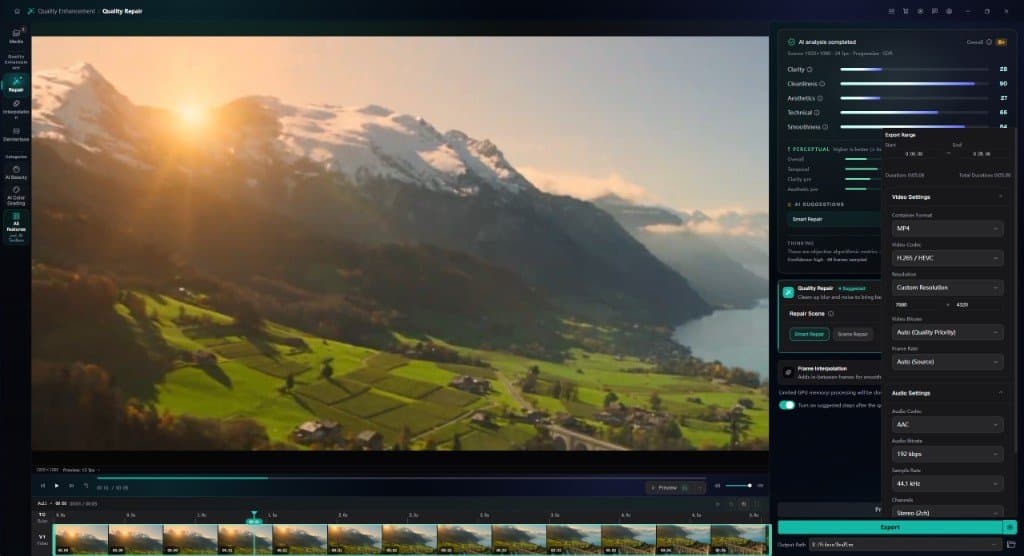
KwaFlux's AI upscaling runs inside Quality Repair. The 8K option lives in the export settings, and it depends on the codec you pick.
- Open Quality Repair. In the sidebar, go to Quality Enhancement and open Quality Repair (the Smart Repair card is a good starting point for most footage).
- Import and preview. Add your clip and render Preview 1s, 3s, or 5s on a detailed shot. Compare Original and Processed side by side. If the source is noisy or heavily compressed, this is where you decide whether the repaired detail is worth carrying to 8K.
- Set the codec first. Open Export Settings and set Video Codec to H.265 or AV1. With H.264, VP9, or ProRes selected, the Resolution list stops at 4K (3840 × 2160).
- Choose 8K. Set Resolution to Custom Resolution, then enter 7680 and 4320.
- Pick a bitrate. For 8K, KwaFlux offers 20, 25, 30, 40, 60, and 80 Mbps, with 30 Mbps as the default. Frame rates at 8K go up to 60 fps. 30 Mbps is enough for a viewing copy. For a file you'll upload to YouTube or keep editing, choose 60 or 80 Mbps. YouTube's 80 to 160 Mbps figure is for H.264, and H.265 or AV1 needs less for a similar look, but each later re-encode costs some quality, so start high.
- Export. The job runs in the task queue. Check the result on the screen it's meant for, not only on your monitor.
Pro tip: If you only need a bigger file for a timeline, not more detail, KwaFlux's Converter has an 8K Video preset in MP4 (H.265, 30 Mbps by default, 6 to 40 Mbps available). That's conventional scaling, so use Quality Repair when you want AI reconstruction.
Other ways to get an 8K file
- Your 8K TV's built-in scaling. Displays scale lower-resolution sources to fill the panel. It's free and automatic, but nothing is saved for editing or delivery.
- DaVinci Resolve Studio. Blackmagic lists Super Scale, which creates 4K and 8K images from HD sources, among Studio features. The free version finishes at up to Ultra HD 3840 × 2160.
- FFmpeg conventional scaling. Free and quick, with no new detail:
ffmpeg -i input_4k.mp4 -vf "scale=7680:4320:flags=lanczos" -c:v libx265 -crf 22 -preset medium -c:a copy output_8k.mp4Common mistakes
| Mistake | What happens | Fix |
|---|---|---|
| Looking for a preset named 8K | Resolution is Custom Resolution, with separate width and height fields | Set Video Codec to H.265 or AV1, choose Custom Resolution, and enter 7680 and 4320 |
| Exporting 8K at a low bitrate | Blocking in dark scenes, mush in foliage and water | Raise the bitrate; compare 40 to 80 Mbps on a busy shot |
| Upscaling a noisy, compressed source straight to 8K | The noise and blocks get bigger and sharper too | Repair first, check at 4K, then decide on 8K |
| Delivering 8K to viewers on phones and laptops | Larger files, longer uploads, no visible gain | Deliver 4K and keep the 8K master |
| Expecting unreadable text to become legible | AI fills in plausible texture, not real characters | Accept the limit, or find a higher-resolution source |
Final thoughts
4K vs 8K isn't a question of which number is bigger. It's a question of whether your screen, your seat, and your source can show the difference. When they can't, put the effort into a clean 4K master. When they can, export 8K from the cleanest source you have.
KwaFlux's video upscaler runs on your own GPU. AI processing runs locally on your GPU — media files are not uploaded for processing. It runs on Windows 10 (64-bit, version 1809 or later), Windows 11, and macOS 12 or newer on Apple Silicon. Previews need no account: render a 1-, 3-, or 5-second preview on any clip. Signing in with an active paid plan is required only to export, convert, repair a file, or download a file from a link.
Experience on Your Own Footage
Download KwaFlux and preview effects on your own footage for free before you pay — no account needed, and your media is processed on your GPU, not uploaded. Video previews run 1, 3, or 5 seconds; stabilization previews run 5, 15, or 30 seconds.
Frequently asked questions
Is 8K better than 4K?
Only in some setups. 8K has four times the pixels, but the gain is only visible on large screens viewed up close, and only if the source has the detail. For most streaming and web delivery, 4K is the practical choice.
Do I need an 8K TV to watch 8K video?
Yes, to see 8K detail. A 4K TV or monitor plays an 8K file by scaling it down to 3840 × 2160, so you get a clean 4K picture rather than 8K. Phones and laptops scale it down even further.
How big is an 8K video file?
About 600 MB to 1.2 GB per minute at YouTube's recommended 8K upload bitrates of 80 to 160 Mbps (24 to 30 fps). For other rates, multiply bitrate by duration; H.265 or AV1 delivery files are usually smaller.
Can I upscale 1080p to 8K?
Yes, but it's a big jump: 4x in each direction, or 16 times the pixels, so the source decides how good it looks. Export a 4K version too and compare both on your target screen; for most sources, upscaling to 4K is the safer target.
Does YouTube accept 8K uploads?
Yes. YouTube publishes recommended upload bitrates for 8K: 80 to 160 Mbps for SDR at standard frame rates.
Sources
- YouTube Help, "YouTube recommended upload encoding settings" (accessed 2026-10-11)
- HandBrake Documentation, "Adjusting quality" (2160p UHD definition; display size and viewing distance) (accessed 2026-10-11)
- Blackmagic Design, "DaVinci Resolve Studio" (accessed 2026-10-11)
- ITU-R, Recommendation BT.1845-1, "Guidelines on metrics to be used when tailoring television programmes to broadcasting applications at various image quality levels, display sizes and aspect ratios" (1 arcminute visual acuity; optimal viewing distance 1.6 H for 3840 × 2160 and 0.8 H for 7680 × 4320) (accessed 2026-10-22)
UpMore in Upscale & Repair
Keep reading
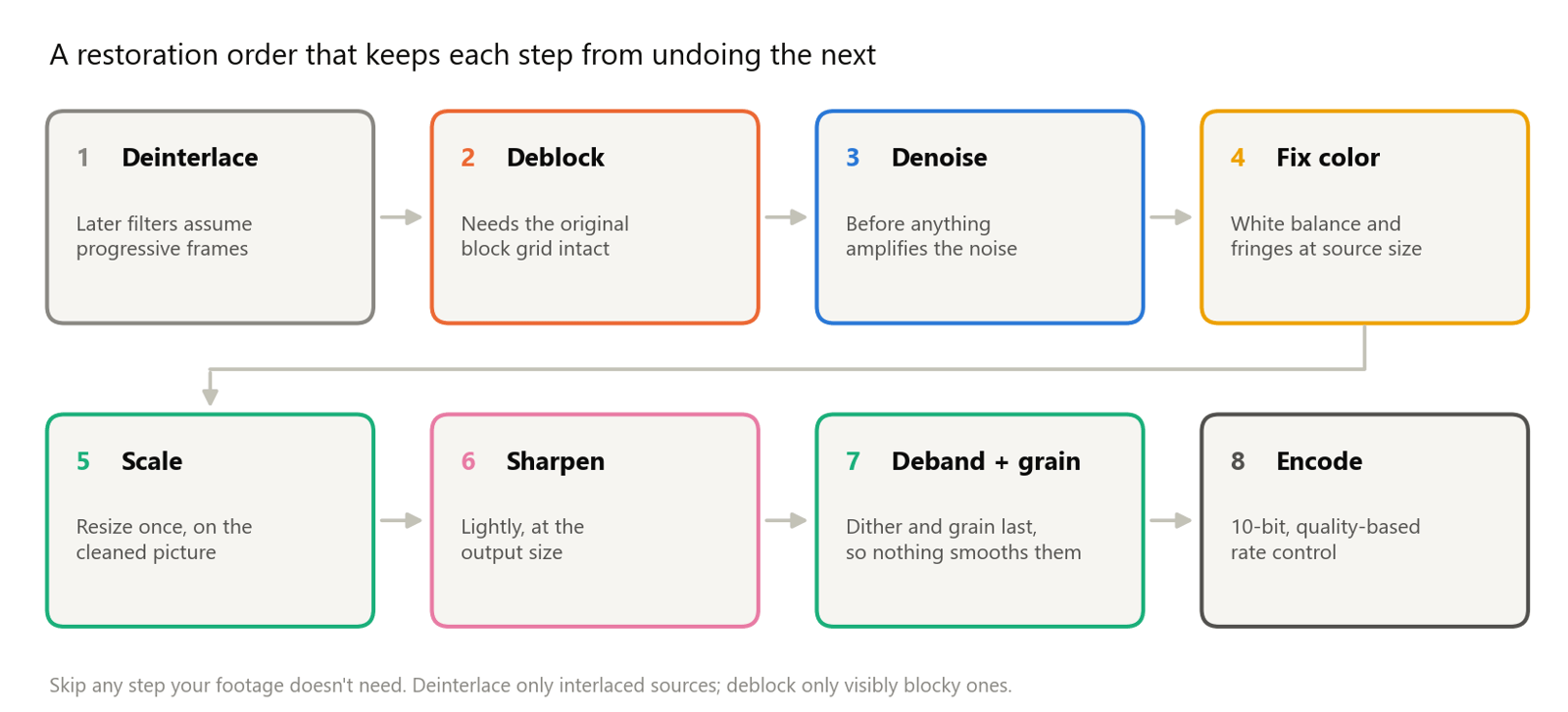
Denoise, Deblock, Sharpen, Correct Color: Video Restoration Filters in Depth
How denoising, deblocking, debanding, sharpening, white balance, and chromatic aberration fixes work, which order to run them in, with FFmpeg tests.
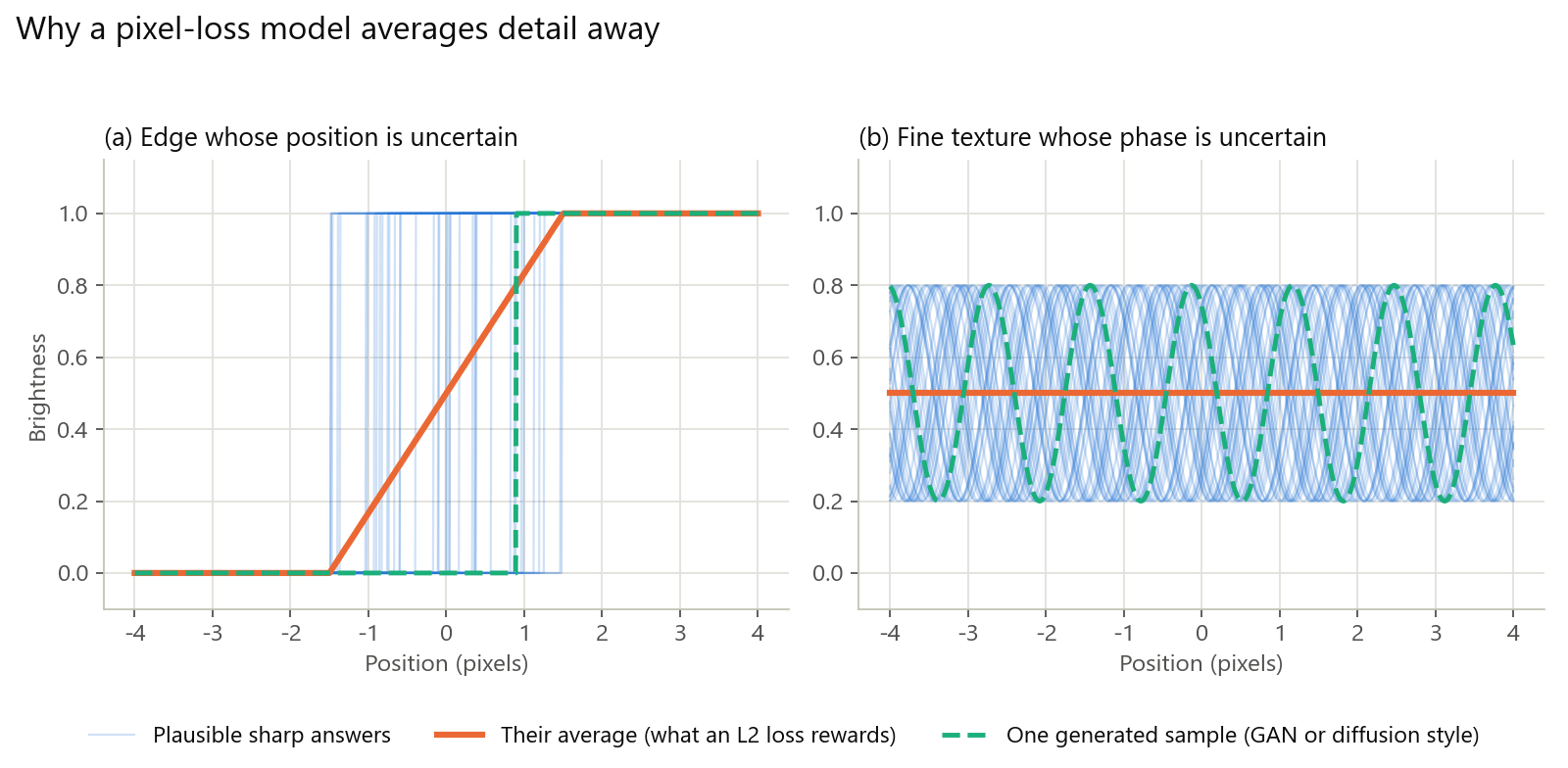
Why AI Restoration Looks Plastic: Losses, GANs, Diffusion, and How to Avoid It
Why AI-restored video looks waxy: averaged detail, invented GAN texture, diffusion drift, and mismatched training data, plus how to spot and avoid it.
How to Upscale 720p Video to 1080p (and When to Stop There)
Upscale 720p video to 1080p with KwaFlux, HandBrake, or FFmpeg. Exact settings, the bitrate to export at, and when going further to 4K isn't worth it.