Halloween Photo and Video Editing Guide: Fix, Retouch, and Share Your Spooky Night
Dark, blurry, shaky, noisy, or just plain: a step-by-step guide to fixing and editing Halloween photos and videos, in the order that works, with AI tools.
Key takeaways
- Most Halloween photos and videos have one of six problems: too dark, blurry, shaky, unflattering, cluttered, or hard to hear.
- Fix them in a fixed order: gather the originals, stabilize, brighten, sharpen, then retouch, add effects, and clean up the sound.
- Creative edits come last. Slow motion, a haunted background, or a stormy sky look much better on a clean clip.
- Old family Halloween photos deserve a place in the pile; restored next to this year's, they make a great post.
- Share with the right settings: vertical 1080 × 1920 for Reels, Shorts, and TikTok.
To get through a pile of Halloween photos and videos quickly, work in a set order: collect the original files, stabilize shaky clips, brighten dark shots, sharpen blurry ones, and only then retouch faces, add spooky effects, and clean up the sound. Each step gives the next one a cleaner picture to work with.
In this guide, you'll learn how to sort your Halloween footage by problem, the order of fixes that works, which KwaFlux tool and which detailed guide covers each step, a few spooky ideas to make from the night's footage, and how to export for sharing.
Halloween offer: from October 24 to November 2, the KwaFlux Perpetual License is $169.99 instead of $199.99, and the yearly and monthly plans have a lower first-year and first-month price. The full offer is at the end of this post.
Contents
- What is Halloween photo and video editing?
- Find your problem
- The order that works
- Step 1. Gather the originals
- Step 2. Stabilize shaky clips
- Step 3. Brighten dark shots
- Step 4. Sharpen blurry photos and videos
- Step 5. Retouch faces and try a costume look
- Step 6. Clean up strangers and noise
- Step 7. Add a spooky effect
- Step 8. Export and share
- Bonus: restore old family Halloween photos
- Six spooky ideas from one night's footage
- KwaFlux Halloween offer
- FAQ
What is Halloween photo and video editing?
Halloween photo and video editing means fixing what the night does to your pictures, such as darkness, blur, shake, and noise, and then adding the mood you want, from a witch makeup look to a moonlit background. Halloween is harder on cameras than almost any other night: most of it happens in the dark, everyone is moving, and the main light is often a candle.
Find your problem
| What you see | Problem | KwaFlux tool | Full guide |
|---|---|---|---|
| Black, grainy night shots | Too dark | Quality Enhancement › Night & Low Light | Brighten dark Halloween photos |
| Soft costumes, blocky chat copies | Blurry | Quality Enhancement › Smart Repair | Sharpen blurry Halloween photos |
| Bouncing trick-or-treat walks | Shaky | AI Toolbox › Smart Effects › Video Stabilization | Stabilize shaky Halloween videos |
| Tired faces, makeup you didn't get to | Retouching | AI Beauty | Retouch Halloween party photos |
| Strangers, cords, wind, echo | Clutter and noise | AI Toolbox › Object Removal, Audio Enhancement | Halloween party cleanup |
| Good, but not spooky | Needs an effect | AI Toolbox › Smart Effects, Segment & Replace | Spooky Halloween video effects |
| Faded old family photos | Old prints | Quality Enhancement, AI Color Grading | Restore old Halloween photos |
The order that works
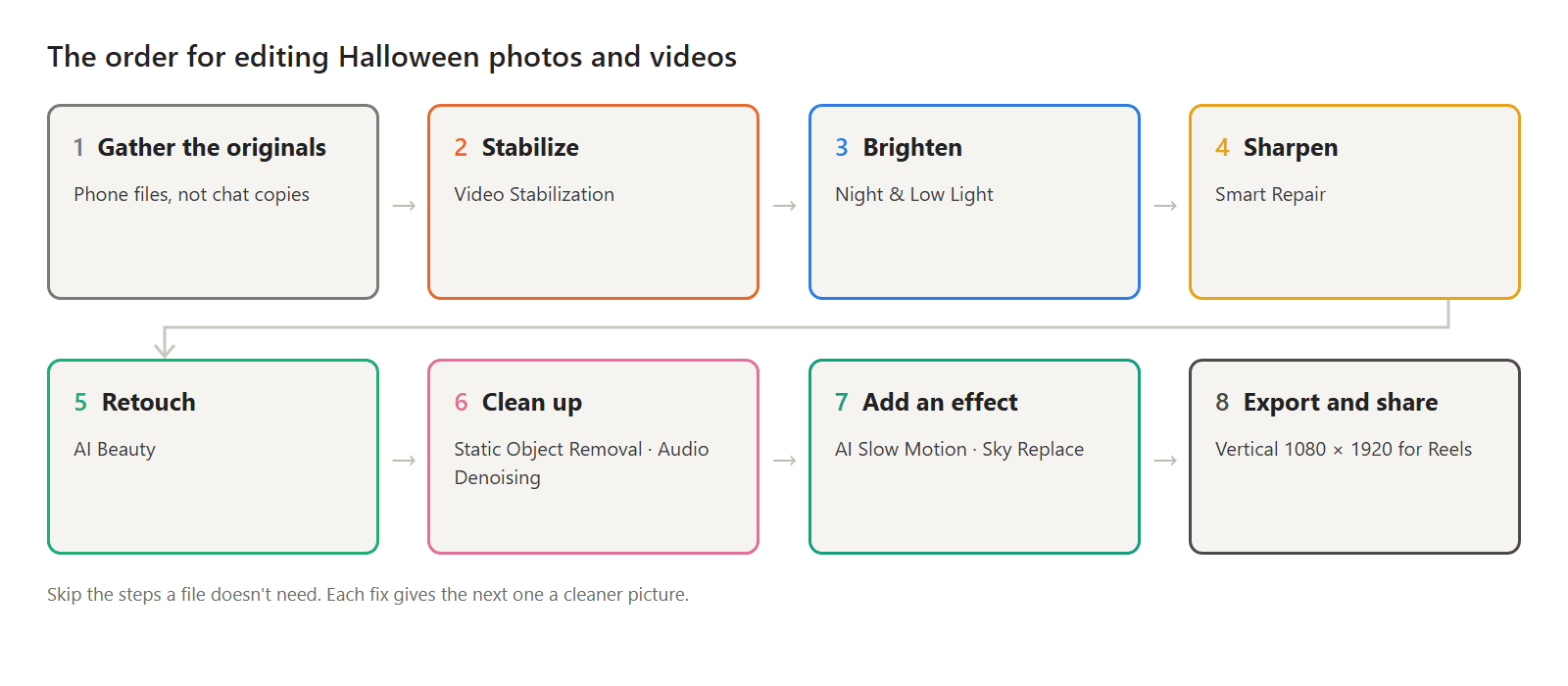
Each fix changes the picture the next one sees. Stabilizing after sharpening wastes the sharpening on edges that get cropped; retouching a dark, noisy face gives the retouch noise to work with; a background swap on a shaky clip makes the edges wobble. Fixing in order avoids redoing work.
In KwaFlux, every export can be picked up by the next tool: after an export, Continue with adds the output as a new version under the source clip, and the original stays.
Step 1. Gather the originals
The files on your phone are better than anything in the group chat. Chat apps shrink photos and videos to save data, which throws away detail that no repair can bring back.
- Ask family and friends to share through a shared album or a cloud link, or to pick the chat app's HD option.
- Copy everything to your computer before you start, into one folder per night.
- Delete the obvious misses first, so you only fix the keepers.
Step 2. Stabilize shaky clips
Trick-or-treat walks are filmed one-handed, in the dark, often while holding a small hand. Video Stabilization tracks the camera's movement and smooths it. Automatic keeps intended camera moves; Subject Lock pins the center and crops more of the edges. Previews render 5, 15, or 30 seconds, so you can check a whole walk up to the door.
Full guide: how to stabilize shaky Halloween videos.
Step 3. Brighten dark shots
For night shots lit by a jack-o'-lantern or a porch lamp, the Night & Low Light card ("Cuts noise and lifts shadows in night footage") brightens and denoises in one pass. Aim for "clearly visible", not daylight: the dark is part of the picture.
Full guide: how to brighten dark Halloween photos and videos.
Step 4. Sharpen blurry photos and videos
Smart Repair runs a quality check and combines denoising, sharpening, color and brightness correction, upscaling, and face restoration as needed. It's the fix for chat-app copies, digital zoom, and soft faces. Strong motion streaks are a different problem: look for a sharper frame in the burst.
Full guide: how to fix blurry Halloween photos and videos.
Step 5. Retouch faces and try a costume look
AI Beauty does two jobs on Halloween photos. The Rough-night rescue card ("Softens dark circles and adds a healthy flush") is for the morning-after selfies, and stacking makeup effects in AI Beauty adds a witch or vampire look you didn't have time for. In group photos, retouch only the people who asked.
Full guide: how to retouch Halloween party photos with AI.
Step 6. Clean up strangers and noise
Static Object Removal erases a stranger's legs, a cord, or a sign from photos and videos. For sound, Audio Denoising handles wind and hum, Voice Enhancement reduces echo, and Vocal Separation pulls a toast out from under the music.
Full guide: Halloween party cleanup: photobombers and background noise.
Step 7. Add a spooky effect
Now the fun part. AI Slow Motion stretches a cape swirl or a flame to 2x, 4x, or 8x; Portrait Background Removal and Object Background Replace put a person or a pet in front of the built-in Halloween night background; and Sky Replace turns a gray afternoon into Storm clouds.
Full guide: spooky Halloween video effects with AI.
Step 8. Export and share
- Vertical for social. Reels, Shorts, and TikTok are vertical. In the export settings, pick Portrait 1080P (1080×1920) when the tool offers it.
- Raise the bitrate a step for video. Dark scenes and fine costume detail are the first things to turn blocky.
- Keep a full-quality master. Export once at full quality for your archive, then make smaller copies for chats.
- Ask before you post. Halloween photos often include other families' children.
For platform details, see export settings for Shorts, Reels, and TikTok.
Bonus: restore old family Halloween photos
Somewhere in a drawer there's a photo of a grandparent in a homemade costume. Scan it, repair the detail with Smart Repair, fix a yellowed print with Smart Color, or colorize a black-and-white one with Colorize B&W. Next to this year's photo, it becomes the post everyone in the family shares.
Full guide: how to restore and colorize old Halloween photos.
Six spooky ideas from one night's footage
- The slow reveal. A jack-o'-lantern lighting up or a cape opening, at 4x slow motion with music instead of the original sound.
- The haunted portrait. A costume photo moved to a moonlit forest with the Halloween night background.
- The pet parade. Your dog in costume, cut out with Object Background Replace and placed in the same scene.
- The storm house. Your decorated house under storm clouds, filmed in the afternoon.
- Then and now. A restored family photo from decades ago next to this year's costume.
- The 30-second recap. Five stabilized, brightened clips cut together vertically for Reels.
KwaFlux Halloween offer
From October 24 to November 2, 2026, KwaFlux is on sale. Every plan includes every feature and works on 2 computers at once, Windows and Mac in any mix.
| Plan | Halloween price | After the offer |
|---|---|---|
| Perpetual License | $169.99 one-time, instead of $199.99 | No renewal: you pay once |
| Yearly | $79.99 for the first year | Renews at $99.99 a year |
| Monthly | $29.99 for the first month | Renews at $35.99 a month |
Prices exclude tax. The Perpetual License includes free updates within the current major version. Details are on the plans page.
Final thoughts
Halloween footage is hard to shoot and easy to love. Gather the originals, fix in order, from shake to darkness to blur, and save the fun edits for last. The detailed guides linked above cover each step on real Halloween photos and clips.
Edit your whole Halloween night in one app
KwaFlux brings quality repair, stabilization, AI beauty, background and sky replacement, object removal, and audio cleanup together on your own computer. AI processing runs locally on your GPU — media files are not uploaded for processing. It runs on Windows 10 (64-bit, version 1809 or later), Windows 11, and macOS 12 or newer on Apple Silicon. Previews need no account: 1, 3, or 5 seconds on video modules, 5, 15, or 30 seconds for Video Stabilization, the whole picture for images, and the opening 5 to 30 seconds for audio. Signing in with an active paid plan is required only to export, convert, repair a file, or download a file from a link.
Try It on Your Own Footage
Download KwaFlux and preview effects on your own footage for free before you pay — no account needed, and your media is processed on your GPU, not uploaded for processing. Video previews run 1, 3, or 5 seconds; stabilization previews run 5, 15, or 30 seconds.
Frequently asked questions
How do I edit Halloween photos to look spooky?
Start with a clean photo, then add one strong mood: darker, cooler color, a moonlit background, or a costume makeup look. Keep the candle glow warm and the shadows deep. A spooky edit is mostly about what you leave dark.
What should I fix first in a Halloween video?
Shake, then darkness, then blur. Stabilizing first means later fixes don't get cropped away, and brightening before sharpening keeps noise from being sharpened into grain. Retouching and effects come last.
Can I edit Halloween videos on my phone?
Yes, for quick trims, filters, and captions. Heavier fixes such as night denoising, stabilization of long clips, background swaps, and slow motion with new frames are easier on a computer, where you can preview at full size.
What are good Halloween video ideas for Reels or TikTok?
Short and visual: a slow-motion costume reveal, a before-and-after of a dark night shot, a pet costume parade, a then-and-now with an old family photo, or a 30-second recap of the night. Keep it under 30 seconds and vertical.
What size should Halloween videos be for Instagram Reels?
Vertical 9:16, usually 1080 × 1920 pixels. Shoot vertical if you know the clip is for Reels, or leave room around the subject so a horizontal clip can be cropped. See export settings for Shorts, Reels, and TikTok.
UpMore in Upscale & Repair
Keep reading
Blurry Halloween Photos and Videos? How to Sharpen Them with AI
Costume photos soft and parade clips blocky after the group chat? What makes Halloween photos and videos blurry, and how AI repair sharpens them.
Halloween Photos Too Dark? How to Brighten Night Shots and Videos with AI
Trick-or-treat photos came out black and grainy? Why Halloween night shots fail, and how AI brightens dark photos and videos while keeping the candle glow.
Denoise, Deblock, Sharpen, Correct Color: Video Restoration Filters in Depth
How denoising, deblocking, debanding, sharpening, white balance, and chromatic aberration fixes work, which order to run them in, with FFmpeg tests.