Shaky Halloween Videos? How to Stabilize Trick-or-Treat, Parade, and Haunted House Clips
Trick-or-treat walks, parades, and haunted houses make shaky video. How to stabilize Halloween clips with AI, what the crop costs, and what it can't fix.
Key takeaways
- Halloween videos shake because you film while walking, holding a candy bucket or a small hand, often in the dark.
- AI stabilization tracks how the camera moved and smooths that path after the fact.
- It trims the edges of the frame to do it, so film a little wider than you need and check the framing in the preview.
- Use Automatic for walks and pans, and Subject Lock when the picture should not move at all.
- Stabilize first, then brighten or sharpen.
Halloween videos come out shaky because you film while walking with a candy bucket or a small hand in yours, often in the dark, where your phone has less light to steady the picture. AI stabilization tracks how the camera moved and smooths it afterward. It trims the frame edges in the process, so check the framing before you export.
In this guide, you'll learn why Halloween clips shake, which stabilization mode suits trick-or-treat walks, parades, and haunted houses, how to stabilize them in KwaFlux, what stabilization can't fix, and how to film steadier on the night.
Halloween offer: from October 24 to November 2, the KwaFlux Perpetual License is $169.99 instead of $199.99, and the yearly and monthly plans have a lower first-year and first-month price. The full offer is at the end of this post.
Contents
- What is AI video stabilization?
- Why Halloween videos are so shaky
- Automatic or Subject Lock?
- How to stabilize Halloween videos in KwaFlux
- Stabilize first, then brighten or sharpen
- What stabilization can't fix
- Tips for steadier Halloween video
- KwaFlux Halloween offer
- FAQ
What is AI video stabilization?
AI video stabilization is a process that estimates how the camera moved in every frame, separates the movement you meant from the shake you didn't, and shifts each frame against the shake. The shifted frames leave gaps at the edges, so the stabilizer crops in a little and scales the picture back to the original size.
Why Halloween videos are so shaky
- You're walking. Trick-or-treating means filming between doors, and every step bounces the phone.
- One hand is busy. A candy bucket, a flashlight, or a child's hand leaves one hand for the phone.
- It's dark. Phones steady video partly in software, and that works better with plenty of light. Apple notes that iPhone's Action mode is meant for bright light and offers a separate lower-light setting.
- Zoom makes it worse. Zooming in on the parade magnifies every tremble along with the costume.
- Haunted houses are a run. People jump, scream, and turn fast, and so does the camera.
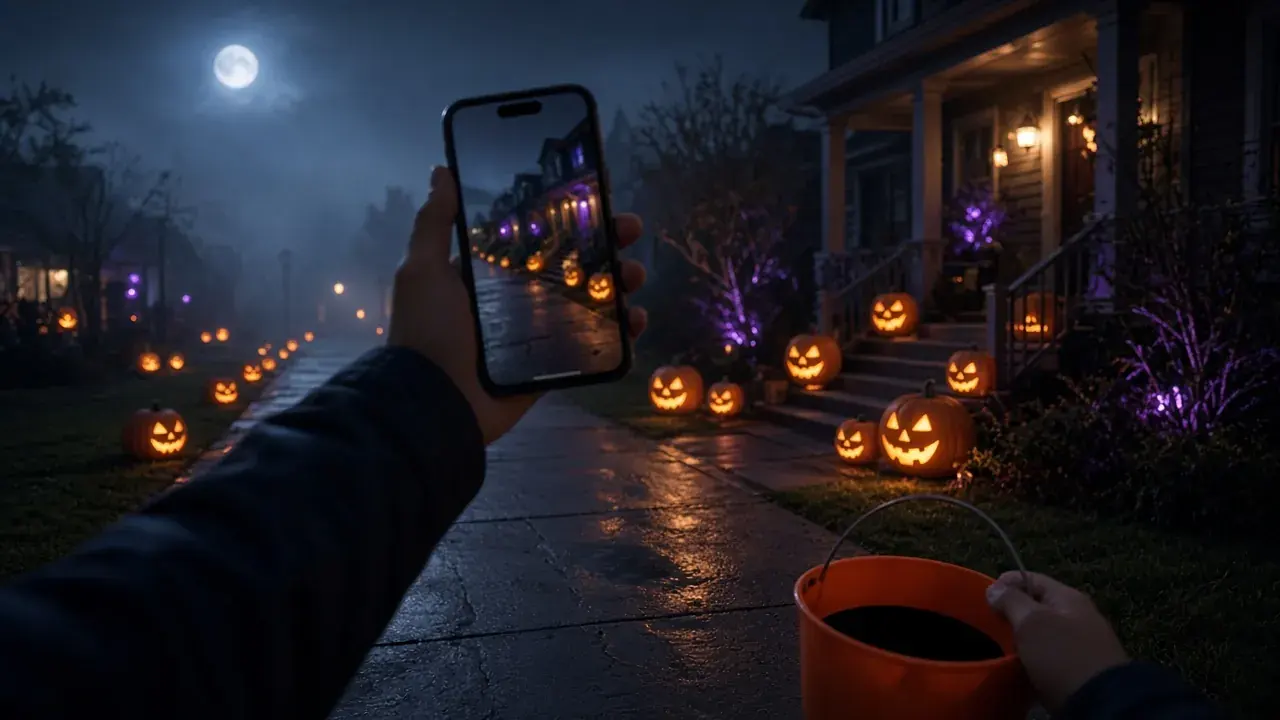
Automatic or Subject Lock?
KwaFlux has two stabilization modes. Automatic "keeps intentional camera moves", and Subject Lock "pins the center and crops the edges, for footage that should not move at all".
| Your clip | Mode | Why |
|---|---|---|
| Walking past decorated houses | Automatic | Keeps the walk and the pan, removes the bounce |
| A child on stage in the school costume parade, filmed from your seat | Subject Lock | The picture should stay put; the crop is worth it |
| Driving past a light display | Automatic | The movement is the point; only the jitter goes |
| A haunted house run-through | Automatic | Smooths the jitter; fast turns stay fast |
| Pumpkins on the porch, filmed handheld | Subject Lock | Makes a handheld shot look like it was on a tripod |
How to stabilize Halloween videos in KwaFlux
- Open Video Stabilization. In the sidebar, go to AI Toolbox › Smart Effects and open Video Stabilization ("Steadies handheld shake for a calmer picture").
- Add the clip. Video Stabilization works on video files; use the original from your phone rather than a chat copy.
- Pick a Stabilization Mode. Start with Automatic. Switch to Subject Lock only when the picture should not move at all.
- Preview a long enough stretch. Stabilization previews run 5, 15, or 30 seconds, longer than other video tools, because shake only shows over time. A clip shorter than the preview length uses the entire clip.
- Check the edges and the verticals. Doorframes and lamp posts should stay upright, and the crop should not cut off a head or a jack-o'-lantern. If Subject Lock crops too much, go back to Automatic.
- Export, then use Continue with to send the steady clip to the next tool if it also needs brightening or sharpening.
Stabilize first, then brighten or sharpen
Stabilization moves and scales every frame. Doing it first means the brightening or sharpening that follows works on steady frames, and the crop happens before the detail is restored, not after. For a dark, shaky trick-or-treat clip, the order is:
- Video Stabilization with Automatic.
- Night Scene Enhance in Quality Repair, if the clip is dark. See how to brighten dark Halloween photos and videos.
- Smart Repair, if it is soft or came through a chat app. See how to fix blurry Halloween photos and videos.
What stabilization can't fix
- Blur inside each frame. Stabilization steadies the position of the frames, not the smear within them. In the dark, a slow shutter blurs every step, and a steady blurry clip is still blurry.
- Very dark footage. A stabilizer needs detail to track. In near-black frames there is little to lock onto, so expect a smaller improvement on the darkest clips.
- Whip pans. A fast turn toward a jump scare has no smooth version to recover.
- Rolling shutter wobble. Fast shake can make verticals bend like jelly on phone sensors. Stabilization can make it less jumpy, but the bend stays.
For more on modes and crop, see how to stabilize shaky video with AI.
Tips for steadier Halloween video
- Hold the phone with both hands, elbows against your body, and let your arms absorb the steps.
- Walk heel to toe and slow down while you film. Stop walking for the shots that matter.
- Don't zoom while you walk. Walk closer instead.
- Film a little wider than you need. Stabilization crops the edges, so leave room around the costume.
- Use your phone's stabilization in good light. On iPhone, Action mode improves stabilization in Video mode; Apple notes it is meant for bright light and offers a lower-light setting. Under porch lights, plain video mode with a steady grip often works better.
- Lean on something at the parade. A fence, a lamp post, or the stroller handle steadies the shot more than any setting.
KwaFlux Halloween offer
From October 24 to November 2, 2026, KwaFlux is on sale. Every plan includes every feature and works on 2 computers at once, Windows and Mac in any mix.
| Plan | Halloween price | After the offer |
|---|---|---|
| Perpetual License | $169.99 one-time, instead of $199.99 | No renewal: you pay once |
| Yearly | $79.99 for the first year | Renews at $99.99 a year |
| Monthly | $29.99 for the first month | Renews at $35.99 a month |
Prices exclude tax. The Perpetual License includes free updates within the current major version. Details are on the plans page.
Final thoughts
Shaky Halloween clips are the norm, not a mistake: you were walking, in the dark, with one hand full. Stabilize the original file with Automatic first, check that the crop keeps what matters, and then brighten or sharpen the steady result.
For every other fix from the same night, from old family photos to spooky effects and party cleanup, see our Halloween photo and video editing guide.
Try it on your own Halloween clips
KwaFlux runs Video Stabilization and Quality Repair on your own computer. AI processing runs locally on your GPU — media files are not uploaded for processing. It runs on Windows 10 (64-bit, version 1809 or later), Windows 11, and macOS 12 or newer on Apple Silicon. Previews need no account: 5, 15, or 30 seconds for stabilization. Signing in with an active paid plan is required only to export, convert, repair a file, or download a file from a link.
Try It on Your Own Footage
Download KwaFlux and preview effects on your own footage for free before you pay — no account needed, and your media is processed on your GPU, not uploaded for processing. Video previews run 1, 3, or 5 seconds; stabilization previews run 5, 15, or 30 seconds.
Frequently asked questions
Can you stabilize a video after recording it?
Yes. Software stabilization tracks how the camera moved, shifts each frame against the shake, and crops the edges to hide the gaps. It handles ordinary handheld shake well; blur inside each frame and whip pans stay.
Why does a stabilized video look zoomed in?
Because stabilization crops the frame to keep a steady window and scales it back to full size. The stronger the shake, the more it crops. A mode that pins the picture in place crops more than one that keeps your camera moves. More in how to stabilize shaky video with AI.
Does stabilization lower video quality?
Usually a little. The cropped picture is scaled back up, so fine detail softens slightly, more so with stronger shake. Filming in 4K and exporting in 1080p hides most of it.
Should I stabilize or brighten first?
Stabilize first. Brightening and sharpening then work on steady frames, and the crop happens before the detail is restored instead of throwing away part of the restored picture.
Can phone stabilization replace editing software?
Partly. Built-in stabilization handles much of the shake while you film, especially in good light. It can't help a clip you already shot, and in the dark it has less to work with, which is when stabilizing afterward helps most.
How do I film steadier videos while trick-or-treating?
Hold the phone with both hands and your elbows in, walk slowly heel to toe, and walk closer instead of zooming. Stop for the shots that matter, like the first doorbell or the costume reveal, and film a little wider than you need.
Sources
MoMore in Motion & Stabilization
Keep reading
Temporal Consistency in Video: Why Restored Footage Flickers, Shimmers, and Ghosts
Why processed video flickers, shimmers, leaves trails, or shows double images after frame interpolation, how to measure it, and tested FFmpeg fixes.
How to stabilize shaky video with AI (and when crop hurts)
Automatic vs Subject Lock, what each costs in crop, rolling shutter caveats, and free 5/15/30-second previews. Previews need no account.