Your Player Has an HDR Option. How Do You Make Your Own Video HDR?
A player's HDR setting changes your screen, not the file. Three ways to make a video truly HDR, how to check the file, and what HDR needs to look right.
Key takeaways
- An HDR switch in a player or in Windows changes how your screen shows video; it doesn't turn the file into HDR.
- A real HDR video is a 10-bit file with an HDR transfer curve (PQ or HLG) and wide-gamut BT.2020 color.
- There are three routes to one: record in HDR, grade log or RAW footage to HDR, or convert SDR to HDR.
- SDR-to-HDR conversion expands brightness and color; it can't recover highlights the camera clipped.
- Check the file with ffprobe, and watch it on an HDR screen before you share it.
To make your own video HDR, you need an HDR file, not an HDR setting. Record in HDR on a phone or camera that supports it, grade log footage to an HDR output, or convert an existing SDR video to HDR and export it as 10-bit PQ or HLG.
The HDR options in players and streaming apps look similar but do something else: they let your screen show HDR, or they brighten SDR on the fly for your eyes only. In this guide, you'll learn what each HDR option does, the three routes to an HDR file, how to check one, and what viewers need to see it.
Contents
- What the HDR option in your player does
- What makes a video file HDR
- Which route should you use?
- Route 1: Record in HDR
- Route 2: Grade log or RAW footage to HDR
- Route 3: Convert SDR to HDR
- How to do it in KwaFlux
- Check that the file is HDR
- Common problems
- FAQ
What the HDR option in your player does
"HDR" appears in three different places, and only one of them is about the file:
| Where you see it | What it does | Changes the file? |
|---|---|---|
| An HDR badge or quality option on a streaming app | Plays the HDR version the service already has | No; the service made the HDR file |
| Windows HDR and HDR video streaming settings | Lets HDR-capable apps send HDR video to an HDR display | No |
| NVIDIA RTX Video HDR, or a TV or phone "HDR effect" mode | Remaps SDR video to look like HDR, live, on your screen | No; others see the plain SDR file |
So if you turn on RTX Video HDR in the driver and your SDR video looks punchier, that improvement exists only on your PC. NVIDIA describes it as remapping SDR video to HDR10 using AI, in supported browsers and VLC, on an RTX graphics card with an HDR10 display. Anyone you send the video to still gets SDR.
What makes a video file HDR
An HDR video is a file whose brightness is encoded with an HDR transfer curve, PQ or HLG, usually with BT.2020 color primaries and at least 10 bits per channel. SDR video uses the BT.709 curve and a picture designed for a peak of about 100 nits; HDR describes highlights up to 1,000 nits and more, and a wider range of colors.
That means three things have to be right in the file:
- Transfer curve: PQ (used by HDR10, HDR10+, and Dolby Vision) or HLG (used in broadcast and by many phones).
- Color primaries: BT.2020.
- Bit depth: 10-bit or more, encoded with H.265 (HEVC), AV1, or VP9 Profile 2. 8-bit H.264 isn't used for HDR delivery.
Just tagging an SDR file as PQ doesn't make it HDR; it only makes players misread it. For the details of PQ, HLG, and metadata, see SDR vs HDR: tone mapping, PQ, and HLG.
Which route should you use?
| Your footage | Route | What you get |
|---|---|---|
| Not shot yet, phone or camera supports HDR | Route 1 | True HDR from capture |
| Shot in log or RAW | Route 2 | Full control over the HDR grade |
| Already SDR (most existing videos, old clips, screen recordings) | Route 3 | HDR expanded from SDR |
| SDR, and your audience watches on SDR phones | Stay SDR | HDR adds nothing they can see |
Route 1: Record in HDR
Many recent phones record HDR directly. On supported iPhone models, the Camera app records Dolby Vision HDR when Settings › Camera › Record Video › HDR Video is on. Many Android phones offer an HDR10+ or HDR video option in the camera's video settings. Mirrorless and cinema cameras often record HLG or a log profile (see Route 2).
Sidenote: HDR recordings look dim or washed out when an app or editor doesn't support HDR, because it shows the HDR signal as if it were SDR. That's a viewing problem, not a recording one. See why a video looks different on each screen.
Route 2: Grade log or RAW footage to HDR
Log and RAW recordings keep a wide range of brightness that you shape in an editor. In DaVinci Resolve, Premiere Pro, or Final Cut Pro, set the project or timeline to an HDR color space (Rec.2100 PQ or HLG), grade on an HDR monitor if you can, and export H.265 10-bit with the HDR tags. This gives the most control, and it takes the most skill and the right monitor.
Route 3: Convert SDR to HDR
Most videos people already have are SDR. Converting them to HDR means expanding the picture: lifting highlights into the HDR range, keeping mid-tones and skin where they belong, and mapping BT.709 color into BT.2020. There are three ways to do that, with very different results:
| Method | What it does | Result |
|---|---|---|
| Relabel only | Changes the tags, not the pixels | Wrong brightness; not real HDR |
| One global curve | Applies the same brightness boost to every pixel | Faces and mid-tones get too bright, or highlights stay flat |
| AI conversion | Expands brightness by content: lifts lights and skies, keeps faces natural | Closest to a native HDR look |
AI conversion can't recover detail in highlights the camera already clipped to white; it can only brighten them. For measured comparisons of these methods, see SDR to HDR, measured.
How to do it in KwaFlux
KwaFlux converts SDR video to HDR on your own computer:
- Import the video and open AI Color Grading. Set Grading Mode to SDR to HDR (video only).
- Choose a Scene: Landscape or Nightscape use preset brightness; choose Custom to set the Brightness slider yourself (higher is brighter).
- Preview a few seconds on an HDR display, if you have one, and compare with the original.
- Export. KwaFlux recommends H.265 in MKV; AV1 is the other choice. Under color space, HDR PQ (Rec.2020) is the default, and HDR HLG (Rec.2020) suits HLG playback, such as many TVs and phones; both are 10-bit. SDR (BT.709) is there too, for an SDR copy.
If the clip is also soft or noisy, run Quality Repair with Smart Repair first, then convert the repaired version to HDR, so the extra brightness doesn't make noise more visible.
Check that the file is HDR
Run ffprobe on the exported file:
ffprobe -v error -select_streams v:0 -show_entries stream=codec_name,pix_fmt,color_transfer,color_primaries,color_space -of default=nw=1 output.mkvAn HDR file reports a 10-bit pixel format (such as yuv420p10le), color_primaries=bt2020, and color_transfer=smpte2084 for PQ or arib-std-b67 for HLG. In our test, an H.265 PQ file showed exactly that, while an ordinary H.264 file showed yuv420p and no HDR transfer. Then watch it on an HDR display: highlights should be brighter than the SDR version, with faces about the same.
Common problems
| Problem | Likely cause | Fix |
|---|---|---|
| HDR video looks grey and flat | Viewed on an SDR screen or in an app without HDR support | Play it on an HDR display; make an SDR copy for others |
| Looks great on your PC, normal for others | RTX Video HDR or a screen mode, not the file | Convert the file itself (Route 3) |
| Faces look too bright | One global curve, or Brightness set too high | Use AI conversion; lower Brightness in Custom |
| Bright sky shows no detail | Highlights clipped in the original | Can't be recovered; keep the brightness moderate |
| Banding in skies | 8-bit export, or heavy compression | Export 10-bit H.265 or AV1 at a good bitrate |
| Platform shows the video as SDR | Missing tags or unsupported upload format | Check with ffprobe |
Final thoughts
The HDR button in your player is about your screen; an HDR video is about the file. Record in HDR when you can, grade log footage when you need control, and convert SDR with AI when the footage already exists. Then check the tags and watch it on an HDR display before you share it.
Turn SDR videos into real HDR files
KwaFlux's AI Color Grading converts SDR video to HDR PQ or HLG, 10-bit, on your own computer. Media files are not uploaded for processing. It runs on Windows 10 (64-bit, version 1809 or later), Windows 11, and macOS 12 or newer on Apple Silicon. Importing files and exploring the app need no account. Signing in with an active paid plan is required only to export, convert, repair a file, or download a file from a link.
Try It on Your Own Footage
Download KwaFlux and preview effects on your own footage for free before you pay — no account needed, and your media is processed on your GPU, not uploaded for processing. Video previews run 1, 3, or 5 seconds; stabilization previews run 5, 15, or 30 seconds.
Frequently asked questions
Does turning on HDR in Windows make my videos HDR?
No. It lets HDR-capable apps send HDR video to your HDR display, and changes how SDR content is shown. Your video files stay as they are; an SDR file is still SDR.
Is RTX Video HDR the same as an HDR video?
No. RTX Video HDR remaps SDR video to HDR live on your own screen, in supported browsers and VLC. The file doesn't change, so other people still see SDR.
Can you convert any SDR video to HDR?
Yes, technically, but results vary. Well-exposed footage with intact highlights converts well; clipped skies and very noisy clips gain little. Repair noisy clips first. See SDR to HDR and smooth motion.
How can I tell if a video is HDR?
Check its color tags: a PQ (smpte2084) or HLG (arib-std-b67) transfer, BT.2020 primaries, and a 10-bit pixel format. Media info panels and ffprobe show these; players may also show an HDR badge.
Should I use PQ or HLG?
PQ for HDR10 delivery and most streaming platforms; HLG for broadcast, many TVs, and playback that also has to look acceptable on SDR screens. If unsure, PQ is the common default. See what is HDR video?
Sources
- Microsoft Support, "Stream HDR video on Windows" (accessed 2026-10-27)
- NVIDIA Support, "RTX Video FAQ" (accessed 2026-10-27)
- Apple Support, "Adjust HDR camera settings on iPhone" (accessed 2026-10-27)
- ITU-R Recommendation BT.2100, "Image parameter values for high dynamic range television" (PQ and HLG) (accessed 2026-10-27)
- FFmpeg Documentation, "ffprobe" (accessed 2026-10-27)
CoMore in Color & HDR
Keep reading
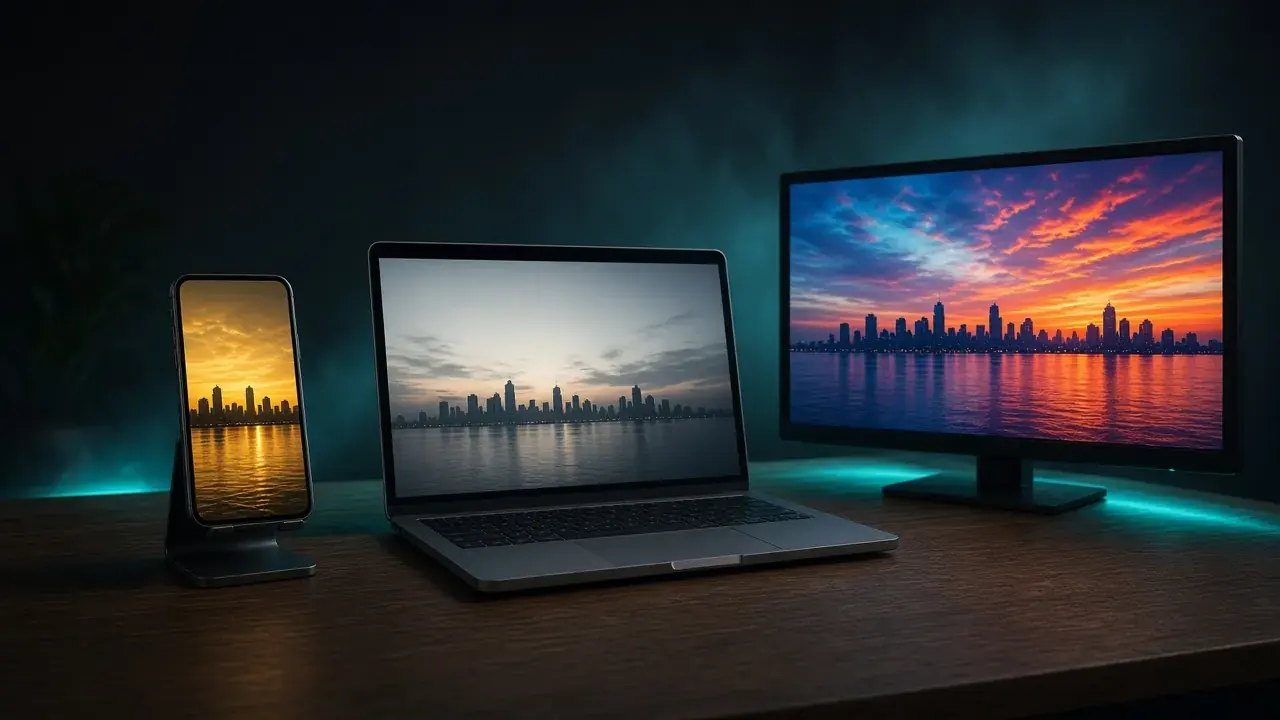
Why Does the Same Video Look Different on My Phone, PC, and TV?
Colors, brightness, and smoothness change between phone, PC, and TV because each screen and player treats video its own way. What to check and what to fix.

SDR vs HDR in Depth: PQ, HLG, Tone Mapping, and HDR10 Encoding
How PQ and HLG encode light, why HDR needs 10 bits, what HDR10 metadata says, how tone mapping works, plus tested x265, SVT-AV1, and FFmpeg commands.
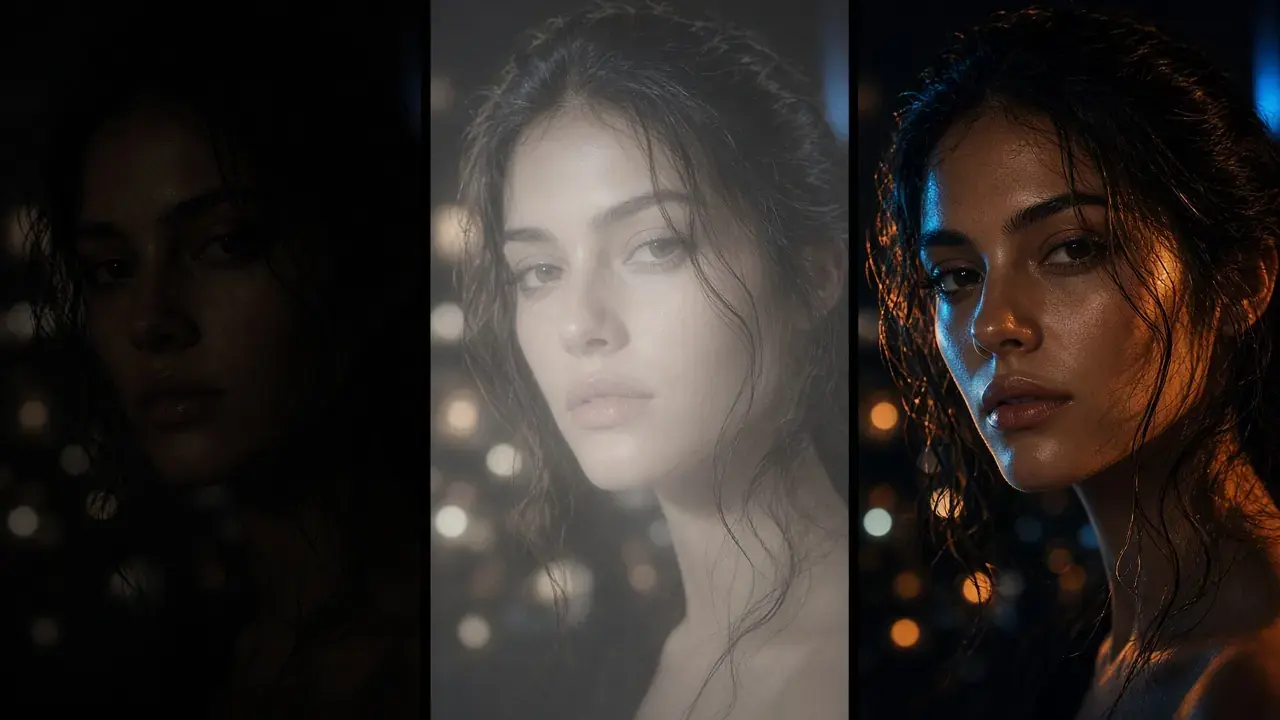
SDR to HDR, Measured: Relabeling, Brightness Boosts, and a Static Curve
One SDR frame converted three computed ways, every pixel measured in nits: a relabel sends the sky to 6,207 nits, a linear boost puts faces at 350.