How to Compress a Video Without Visible Quality Loss: H.264 vs H.265 vs AV1
Shrink video files without visible quality loss. Pick H.264, H.265, or AV1, set the right bitrate or CRF, and check the result. Free and desktop methods.
Key takeaways
To compress a video without visible quality loss, re-encode it once from the original with a modern codec at a quality setting you've checked by eye. H.264 is the safe choice when the file has to play everywhere. H.265 or AV1 usually gives a smaller file at a similar look, as long as your target devices can decode them.
Pick the codec first, then lower the bitrate or raise the CRF one step at a time until you can see a difference, and go back one step.
- File size is bitrate × duration. To make a video smaller, lower the bitrate, switch to a more efficient codec, or reduce resolution or frame rate.
- H.264, H.265, and AV1 are all lossy. The realistic goal is a smaller file where nobody can see the difference at the size it will be watched.
- H.264 has the widest playback support. H.265 and AV1 are designed to reach a similar look at lower bitrates, but they need newer decoders and take longer to encode.
- Quality settings don't transfer between encoders: CRF 23 in x264 is not CRF 23 in x265 or SVT-AV1.
- Compress from the original, check dark scenes and fast motion, and avoid re-compressing a file that's already been compressed.
What is video compression?
Video compression is the process of encoding a video with fewer bits by removing information viewers are least likely to notice.
Three things decide how big the file ends up:
- Bitrate: how many bits the encoder spends per second. Size ≈ bitrate × duration. At 8 Mbps, one minute of video is 8 × 60 ÷ 8 = 60 MB.
- Codec: the method used to encode the picture. Newer codecs are designed to spend fewer bits for a similar look.
- Resolution and frame rate: more pixels and more frames need more bits for the same quality.
The container (MP4, MKV, MOV, WebM) is just the wrapper. Changing it without re-encoding barely changes the size.
Sidenote: Taken literally, "without quality loss" would mean encoding that keeps every bit of the picture, and that makes files larger, not smaller. Everything in this guide is about losses small enough that you can't see them at normal viewing size.
H.264 vs H.265 vs AV1: which codec should you choose?
| Codec | Also called | Playback support | Encoding speed | Choose it when |
|---|---|---|---|---|
| H.264 | AVC | The widest. YouTube recommends H.264 for uploads | Usually the quickest of the three | The file must play anywhere, or you're uploading to a platform that re-encodes anyway |
| H.265 | HEVC | Common on recent phones, TVs, and computers; not every browser or older device | Usually slower than H.264 | You want smaller files for devices you know support it, or 4K and 8K delivery |
| AV1 | AOMedia Video 1 | Growing; check older devices and hardware decoding | Varies widely with the preset; slow presets take much longer | Web delivery and archiving where your players support it |
| VP9 | WebM video | Web browsers and YouTube | Slower than H.264 | WebM files for the web |
There's no single best codec. Decide by asking two questions in this order:
- Where will it play? If you can't control the device, choose H.264.
- How long can you wait for the encode? AV1 and H.265 trade encoding time for smaller files.
Before you start: compress from the cleanest original
Two habits matter more than any setting:
- Start from the highest-quality file you have. Every lossy re-encode discards a little more. Compressing a file that was already compressed for messaging or social media stacks those losses.
- Clean up noise first if you can. Noise and grain look like fine detail to an encoder, so it spends bits preserving them. Denoising before you compress lets the encoder put those bits into the picture you care about. See how to denoise video with AI.
Method 1. Compress in KwaFlux's Converter
KwaFlux's Converter batch-converts formats, codecs, and bitrates in the same app you use for repair and enhancement.
- Open the Converter. In the sidebar, under the tools group, click Converter. It opens the Format Conversion page.
- Add your files. Click Add Files or drag them in. Click a file in the list to unlock the settings on the right. Select several files to apply the same settings to all of them.
- Choose the output format. On the Video tab, pick MP4 for the widest compatibility, or WEBM for browser playback. Then pick a preset such as HD 1080P or HD 720P.
- Open Video Settings and set the codec. In MP4, the video encoders include H.264, H.265 / HEVC, and AV1. In WebM, they include VP8, VP9, and AV1.
- Set resolution and bitrate. Choose the Resolution, then a Video Bitrate from the list for that resolution. The MP4 HD 1080P preset starts at H.264 and 3 Mbps, a small-file setting. At 1080p, H.264 and AV1 offer 1 to 30 Mbps, and H.265 offers 1 to 20 Mbps. If you switch to a codec or resolution whose list doesn't include the current bitrate, KwaFlux moves to that list's default: 8 Mbps for H.264 and AV1, 5 Mbps for H.265. The preset starts at 30 fps, so set Frame Rate to the source's frame rate unless you mean to change it.
- Check the estimate and start. The page shows an estimated output size. Click Start all. Finished files appear under Converted.
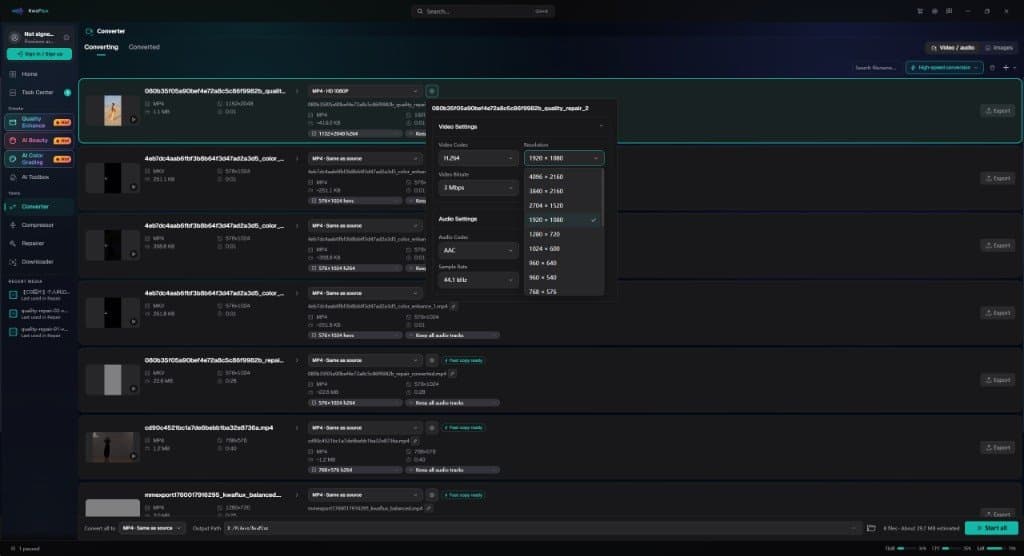
Pro tip: If only the container is wrong (for example, an editor wants MOV and you have MP4), pick the new format with Same as source, set the codec in Video Settings to the one the source already uses, and leave Fast mode on under High-speed conversion. KwaFlux then copies the video stream instead of encoding it again, and the file shows Fast copy ready. FFmpeg's -c copy does the same, as shown in Method 3.
For more on containers and codecs for editing, see convert video formats locally.
Method 2. Compress with HandBrake (constant quality)
HandBrake is free, open source, and its default presets use constant quality, which keeps quality consistent across the video and lets the file size follow the content.
- Open your video with Open Source and pick a preset close to your target resolution.
- On the Video tab, choose the Video Encoder: H.264 (x264), H.265 (x265), or AV1 (SVT-AV1).
- Keep Framerate on Same as source.
- Set Constant Quality. HandBrake's documentation recommends these starting ranges (lower RF means higher quality and a bigger file):
| Resolution | x264 and x265 | SVT-AV1 |
|---|---|---|
| 480p / 576p | RF 18 to 22 | RF 22 to 32 |
| 720p | RF 19 to 23 | RF 25 to 35 |
| 1080p | RF 20 to 24 | RF 25 to 35 |
| 2160p (4K) | RF 22 to 28 | RF 25 to 40 |
- Use HandBrake's Preview to encode a short clip and compare it with the source.
- Click Start Encode.
HandBrake's documentation also notes that RF values aren't comparable across encoders: an x264 encode at RF 25 won't look like an x265 or SVT-AV1 encode at RF 25.
Method 3. Compress with FFmpeg (CRF)
FFmpeg gives you the same encoders on the command line, which is handy for batches and scripts.
H.264 (a value in HandBrake's 1080p range):
ffmpeg -i input.mp4 -c:v libx264 -crf 22 -preset slow -c:a aac -b:a 160k output_h264.mp4H.265 (x265's default CRF is 28, on a 0 to 51 scale):
ffmpeg -i input.mp4 -c:v libx265 -crf 28 -preset medium -tag:v hvc1 -c:a aac -b:a 160k output_h265.mp4AV1 with SVT-AV1 (SVT-AV1's own defaults are CRF 35 and preset 8; higher preset numbers encode faster):
ffmpeg -i input.mp4 -c:v libsvtav1 -crf 35 -preset 8 -c:a aac -b:a 160k output_av1.mp4How to tune:
- Lower CRF for higher quality and a bigger file; raise it for a smaller file. Move a few steps at a time.
- Slower presets spend more time searching for efficient encodings, which usually gives a smaller file at the same CRF.
-tag:v hvc1labels the H.265 stream the way Apple players expect, which helps MP4 files open in QuickTime and on iPhone.
If you only need a different container, skip the encoder. -c copy moves the streams into the new file without decoding or encoding them:
ffmpeg -i input.mp4 -c copy output.movBecause nothing is decoded or encoded, the picture is unchanged. FFmpeg's documentation notes that stream copy doesn't work in every case, for example when the target container needs information the source doesn't have. If the copy fails, re-encode with one of the commands above.
How to hit a target file size
When a platform or email limit sets the size, work backward from it:
- Convert the target to megabits: size in MB × 8. For 100 MB, that's 800 Mb.
- Divide by the duration in seconds. For a 5-minute video: 800 ÷ 300 ≈ 2.67 Mbps total.
- Subtract the audio bitrate. With 128 kbps audio: about 2.54 Mbps for video.
- Leave about 5% headroom for the container and bitrate swings: about 2.4 Mbps.
In KwaFlux's Converter, pick the closest bitrate at or below that number, or drop to a lower resolution if the list doesn't go that low. In FFmpeg, use a two-pass encode for an accurate size:
ffmpeg -y -i input.mp4 -c:v libx264 -b:v 2400k -preset slow -pass 1 -an -f null NUL
ffmpeg -i input.mp4 -c:v libx264 -b:v 2400k -preset slow -pass 2 -c:a aac -b:a 128k output_100mb.mp4
On macOS or Linux, replace NUL with /dev/null.
How to check for visible quality loss
Don't judge a compressed file by its first few seconds. Check the shots that encoders struggle with:
- Dark gradients and skies: look for banding and blocky steps.
- Fine texture: foliage, water, hair, fabric. Look for smearing.
- Fast motion and film grain: look for blocks that appear and vanish.
- Text and edges: look for ringing or fuzz around letters.
Compare the original and the compressed file at 100% zoom, then on the device people will actually use. For an objective score, see how we score video quality with VMAF.
For uploads, remember the platform re-encodes your file. YouTube's recommended H.264 upload bitrates, such as 8 Mbps for 1080p at 24 to 30 fps, give it a clean source to work from. Uploading a tiny, heavily compressed file means the platform compresses an already compressed picture.
Common mistakes
| Mistake | What happens | Fix |
|---|---|---|
| Compressing an already compressed file | Losses stack; blocks and smearing grow | Go back to the original |
| Choosing H.265 or AV1 for a device that can't decode it | The file won't play, or plays choppily | Use H.264 for unknown devices; test playback first |
| Copying a CRF value from one encoder to another | Unexpected size or quality | Use each encoder's own recommended range |
| Exporting at a higher resolution than the source | Bigger file, no new detail | Keep the source resolution, or upscale deliberately with AI |
| Bitrate far too low for 4K | Blocking in motion and dark scenes | Raise the bitrate, or deliver 1080p instead (see 4K vs 8K) |
| Changing the frame rate by accident | Judder, or audio drifting out of sync | Keep the frame rate the same as the source |
Final thoughts
Good compression is mostly a sequence of small decisions: start from the original, pick the codec your viewers can play, adjust one setting at a time, and check the hard shots. Do that once and you'll have a recipe you can reuse for every file like it.
KwaFlux's Converter batch-converts video and audio formats, codecs, and bitrates on your own computer, in the same app you use for repair and enhancement. Media files are not uploaded for processing. It runs on Windows 10 (64-bit, version 1809 or later), Windows 11, and macOS 12 or newer on Apple Silicon. Importing files and exploring the app need no account. Signing in with an active paid plan is required only to export, convert, repair a file, or download a file from a link.
Experience on Your Own Footage
Download KwaFlux and preview effects on your own footage for free before you pay — no account needed, and your media is processed on your GPU, not uploaded. Video previews run 1, 3, or 5 seconds; stabilization previews run 5, 15, or 30 seconds.
Frequently asked questions
How can I compress a video without losing quality?
With lossy codecs, some data is discarded on every encode. What you control is whether anyone can see it: start from the original, choose a modern codec your devices support, and step the quality setting down until a difference appears, then go back one step.
Is H.265 better than H.264?
Not in every situation. H.265 is designed to give a similar look at a lower bitrate, which makes smaller files, but it encodes more slowly and some browsers and older devices can't play it. H.264 is the safer choice when you don't know where the file will play.
Is AV1 better than H.265?
Not always. AV1 is designed for efficient web delivery, but encoding can take much longer at slow presets and older devices may lack hardware decoding. Test on the players your audience uses.
How do I pick a bitrate for H.265 or AV1?
Start from your tool's default quality setting rather than a fixed number: both codecs are designed to look like H.264 at a lower bitrate. Step down while checking dark and fast-moving scenes; VMAF scores can back up what you see.
Does changing MP4 to MKV or MOV make the file smaller?
No. Changing the container without re-encoding copies the same video stream, so the size stays about the same; FFmpeg does this with -c copy. Only re-encoding with another codec or bitrate changes the size.
Sources
- HandBrake Documentation, "Adjusting quality" (accessed 2026-10-11)
- x265 Documentation, "Command Line Options" (`--crf`) (accessed 2026-10-11)
- SVT-AV1, "Parameters" (CRF and preset defaults) (accessed 2026-10-11)
- YouTube Help, "YouTube recommended upload encoding settings" (accessed 2026-10-11)
- FFmpeg Documentation, "ffmpeg" (section 3.1, Streamcopy) (accessed 2026-10-11)
FmMore in Formats & Files
Keep reading

What file repair actually does when a video will not open
Unplayable is a container problem, not a quality problem. Diagnosis, then Quick / Deep / Smart — optional same-camera reference. Not an enhancer.
How to fix a video that won't open or play
Video File Repair diagnoses unplayable MP4s locally. Auto, Quick, Deep, and Smart modes — plus an optional same-camera reference. Not an enhancer.

Convert video formats locally without uploads
Deliver masters locally after enhancement — codecs, containers, and why a built-in converter matters.