Denoise, Shrink to 50 MB, Fix a Broken File: What an AI Assistant Can Do in KwaFlux
31 KwaFlux features you can start from a chat: audio cleanup, compression to a size, file repair, AI enhancement, and why 9 stay in the app.
The short answer
Over MCP, an AI assistant can start 31 of the 40 features in KwaFlux today: AI enhancement for video and photos, audio noise reduction, compression to a target size, conversion to 64 formats, file repair, and more. You describe the result you want; KwaFlux runs the job on your computer and saves the file next to the original.
- Over MCP, an AI assistant can start 31 of the 40 features in KwaFlux today: AI enhancement, the audio tools, compression, conversion, GIFs, DVD conversion, file repair, and link downloads.
- 12 of the 16 AI enhancement tools work on photos as well as video.
- The assistant fills in a few fields; KwaFlux builds the job with the same parameter rules as the app, so you aren't relying on a model to invent settings.
- Nine features stay in the app because they need you to draw, click, or watch a preview, and the assistant is told to send you there.
Nine features stay in the desktop app on purpose, because they need you to point at the picture.
In this guide, you'll learn what each group of tools does, three requests worth trying first, how close the results are to clicking in the app, and why some features stay manual.
Contents
- What is an MCP tool?
- Three requests to try first
- Everything the assistant can start
- Photos too: which tools take images
- Is it the same as clicking in the app?
- Why nine features stay in the app
- Common problems
- FAQ
What is an MCP tool?
An MCP tool is a named function, with a typed list of inputs, that an MCP server offers to an AI assistant so the model can call it when a request needs it.
KwaFlux offers 38 of them, organized in 10 groups. A tool doesn't do the work itself. It sends a small, typed request to the running KwaFlux app, which checks it and queues a job like any other. For how to connect your assistant, see the KwaFlux MCP quick start.
Three requests to try first
These three cover the jobs creators ask about most. Each one is a single sentence.
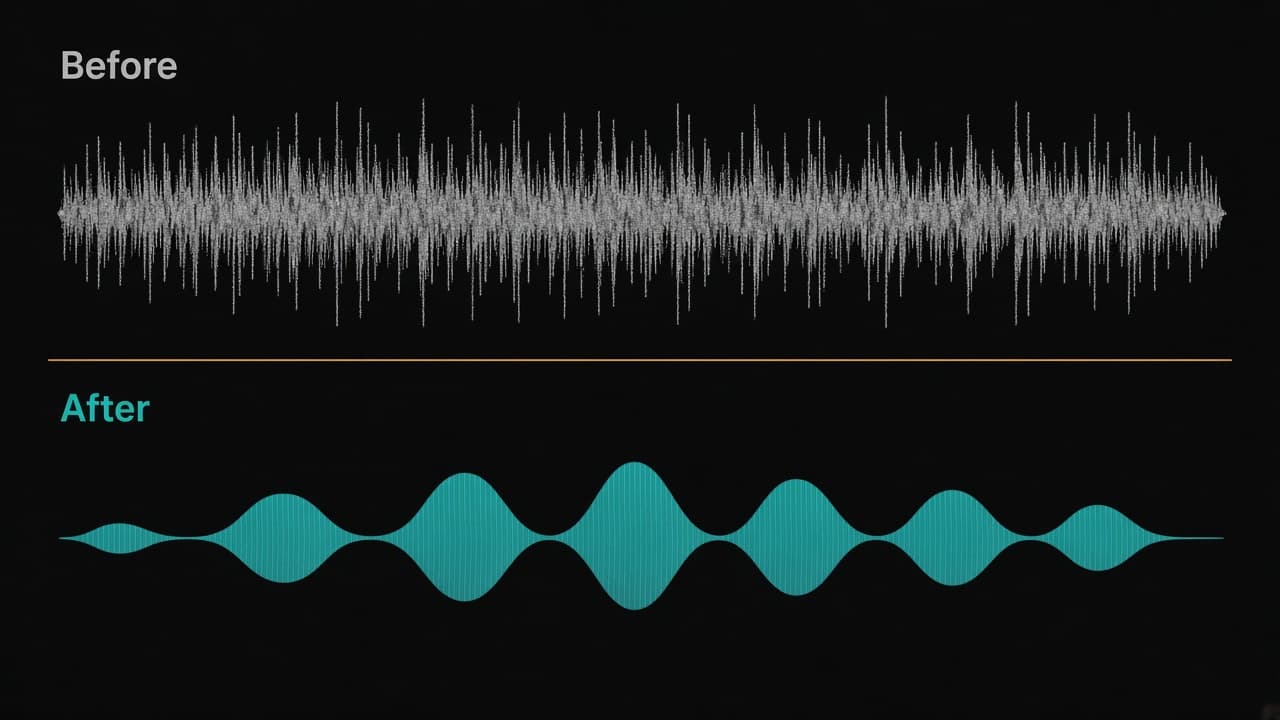
1. Clean up an interview recording
Remove the background hum from D:\Podcast\ep12.wav, then make the voice clearer.
The assistant runs Audio Denoise, waits for it, and then runs Voice Enhancement on the result. The audio tools use the same parameter rules as the audio workspace in the app.
2. Hit a file-size limit
Make D:\Clips\demo.mov about 50 MB so I can email it.
The Compressor can work from a ratio, a target size, or a quality tier. With a target size, KwaFlux keeps the source container and codec, plans the bitrate itself, and checks the result against the size. For why bitrate decides file size, see H.264 vs H.265 vs AV1.
3. Rescue a file that won't open
D:\Phone\VID_0412.mp4 won't play. Check what's wrong and fix it.
The assistant runs a diagnosis first. The diagnosis says whether the file can be repaired and which mode to use. The repair then runs in that mode, and you can give it a healthy clip from the same camera as a reference. The complete repair workflow follows one file from broken to upload-ready.
Everything the assistant can start
| Group | What the assistant can ask KwaFlux to do |
|---|---|
| Enhance (16 tools) | Quality Repair, AI Color Grading, Video Stabilization, AI Slow Motion, Deinterlacing, Smart Cropping, Cartoonization, Sketch Generation, Fixed Style Transfer, Face Relighting, and six beauty tools: Overall Retouch, Makeup, Facial Features, Face Shape, Skin Quality, and hair color |
| Audio | Audio Denoise, Voice Enhancement, Vocal Separation, AI Voice Change |
| Convert | Quick MP4 conversion; export to any of 64 formats and 435 quality tiers, with optional Fast mode and GPU encoding; list the tiers; make a GIF from a time range, at a set width and frame rate |
| Compress | Compress video or audio by ratio, target size, or quality tier |
| Repair | Diagnose a damaged video, then repair it, optionally with a reference file |
| Image | Convert an image to one of 11 formats |
| DVD | Scan a disc's titles, then convert the one you pick |
| Download | Look up a link, then save it, within the download setting you chose |
| Core (8 tools) | Check the app, list and inspect tasks, wait with progress, and pause, resume, cancel, or retry the assistant's own tasks |
Downloads are single links only. Playlists, live streams, and copy-protected content aren't downloaded, and the setting that allows agent downloads is off until you change it.
Photos too: which tools take images
Twelve of the 16 enhancement tools accept a photo as well as a video:
- Quality Repair and AI Color Grading
- Cartoonization, Sketch Generation, Fixed Style Transfer, and Face Relighting
- All six beauty tools
The four that need motion stay video-only: Video Stabilization, AI Slow Motion, Deinterlacing, and Smart Cropping.
So "Retouch the skin in these five headshots, keep it natural" works the same way as a video request. The photo version uses the image settings from the same configuration the app uses.
Is it the same as clicking in the app?
The parameters are, by design. The list of modules, the allowed values for each setting, and the photo variants are generated from the same configuration file as the app's screens, not copied by hand. Five more sets of rules are translated straight from the app's source: output resolutions, the Compressor's container and codec choice, the audio parameters, the voice list for AI Voice Change, and one detection rule. If the app changes and the MCP side isn't regenerated, KwaFlux's tests fail.
The job itself is built the same way too. The assistant sends a few typed fields, and the KwaFlux worker builds the full job description with the same builder the app uses when you click Export. For the design behind this, see why AI agents shouldn't click the screen.
A few options are narrower than in the app:
| Tool | Difference from the app |
|---|---|
| AI Color Grading on photos | No SDR-to-HDR, and one grading step only, without the style filters you can stack in the app |
| Smart Cropping | Automatic subject tracking only; picking a subject means clicking on the frame |
| Previews | Free 1-, 3-, and 5-second previews stay in the app; the assistant runs full jobs |
Why nine features stay in the app
These features depend on you looking at the frame:
| Feature | What it needs from you |
|---|---|
| Portrait Background Removal, Matting | A mask and a background setup |
| Object Background Replace | Clicking the object on the frame |
| Sky Replace | Choosing sky footage and checking the match in a preview |
| Dynamic Tracking Removal | Clicking the moving object to track |
| Static Object Removal | Drawing a box or clicking the object |
| Frame Interpolation | Checking the source frame rate and the preview |
| Subtitle Edit | It's an editor |
| AI Beauty workspace | It's a combined editor; its six single tools are available above |
An assistant could only reach them in two ways. It could guess coordinates, which gives results nobody can predict while still reporting success. Or KwaFlux could accept a raw job description, which would hand the model every engine parameter and remove the safety boundary. We chose neither. When you ask for one of these, the assistant is told to send you to the app.
Common problems
| Symptom | Cause | Fix |
|---|---|---|
| The assistant offers to write an ffmpeg command instead | It didn't load the KwaFlux tools | Reload MCP and ask again, naming KwaFlux |
| "Not supported for images" | The tool is video-only | Use one of the 12 photo tools, or give it a video |
| The compressed file is a little over the target | Very short or very still clips leave little room to plan | Ask for a slightly smaller target |
| The assistant says a feature isn't available | It's one of the nine that stay in the app | Open KwaFlux and use it there |
| The task list shows a task the assistant can't stop | You started it in the window | Control it in KwaFlux; the assistant can only manage its own tasks |
Final thoughts
If a job is "do this to that file", such as denoising, compressing, converting, repairing, or enhancing, an AI assistant can start it in KwaFlux with the same parameter rules as the app. If it needs your eyes on the frame, it stays in the app. Start with the three requests above and watch the tasks appear in KwaFlux.
KwaFlux's local MCP server lets Codex, Claude, Cursor, and other MCP apps start 31 KwaFlux features from a chat. AI processing runs locally on your GPU — media files are not uploaded for processing. It runs on Windows 10 (64-bit, version 1809 or later), Windows 11, and macOS 12 or newer on Apple Silicon. Importing files and exploring the app need no account. Signing in with an active paid plan is required only to export, convert, repair a file, or download a file from a link.
Try It on Your Own Footage
Download KwaFlux and preview effects on your own footage for free before you pay — no account needed, and your media is processed on your GPU, not uploaded for processing. Video previews run 1, 3, or 5 seconds; stabilization previews run 5, 15, or 30 seconds.
Frequently asked questions
Can an AI assistant compress a video to an exact file size?
Usually close, not exact. Target-size compression plans a bitrate from the duration, and the container and audio add a little. Ask for a few megabytes under the limit. For why size follows bitrate, see H.264 vs H.265 vs AV1.
Is it safe to let an AI agent edit my original files?
It depends on the tool. Look for software that writes a new file next to the original instead of overwriting it, and that renames on a name clash. Keep a backup of anything you can't replace either way. See keeping file paths away from the model.
Why does an AI assistant need a separate tool for each edit?
Because a narrow tool with typed inputs is checked before it runs. An open "do anything" tool would let the model pass any setting, which is harder to validate. The tool design post explains the trade-off.
Can an AI assistant do frame-by-frame object removal?
Not reliably. Removal needs someone to mark the object on the frame and check the result. A model guessing coordinates may pick the wrong area and still report success.
Do MCP tools work offline?
Partly. A local MCP server runs on your computer, so local jobs don't need the internet. Your chat assistant usually needs a connection to reach its model, and some apps check sign-in online.
Sources
- Model Context Protocol, "Tools" (2026-07-28; tool definitions, inputSchema and outputSchema) (accessed 2026-07-28)
- Model Context Protocol, "Specification" (2026-07-28; Tool Safety) (accessed 2026-07-28)
KwMore in Inside KwaFlux
Keep reading

Let Your AI Assistant Run Your Video Software: KwaFlux MCP Quick Start
Connect Cursor, Claude, Codex, or another MCP app to KwaFlux in three steps, then ask it to repair, enhance, compress, or convert videos on your PC.
Why AI Agents Shouldn't Click the Screen: Building a Local Control Plane for a Desktop App
Screen automation is fragile and grants too much. How KwaFlux lets AI agents drive a desktop app with typed tools and jobs rebuilt by the app itself.

KwaFlux: Everything You Need to Know (Features, Platforms, Pricing, Updates)
What KwaFlux is, what it includes, which systems it runs on, what is free and what is paid, how licenses work, and what changed in each version.