Let Your AI Assistant Run Your Video Software: KwaFlux MCP Quick Start
Connect Cursor, Claude, Codex, or another MCP app to KwaFlux in three steps, then ask it to repair, enhance, compress, or convert videos on your PC.
The short answer
KwaFlux includes a local MCP server, so an AI assistant such as Cursor, Claude, or Codex can run real KwaFlux jobs on your computer: repair a broken clip, enhance it, clean up its audio, compress it, or convert it. You type the request. KwaFlux does the processing and shows each task in its own window.
- KwaFlux includes a local MCP server, so an AI assistant such as Cursor, Claude, or Codex can run real KwaFlux jobs on your computer, not write ffmpeg commands for you to paste.
- Setup takes three steps: install Node.js, copy a config snippet from KwaFlux Settings, and reload MCP in your assistant.
- 31 of the 40 features in KwaFlux today can be started from a chat, including 16 AI enhancement tools, file repair, compression, and conversion to 64 formats.
- You stay in charge: agent downloads are off by default, one switch cuts off all AI control, and every task the assistant starts appears in KwaFlux.
Setup takes three steps and no command line. Results are saved next to the original file, and nothing is downloaded from the web unless you allow it.
In this guide, you'll learn what KwaFlux MCP is, how to connect your assistant, what to ask for, and what stays in the desktop app.
Contents
- What is KwaFlux MCP?
- What you can ask for
- Step 1. Install Node.js
- Step 2. Copy the config from KwaFlux
- Step 3. Ask your assistant
- When the assistant needs your permission
- Tips for requests that work the first time
- Troubleshooting
- What stays in the desktop app
- FAQ
What is KwaFlux MCP?
KwaFlux MCP is a small server, installed with KwaFlux, that lets an AI assistant on the same computer call KwaFlux's features as tools over the Model Context Protocol.
MCP is an open protocol that AI apps use to connect to outside tools. The assistant (the "host") starts the KwaFlux server as a local process and talks to it over standard input and output. The server passes each request to the running KwaFlux app, which checks it and puts it in the same task queue as the jobs you start by clicking.
That last part matters. The assistant isn't guessing at command-line flags. It fills in a few typed fields, such as the file, the module, and the output size, and KwaFlux builds the full job with the same rules the app uses when you click Export. For how that works, see what an AI assistant can do in KwaFlux.
What you can ask for
| You say | KwaFlux does |
|---|---|
| "This clip won't open. Check it and fix it." | Diagnoses the file, then repairs it with the recommended mode |
| "Clean up the background noise in interview.wav." | Runs Audio Denoise |
| "Shrink this to about 50 MB for email." | Compresses to a target size, keeping the source container and codec |
| "Make a version for TikTok." | Converts with the TikTok format preset |
| "Turn seconds 12 to 18 into a GIF, 480 pixels wide." | Makes a GIF from that time range |
| "Sharpen this old 480p video and export 1080p." | Runs Quality Repair with an output size from the app's own list |
| "Steady this walking shot." | Runs Video Stabilization |
The assistant can also list tasks, wait for one with a live progress bar, and pause, resume, cancel, or retry the tasks it started.
Step 1. Install Node.js
Your assistant starts the KwaFlux MCP server with Node.js, the same way it starts most local MCP servers. KwaFlux includes the server script but not Node.js itself.
- In KwaFlux, open Settings and go to Agent (MCP).
- If the page says Node.js is missing or too old, follow its link to download the current LTS release from nodejs.org and install it.
- Come back to the page. It checks again and shows the version it found.
Sidenote: KwaFlux writes the full path to Node.js into the config it gives you. That avoids the common "server won't start" problem where an assistant launched from the Dock or Start menu can't find Node on its own PATH.
Step 2. Copy the config from KwaFlux
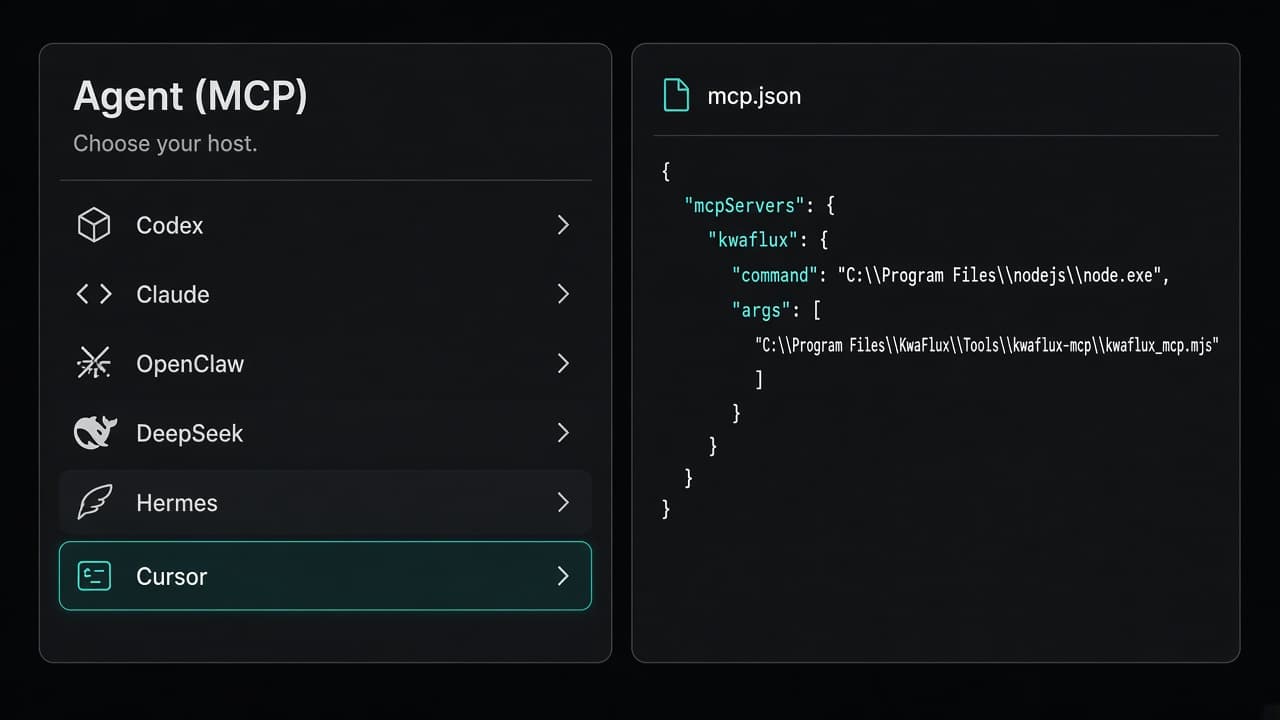
On the same Agent (MCP) page, pick your assistant under MCP host. KwaFlux generates the config for six hosts: Codex, Claude, OpenClaw, DeepSeek (DSH), Hermes, and Cursor.
- Choose your host.
- Copy the snippet, or use the install option where your host offers one.
- Add it to your host's MCP config. Add the kwaflux entry; don't replace the whole file.
- Reload MCP in the assistant, or start a new session.
Each host keeps its config in a different place. Our host-by-host setup guide lists where each one goes. Any other app that supports local stdio MCP servers can connect too, by following the MCP setup page.
Keep KwaFlux open while you use the assistant. The MCP server is a messenger; the work happens in the app.
Step 3. Ask your assistant
Start with something that only reads, so you can see the connection work:
Is KwaFlux running? List my recent tasks.
Then try a real job, with the file's full path:
Convert D:\Videos\trip.mp4 to the TikTok format and tell me when it's done.
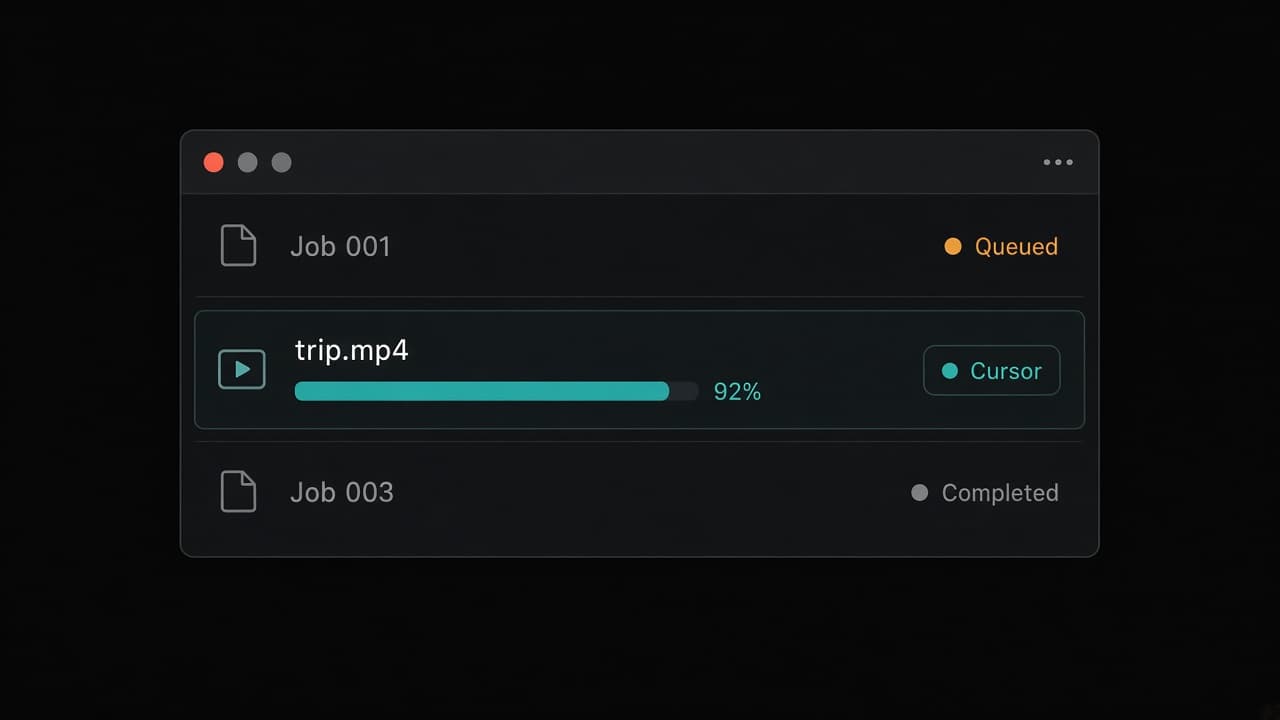
The assistant calls the conversion tool, then waits on the task. In KwaFlux the task appears in the task list with a tag that says which assistant submitted it, so you can tell its jobs from your own. When it finishes, the new file is saved next to trip.mp4, and the assistant gets its file name back.
Your host may also show KwaFlux's four built-in workflows as prompts or slash commands: repair a damaged video, export for a platform, download then convert, and AI quality repair. They walk the assistant through the right tools in order.
When the assistant needs your permission
Some things should be your call, not the assistant's. KwaFlux handles them in the app, where only you can click:
- Downloads are off by default. Under Agent access, Let agents start downloads can stay Off, be set to Ask every time, which shows a desktop popup with the link, the folder, and the format, or be set to the third option, which lets downloads through without asking. An unanswered popup expires after 120 seconds. Details are in why an AI can't approve downloads for you.
- One switch turns all AI control off: Allow AI agents to control KwaFlux. The same page lists which assistants are connected and, under Recent agent actions, the last 200 calls they made, without their parameters.
- The assistant can only manage its own tasks. It can see jobs you started in the window, but it can't pause, cancel, or retry them.
Tips for requests that work the first time
- Give the full path. KwaFlux accepts local paths only, such as
D:\Videos\clip.mp4or/Users/you/Movies/clip.mov, not network drives. - Say the goal, not the setting. "Small enough for email" or "for Instagram" lets the assistant pick the matching preset.
- Diagnose before you repair. Checking a damaged file is quick, and the repair then uses the mode the diagnosis recommends.
- Ask it to wait. "Tell me when it's done" makes the assistant follow the task instead of reporting success the moment the job is queued.
Pro tip: If your host lets you limit which tools a server loads, you can set the KWAFLUX_MCP_TOOLSETS environment variable to only the groups you use, such as convert,repair. Fewer tools leave more room in the model's context.
Troubleshooting
| Symptom | Likely cause | Fix |
|---|---|---|
| The assistant says KwaFlux isn't running | The app is closed | Open KwaFlux, then reload MCP in the assistant |
| KwaFlux tools don't appear | Node.js missing or too old, or the config wasn't reloaded | Check the version on the Agent (MCP) page, then reload MCP |
| "Not signed in" or a plan error | The job writes a file (see the note at the end of this guide) | Sign in to KwaFlux, then ask again |
| A download is refused | Agent downloads are off | Set Let agents start downloads to Ask every time, or download in the app |
| "Path not allowed" | A network path, a relative path, or a typo | Use the full local path of the file |
| The task finished but you can't find the file | It's saved next to the source | Look in the source file's folder; a name like clip(1).mp4 means a file with that name already existed |
What stays in the desktop app
Nine features need you to look at the picture while you work: drawing a box, clicking a subject, or judging a preview. They stay in the app on purpose. They include Portrait Background Removal, sky replacement, object removal, frame interpolation, and subtitle editing. If you ask for one of them, the assistant is told to send you to KwaFlux rather than guess where you meant to click.
Free 1-, 3-, and 5-second previews stay in the app as well.
Final thoughts
Install Node.js, copy the config, and keep the app open. After that, the jobs you'd normally click through, such as repairing, enhancing, compressing, and converting, can start from a sentence, and you can still see and stop every one of them. For a full example from a broken file to an upload-ready copy, see a complete AI agent repair workflow.
KwaFlux includes a local MCP server for Codex, Claude, Cursor, and other MCP apps. AI processing runs locally on your GPU — media files are not uploaded for processing. It runs on Windows 10 (64-bit, version 1809 or later), Windows 11, and macOS 12 or newer on Apple Silicon. Importing files and exploring the app need no account. Signing in with an active paid plan is required only to export, convert, repair a file, or download a file from a link.
Try It on Your Own Footage
Download KwaFlux and preview effects on your own footage for free before you pay — no account needed, and your media is processed on your GPU, not uploaded for processing. Video previews run 1, 3, or 5 seconds; stabilization previews run 5, 15, or 30 seconds.
Frequently asked questions
Do I need to know how to code to use an MCP server?
No. You install Node.js once and paste a config snippet into your assistant's settings. After that you write requests in plain language. Copying the snippet from the app avoids typing paths by hand. See the host-by-host setup guide.
Which AI assistants support local MCP servers?
Most coding and chat assistants with an MCP settings page support local stdio servers, including Cursor, Claude Code, Claude Desktop, and Codex. Web-only chat pages usually can't start a program on your computer, so they can't use a local server.
Does an AI assistant upload my videos when it uses a local MCP server?
Not to process them. A local server works on the files on your disk. Your chat text still goes to the assistant's model provider, so a file name or path you type is part of the conversation. Our post on keeping file paths away from the model covers what goes back to it.
Can I stop an AI assistant from downloading things?
Yes. Choose an app where downloads are off unless you allow them, and where approval happens in a window you click, not in the chat. See why an AI can't approve downloads for you.
What's the difference between an MCP tool and an MCP prompt?
A tool is a function the model decides to call, such as "convert this file." A prompt is a saved workflow that you pick yourself, often shown as a slash command, which then guides the model through several tools.
Sources
- Model Context Protocol, "Specification" (version 2026-07-28; overview, Security and Trust & Safety) (accessed 2026-07-28)
- Model Context Protocol, "Tools" (2026-07-28; model-controlled tools, human in the loop) (accessed 2026-07-28)
- Model Context Protocol, "Prompts" (2025-11-25; user-controlled prompts, slash commands) (accessed 2025-11-25)
- Node.js, "Node.js Releases" (v24 and v22 LTS; v20 and v18 end-of-life) (accessed 2026-10-25)
KwMore in Inside KwaFlux
Keep reading
Denoise, Shrink to 50 MB, Fix a Broken File: What an AI Assistant Can Do in KwaFlux
31 KwaFlux features you can start from a chat: audio cleanup, compression to a size, file repair, AI enhancement, and why 9 stay in the app.
Why AI Agents Shouldn't Click the Screen: Building a Local Control Plane for a Desktop App
Screen automation is fragile and grants too much. How KwaFlux lets AI agents drive a desktop app with typed tools and jobs rebuilt by the app itself.
KwaFlux: Everything You Need to Know (Features, Platforms, Pricing, Updates)
What KwaFlux is, what it includes, which systems it runs on, what is free and what is paid, how licenses work, and what changed in each version.