Old Halloween Photos: How to Restore, Colorize, and Bring Back Family Costume Memories
Grandma's 1950s witch costume, a yellowed 1980s snapshot: how to scan, repair, fix faded color, and colorize old Halloween photos and keep the original.
Key takeaways
- Old Halloween photos usually suffer from three things at once: soft detail, grain or dust, and color that has faded, shifted yellow, or was black and white from the start.
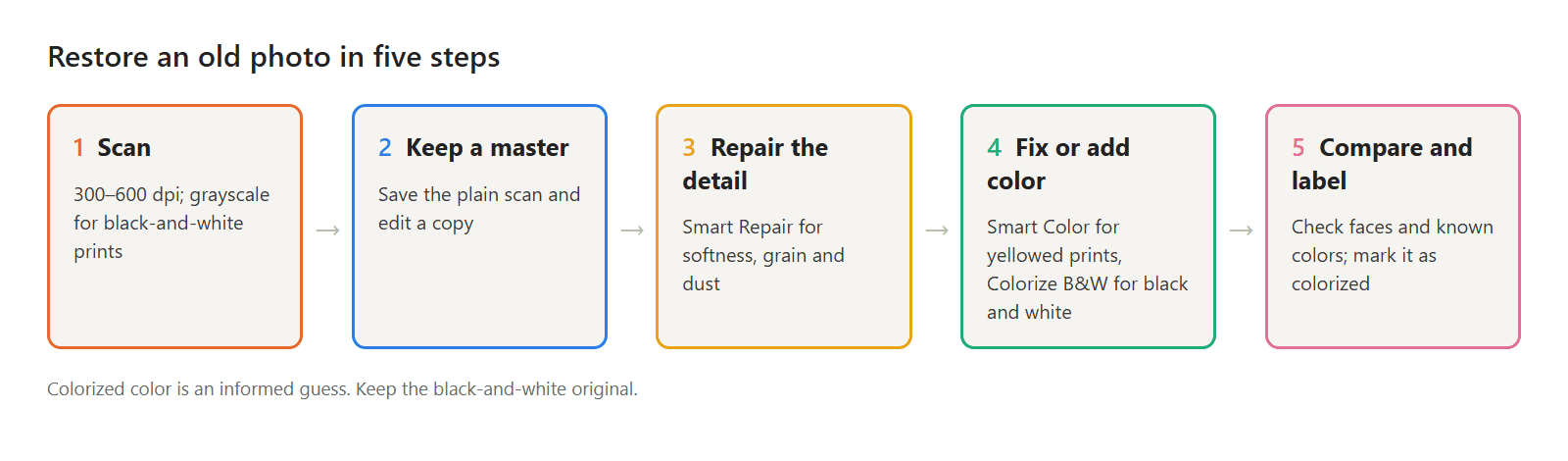
- Fix them in that order: scan, keep an untouched master, repair the detail, then fix or add the color.
- A yellowed color print needs color correction, not colorization. Colorizing is for black-and-white photos.
- Colorization is an informed guess. Keep the black-and-white original and say the color was added.
- A restored old costume photo next to this year's makes a then-and-now post that family members love to share.
Old Halloween photos look worn because prints fade, scans pick up dust, and many were black and white to begin with. You can bring them back in a few steps: scan the print, repair the detail, then correct the faded color or colorize the black-and-white ones. Keep the original scan, because colorized color is an informed guess.
In this guide, you'll learn what happens to old Halloween photos over the decades, how to scan them, how to restore and colorize them in KwaFlux, what the repair did to four real archive photos from the 1920s to the 1980s, and how to turn them into a then-and-now post.
Halloween offer: from October 24 to November 2, the KwaFlux Perpetual License is $169.99 instead of $199.99, and the yearly and monthly plans have a lower first-year and first-month price. The full offer is at the end of this post.
Contents
- What is AI photo restoration?
- What happens to old Halloween photos
- Which fix does your old photo need?
- Step 1. Scan the photo
- Step 2. Repair the detail in KwaFlux
- Step 3. Fix faded or yellowed color
- Step 4. Colorize black-and-white photos
- Before and after: four real Halloween photos from 1920 to 1985
- Old Halloween home videos
- Make a then-and-now post
- KwaFlux Halloween offer
- FAQ
What is AI photo restoration?
AI photo restoration is the use of trained models to rebuild detail, remove grain and dust, and correct or add color in a scanned photo. Unlike a filter, a restoration model looks at what is wrong with the picture first, so a soft 1950s print and a grainy 1980s snapshot get different repairs.
On Halloween photos the payoff is easy to see. Homemade masks, crepe-paper witch hats, and painted faces are full of small detail that fading and grain wipe out first.
What happens to old Halloween photos
- Black-and-white prints lose contrast. Blacks turn gray, highlights go chalky, and fine detail such as the weave of a costume disappears into grain.
- Color prints from the 1970s and 1980s drift. Some dyes in those prints break down faster than others, so many snapshots turn yellow, orange, or magenta and lose their blues.
- Albums leave marks. Plastic sleeves, tape, and old adhesive pages leave stains, and handling leaves scratches and dust.
- Small prints give small scans. A 3.5 × 5 inch snapshot scanned at a low resolution doesn't have enough pixels to print bigger or crop in.
- Phone copies add their own problems. Glare from the light above, a slight angle, and the phone's own sharpening all end up in the copy.
Which fix does your old photo need?
| What you see | What it needs | Where in KwaFlux |
|---|---|---|
| Soft, grainy, or dusty, any era | Detail repair | Quality Enhancement › Smart Repair |
| Fine film grain over everything | Grain removal | Quality Enhancement › Old Film |
| Color print turned yellow, orange, or magenta | Color correction | AI Color Grading › Smart Color |
| Black-and-white photo you'd like in color | Colorization | Quality Enhancement › Colorize B&W |
| A stain or a scratch across one spot | Removal of that spot | AI Toolbox › Object Removal › Static Object Removal |
| Torn corner or missing piece | Manual retouching | An image editor; AI repair won't invent a missing piece reliably |
Step 1. Scan the photo
A good scan does more for the result than any later repair.
- Use a flatbed scanner if you can. It lights the print evenly and keeps it flat. A phone copy works in a pinch: turn off the overhead light, shoot near a window, and hold the phone parallel to the print.
- Pick the resolution. The Library of Congress recommends 300 dpi for 4 × 6 and 5 × 7 prints, and 400 or 600 dpi if you plan to enlarge them. Small vintage snapshots benefit from 600 dpi.
- Scan black-and-white photos in grayscale, as the Library of Congress suggests, unless the print is toned or hand-tinted.
- Turn off the scanner's automatic restore and sharpening. You want the plain scan as your starting point.
- Save a master and work on a copy. Name the file with who, where, and roughly when, and don't edit the master.
Step 2. Repair the detail in KwaFlux
KwaFlux runs Quality Repair on photos as well as videos.
- Open Smart Repair. In the sidebar, go to Quality Enhancement and pick the Smart Repair card ("Auto denoise, deblur and detail, tuned to each clip's quality").
- Add the scan. Drag the working copy in. The quality check runs first.
- Preview the whole picture. A photo preview shows the full image. Zoom into faces, hands, and costume details such as hat brims, masks, and lettering.
- Try Old Film for heavy grain. If grain is the main problem, the Old Film card ("Removes film grain for a cleaner picture") opens Special Scene Repair with Film Grain Removal selected. Compare both and keep the one that looks more like the print.
- Export. Pick the image format in the export settings and export.
Pro tip: Repair before you colorize. Colorization works better on a clean picture, and a repair run after colorizing can shift the new colors.
Step 3. Fix faded or yellowed color
A color snapshot that turned yellow still has its colors; they've shifted. Correct them instead of colorizing.
- Open Smart Color. In the sidebar, go to AI Color Grading and pick the Smart Color card ("Automatically fixes color casts and dull tones; style filters can stack on top"). For photos, Grading Mode starts on Smart Color, which "fixes color casts, flatness and exposure automatically", so there are no sliders.
- Check skin and white things. A white sheet ghost, a white shirt, or the paper border of the print should look neutral again, and skin should look like skin.
- Keep a little warmth. A 1980s photo doesn't need to look like it was taken yesterday. If the result feels too clinical, compare it with the original and decide what you prefer.
- Then repair the detail. Run Smart Repair on the corrected copy if the print is also soft or grainy.
Step 4. Colorize black-and-white photos
- Open Colorize B&W. In the sidebar, go to Quality Enhancement and pick the Colorize B&W card. It opens Quality Repair with Special Scene Repair and Old Footage Colorization selected, which "colorizes old black-and-white photos and films with natural color".
- Set the Colorization Strength. The slider runs from 0 to 1 and starts at 0.6. Higher values mean richer color. For old photos, the default or a little lower usually looks closer to a period print.
- Check the things you know. Skin tones should match between people in the same light, and objects whose color you know, like a pumpkin or a black cat costume, should look right.
- Ask the family. The color of a 1950s witch dress is a guess to a model. Someone who wore it may remember.
- Export and label it. Add "colorized" to the file name or the caption, and keep the black-and-white version.
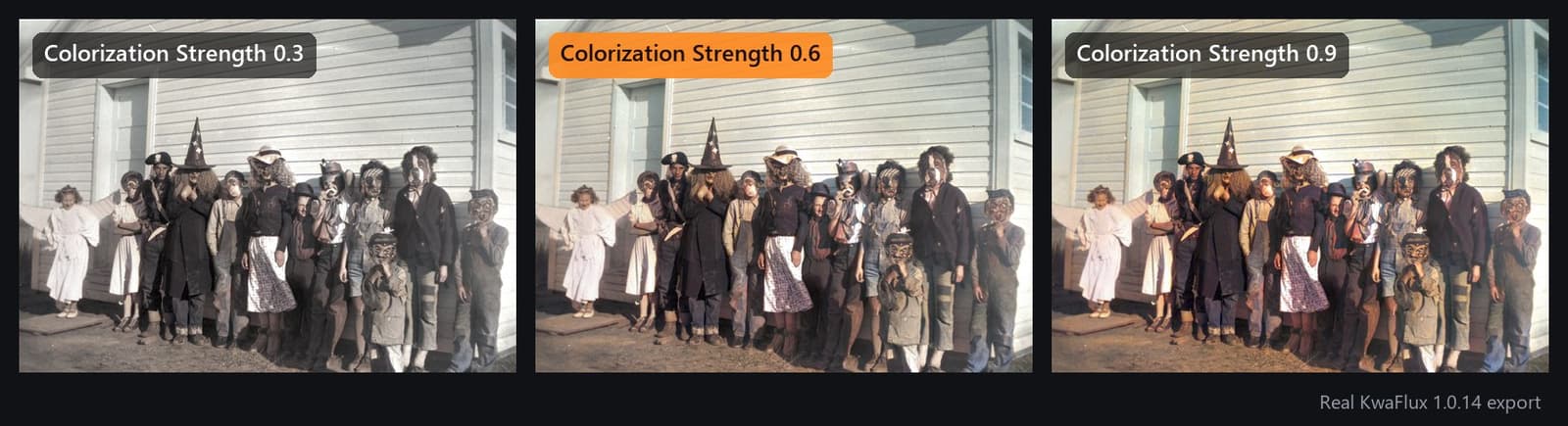
Three strengths, one photo. On this photo the three settings came out close: the differences in skin and in the witch costume are hard to see at this size, so the default 0.6 is a sensible place to start.
Before and after: four real Halloween photos from 1920 to 1985
These are real archive photos shared on Wikimedia Commons with no known copyright restrictions: a 1920s Halloween party, children in costume around 1950, a 1980s library Halloween snapshot, and a 1984 costume parade. We only removed metadata and capped the long side at 4000 px; nothing was aged or damaged on purpose. Credits are under Sources. The results are straight exports from KwaFlux 1.0.14.
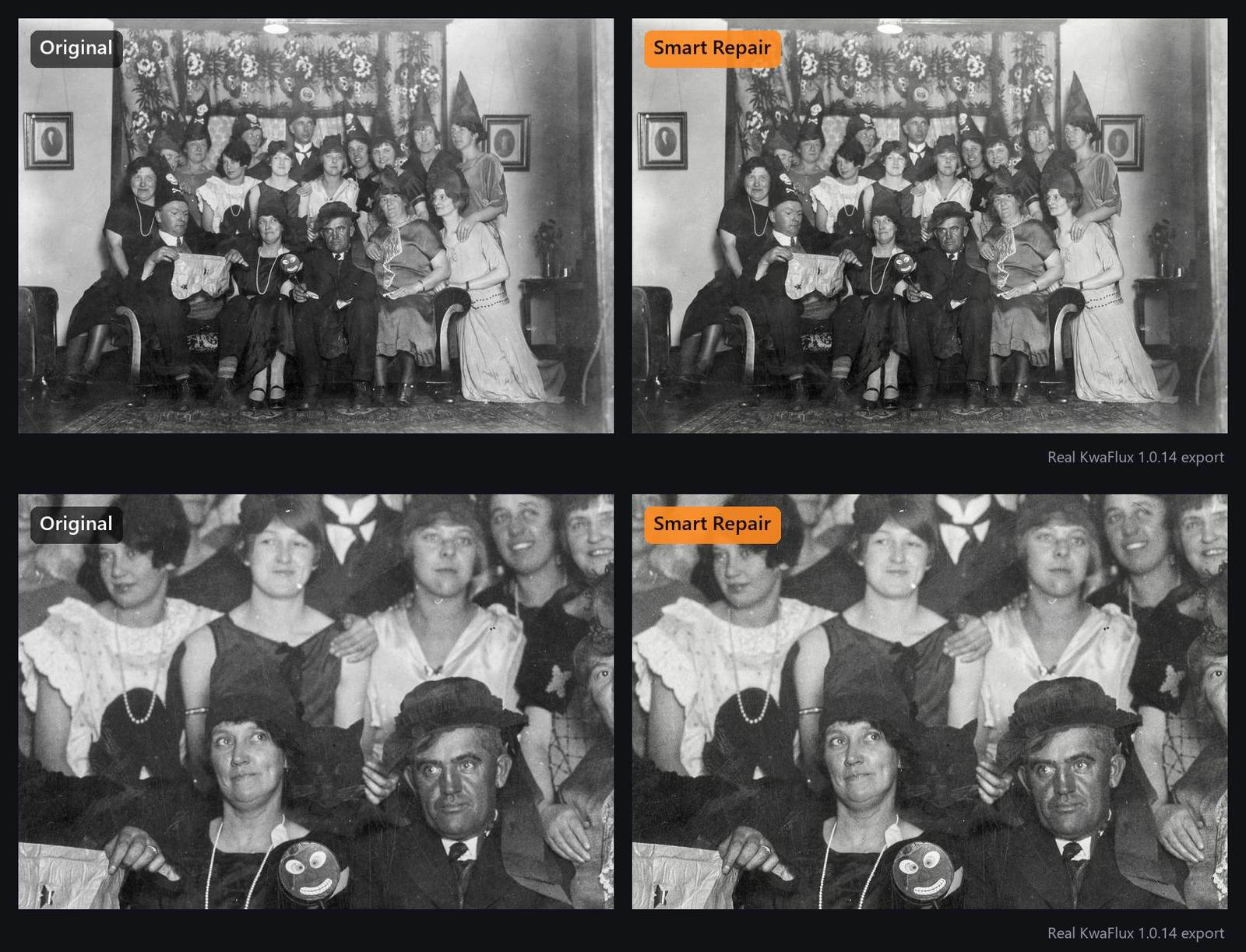
A 1920s Halloween party. Soft faces, a gray cast, and grain over the dark clothes. Smart Repair lifted some of the haze and grain and made faces and hat edges a little crisper; it's a light touch, not a dramatic change.
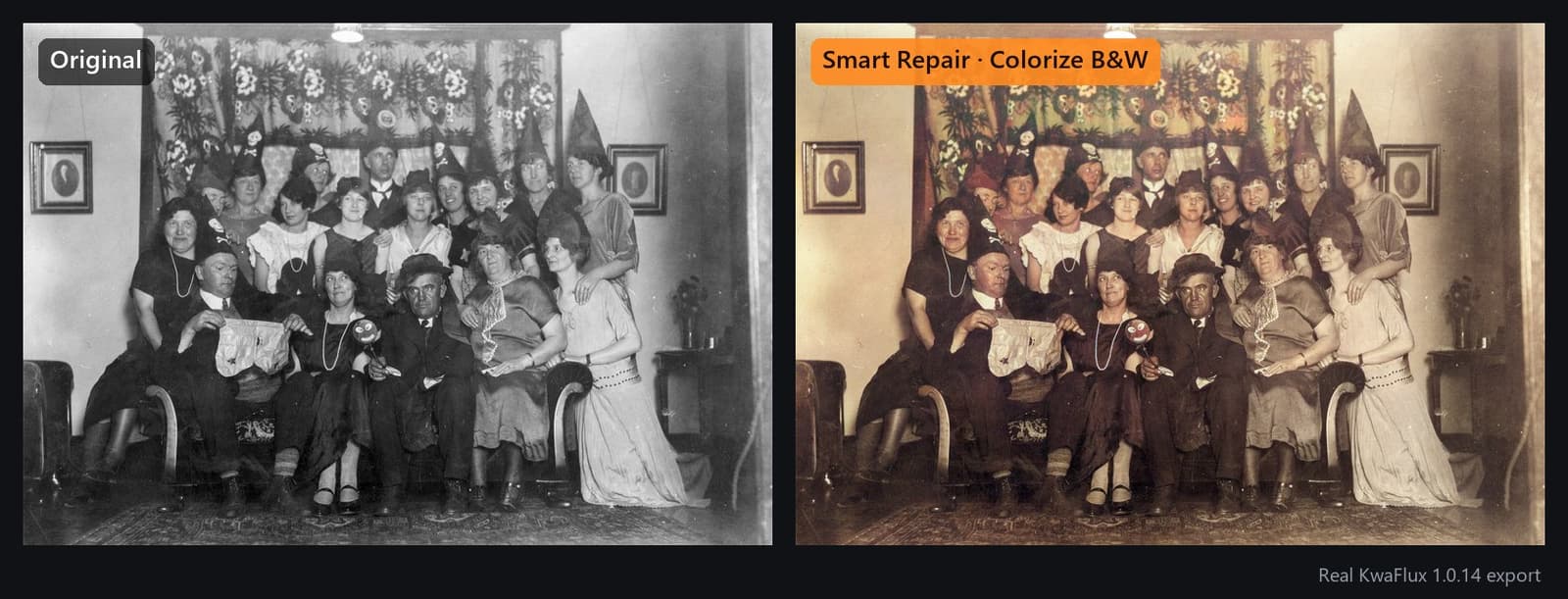
The same party, colorized. The color stays in warm browns and muted reds: skin and wood look plausible, but most of the clothing comes out brownish, and the picture can't tell you what the real colors were.
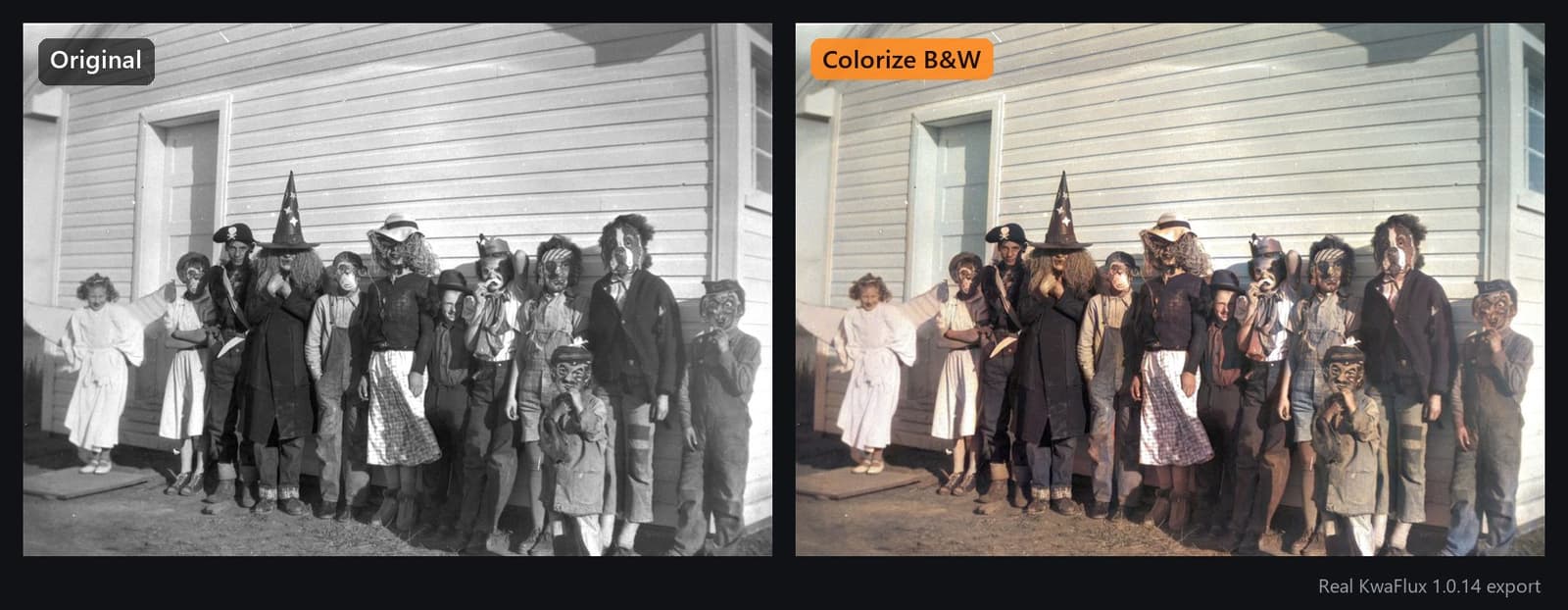
Children in costume, around 1950. Masks, a witch hat, and a white angel costume against a clapboard wall. The result is restrained: a pale wall, blue denim, warm skin, and brownish masks, with the white angel costume still white.
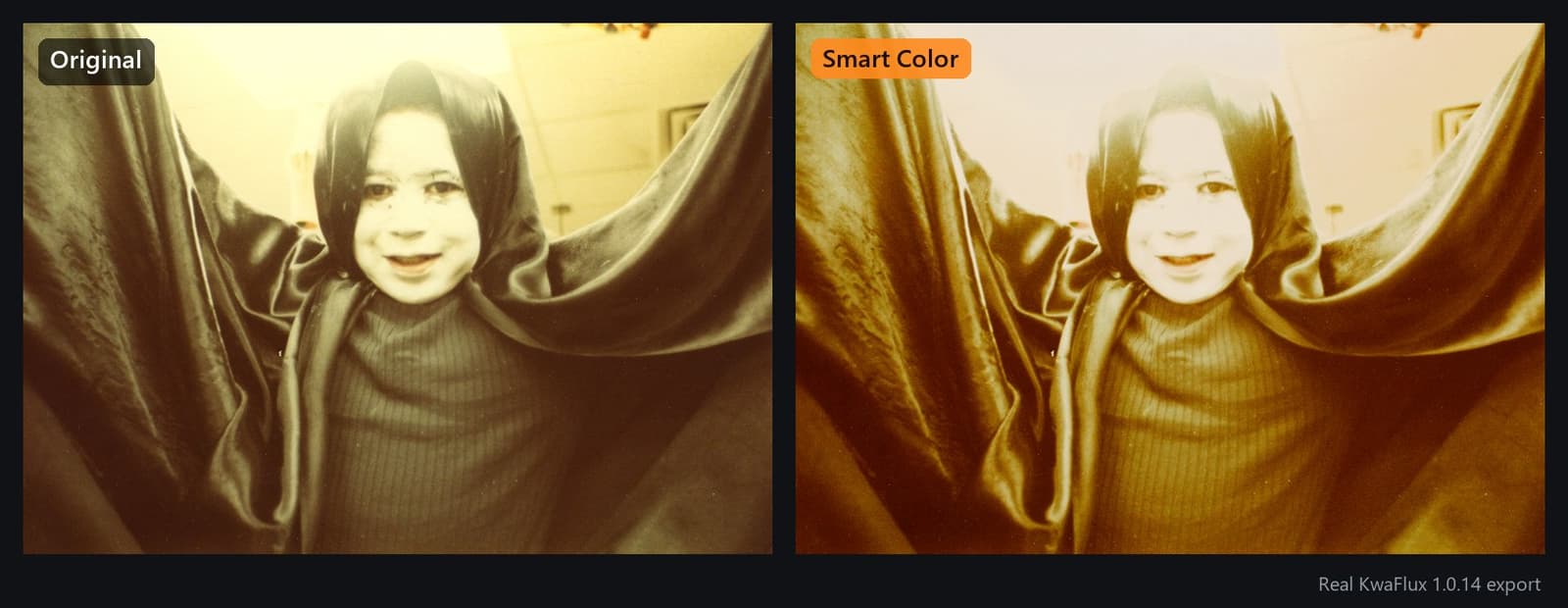
A yellowed 1980s snapshot. The whole print has gone amber. Smart Color didn't remove this cast: it pushed the whole print further toward orange. On a print this far gone, compare carefully and keep the original if the correction makes it worse.
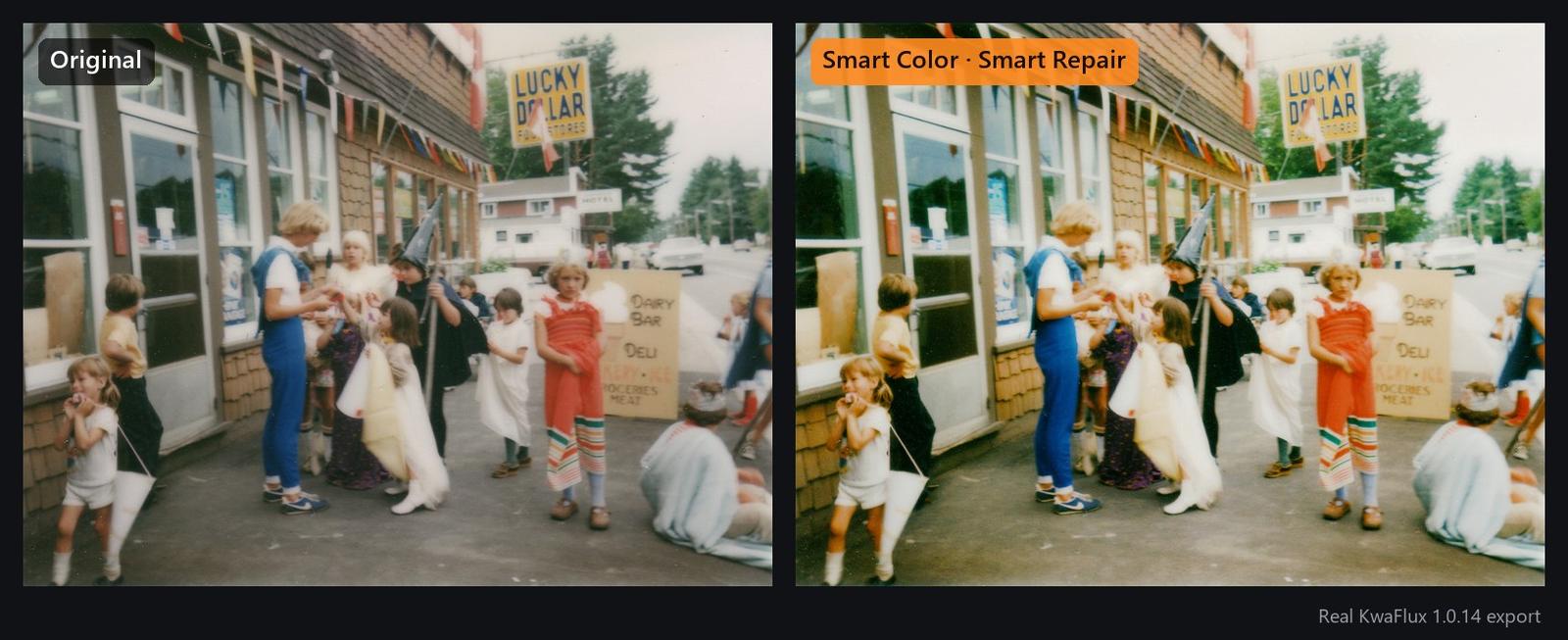
A faded 1984 costume parade. Washed-out color and soft detail. The washed-out cast is gone: the red and blue costumes, the green trees, and the yellow store sign have their color back, and edges look a bit sharper.
Old Halloween home videos
The same steps work on video. If your family's Halloweens are on tape or film:
- Home videos: the Home Videos card ("Deblurs and denoises old home recordings") runs Smart Repair on old recordings. Tapes often need deinterlacing first; the AI Toolbox has a Deinterlacing tool for the comb lines.
- Film: the Old Film card removes film grain, and Colorize B&W works on black-and-white film as well as photos.
- Preview first. Video previews render 1, 3, or 5 seconds, so you can check a costume close-up before you export the whole tape.
For the full workflow, see how to restore old footage with AI and how to colorize black-and-white video.
Make a then-and-now post
A restored old photo is a good excuse to get the family talking on Halloween.
- Match the pose. Recreate the old photo with the same costume idea, the same spot, or the same people decades later.
- Put them side by side. Old on the left, new on the right, with the years in the caption.
- Fix this year's photo too. If the new one came out soft, see how to fix blurry Halloween photos.
- Credit and label. Say which photo was colorized, and ask before you post photos of relatives.
For more ideas from the same night, see our Halloween photo and video editing guide.
KwaFlux Halloween offer
From October 24 to November 2, 2026, KwaFlux is on sale. Every plan includes every feature and works on 2 computers at once, Windows and Mac in any mix.
| Plan | Halloween price | After the offer |
|---|---|---|
| Perpetual License | $169.99 one-time, instead of $199.99 | No renewal: you pay once |
| Yearly | $79.99 for the first year | Renews at $99.99 a year |
| Monthly | $29.99 for the first month | Renews at $35.99 a month |
Prices exclude tax. The Perpetual License includes free updates within the current major version. Details are on the plans page.
Final thoughts
Old Halloween photos are some of the most fun family pictures to restore: the costumes are odd, the faces are happy, and the story is already there. Scan carefully, repair before you colorize, fix yellowed prints with color correction, and keep the original next to the restored version.
Bring back your family's old Halloweens
KwaFlux runs Smart Repair, Smart Color, and colorization on photos and videos on your own computer. AI processing runs locally on your GPU — media files are not uploaded for processing. It runs on Windows 10 (64-bit, version 1809 or later), Windows 11, and macOS 12 or newer on Apple Silicon. Previews need no account: the whole picture for photos, and 1, 3, or 5 seconds for video. Signing in with an active paid plan is required only to export, convert, repair a file, or download a file from a link.
Try It on Your Own Footage
Download KwaFlux and preview effects on your own footage for free before you pay — no account needed, and your media is processed on your GPU, not uploaded for processing. Video previews run 1, 3, or 5 seconds; stabilization previews run 5, 15, or 30 seconds.
Frequently asked questions
Can you restore an old photo without a scanner?
Yes, with care. Shoot the print with your phone near a window, with the overhead light off, holding the phone parallel to the print to avoid glare and tilt. A flatbed scan still gives more detail, so scan the photos that matter most.
Is colorizing old photos accurate?
No, not in the historical sense. A colorization model predicts likely colors from shapes and textures; it can't know the real color of a dress or a mask. Treat the result as an illustration, keep the original, and ask relatives what they remember.
How do you fix a yellowed photo?
Correct the color cast rather than colorizing, because the original colors are still in the print, only shifted. Automatic correction works best on a moderate cast; on a print that has gone deep amber it can push the tone further, as in our 1980s example above, so compare with the original before you keep it. Then repair the detail if the print is also soft.
What resolution should old photos be scanned at?
300 dpi is enough for 4 × 6 and 5 × 7 prints you'll view at the same size; use 400 to 600 dpi for small snapshots or anything you'll enlarge.
Should I restore the original scan or a copy?
A copy. Keep the untouched scan as your master, because better restoration tools will keep arriving, and you'll want to start again from the plain scan rather than an edited version.
What were Halloween costumes like in the 1920s and 1950s?
Often homemade. The 1920s party photo above shows pointed paper witch hats, and the children around 1950 wear face masks with everyday or homemade clothes. Small details like these are what fading wipes out first and what repair brings back first.
Sources
- Library of Congress, "Scanning Your Personal Collections" (grayscale for black-and-white photos; 300 dpi for 4 × 6 and 5 × 7 prints; 400 or 600 dpi to enlarge) (accessed 2026-10-11)
- Photo: Provincial Archives of Alberta, "Halloween party, Wainwright" (Herb Snyder fonds, PR2007.0231/97, 1920s), no known copyright restrictions, via Wikimedia Commons (accessed 2026-10-26)
- Photo: Provincial Archives of Alberta, "Children in Halloween costumes, Little Smoky River Farm Industries settlement" (Ruth and Leo Hamson fonds, A15910, about 1950), no known copyright restrictions, via Wikimedia Commons (accessed 2026-10-26)
- Photo: Columbus Metropolitan Library, "Driving Park Branch photo album -2" (page 102, 1980s), no known copyright restrictions, via Wikimedia Commons (accessed 2026-10-26)
- Photo: CDHS, "Delibrook Lucky Dollar, Northbrook c 1984-85", no known copyright restrictions, via Wikimedia Commons (accessed 2026-10-26)
ReMore in Old Footage
Keep reading
How to Colorize Black-and-White Video with AI (Step by Step)
Colorize black-and-white video with AI: prep the footage, set colorization strength, check skin tones and flicker, and label the result honestly.
How to restore old video with AI — grain and color
Step-by-step guide to AI-powered old video restoration: removing grain, fixing color fading, and recovering detail from vintage or damaged footage.