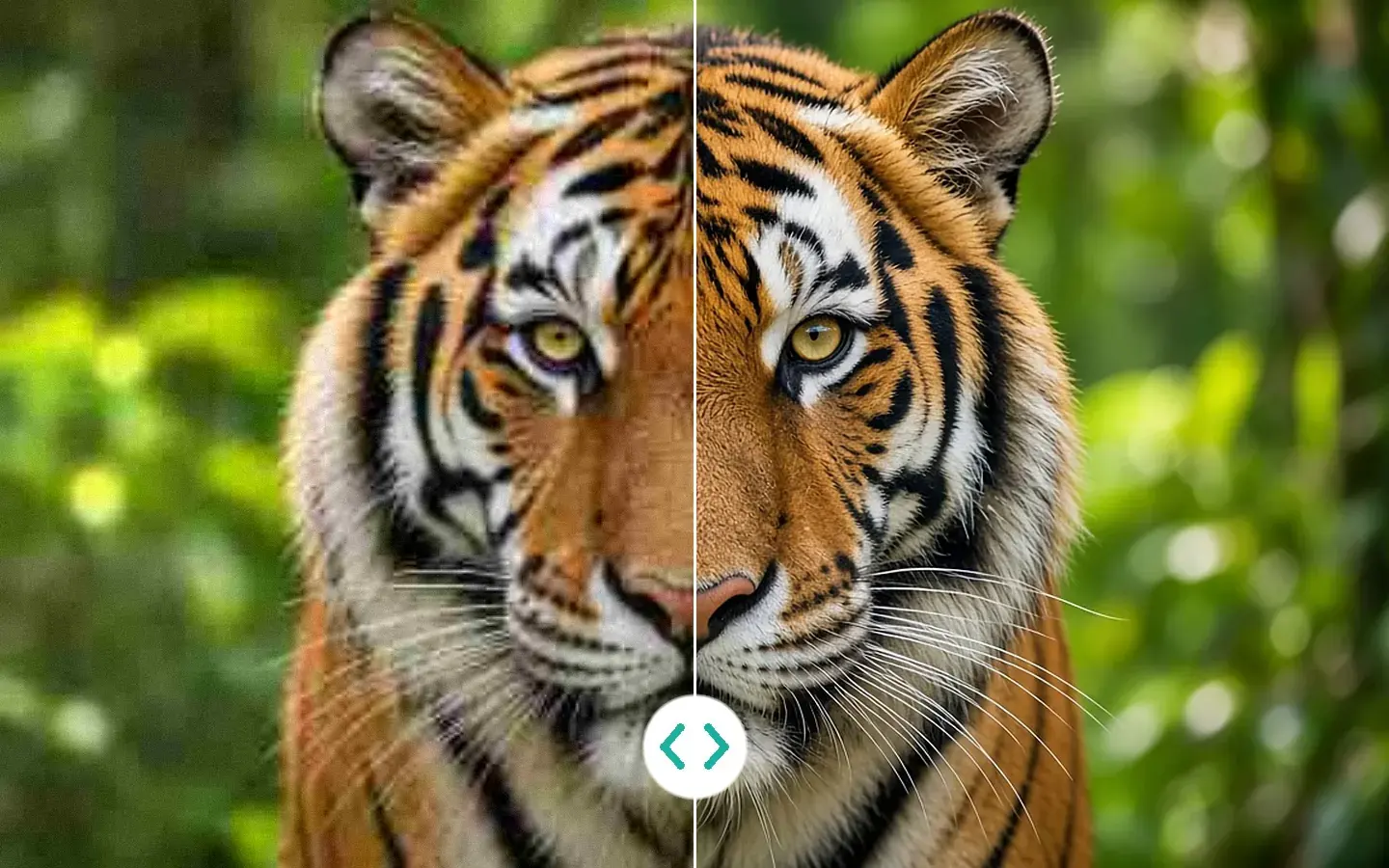

How to Edit Faces in Video: Retouch Skin, Makeup, Face Shape and Hair Without Flicker
Smooth skin, remove blemishes, add makeup, refine features and change hair color in a video, and keep every edit steady as people turn, talk and move.
The short answer
To edit faces in a video, use a tool that finds each face in every frame and applies the same retouch steadily, so skin doesn't shimmer and makeup doesn't slide. In KwaFlux, AI Beauty covers skin, makeup, facial features, face shape and hair color on your own computer.

AI Beauty has six categories. Each effect has a strength slider from 0 to 100, and a new effect starts at its category's preset:
| What you want | Category | Starts at |
|---|---|---|
| Smoother skin, fewer blemishes, no shine | Skin Quality | 65 |
| A polished overall look in one step | Overall Retouch, nine styles from Refined to Sunlit | 60 |
| Lipstick, blush, brows, eyeliner or a full look | Makeup | 60 |
| Longer lashes, fuller or thinner brows, dimples | Facial Features | 60 |
| A slimmer face, bigger eyes, a narrower nose | Face Shape | 50 |
| A different hair color | Hair Recolor | 80 |
Why faces in video are harder than in a photo
A photo retouch only has to look right once. A video at 30 fps has 1800 frames per minute, and the same edit has to land on every one while the person turns, talks and moves through changing light. If each frame is retouched on its own, small differences add up to visible problems:
- Shimmering skin. Smoothing that is slightly stronger on one frame than the next makes skin pulse.
- Sliding makeup. Lipstick or eyeliner that doesn't follow the face exactly drifts off the lips or eyes during fast movement.
- Jumping face shape. A slimming effect that switches on and off as the head turns makes the jaw wobble.
- Lost faces. Profiles, hands in front of the face and motion blur can make a face disappear for a few frames, so the retouch drops out.
AI Beauty is built to keep each effect steady across the clip, but tracking can still slip on hard shots. Preview the moment with the most movement before you export. For the general reasons processed video flickers and how to spot it, see temporal consistency, flicker and ghosting.
First, repair soft faces
Beauty effects are designed for faces that are reasonably sharp. On a soft, noisy or heavily compressed face, smoothing removes what little texture is left and the result looks like plastic. If the quality check shows low Clarity or Cleanliness, run Smart Repair in Quality Repair first. It restores faces automatically along with denoising and sharpening, and the repaired version is added under the source clip, so the original stays.
Smooth skin and remove blemishes
Skin Quality works on one problem at a time instead of blurring the whole face. Its effects cover different areas, so they stack:
- Smooth evens out skin while keeping pores and texture.
- Remove Acne, Remove Spots and Remove Redness target blemishes. Faces are found automatically, so there is nothing to mask or track by hand.
- Remove Dark Circles, Remove Eye Bags and Remove Wrinkles work around the eyes and on lines.
- Remove Shine takes down oily highlights on the forehead and nose.
- Ruddy and Tan change the overall tone; Texture brings back some grain after smoothing.
Issue-specific effects only change what is there: on a face without acne, Remove Acne does very little, and that's expected. The usual mistake is too much Smooth. Start below the 65 preset for anyone with natural skin texture, and check a close-up at 100% zoom; if pores vanish, turn it down.
Add makeup
Makeup includes lipstick in shades such as Rosewood, Classic Red, Nude Pink, Coral and Berry, gloss or matte lips, blush, brows, eyeshadow, eyeliner including winged and cat-eye, lashes, contour and foundation, plus complete light or dark looks. Remove Makeup takes off what the person is already wearing.
- Check what the person already wears. Adding lipstick on top of lipstick looks heavy; for someone in full makeup, Remove Shine alone is often enough.
- Add one item at a time and keep the 60 preset or lower for everyday footage.
- Preview a moment with fast speech or laughing, where lips and eyes move the most.
- For whiter, brighter skin, use the Radiant or Clear retouch style, then add Foundation to even out the tone.
Costume makeup is a different job from everyday makeup. For bold looks on photos and party clips, see AI makeup for Halloween photos and video.
Refine features and face shape
Two categories change the structure of the face, and both deserve the lightest touch:
| Category | Effects | Keep in mind |
|---|---|---|
| Facial Features | Long Lashes, Thin Brows, Thick Brows, Cupid Bow, Dimples | Small touches; starts at 60 |
| Face Shape | Slim Face, Big Eyes, Slim Nose, Lift Nose, Full Lips | Starts at 50; check head turns and profiles |
Face-shape changes are the easiest way to make someone look unlike themselves. Ask before you change how a person's face is shaped, keep strengths low, and compare with the original at the same size. If the jaw or nose seems to move when the head turns, lower the strength or turn the effect off for that clip.
Change hair color
Hair Recolor changes hair color across the whole clip, with shades such as Golden Blonde, Auburn, Ash Blonde and Copper and a strength that starts at 80. It suits trying a look before a salon visit, matching a character, or fixing hair that came out a strange color under stage light.

Preview a shot where the head turns, and look at the edges where hair meets a busy background. A strong change from dark to very light hair is the hardest case; a lower strength often looks more believable.
Retouch each person differently
In a group shot, one setting rarely suits everyone. Under Who to retouch, choose All faces to give every face the same settings, or Tune separately to let KwaFlux scan the clip and list each person as a portrait (Person 1, Person 2, …). Click a portrait and the settings you choose apply only to that person; anyone you don't set stays untouched.
If the scan can't find a stable person, for example in a very short clip or with tiny faces, KwaFlux says so and applies the effects to every face. For starting settings per person, such as a host, an older guest or someone with breakouts, read how to retouch each person separately in a video.
How to retouch a video in KwaFlux, step by step
- Open AI Beauty. In the sidebar, open AI Beauty, pick a category such as Overall Retouch or Skin Quality, and import the clip. Photos work too.
- Choose who to retouch. Pick All faces or Tune separately.
- Start light. Pick Refined, the subtlest style, or one or two effects at or below their presets.
- Preview the hardest moment. Render a free 1, 3 or 5-second preview of a close-up with movement, and compare it with the original using the before/after slider.
- Export. Several AI effects run on every frame, so export takes longer with a big stack. The job runs in Task Center on your own graphics card.

Previews need no account, and footage of people isn't uploaded for processing. Exporting needs a signed-in account with a paid plan; see pricing.
A standalone app or a plugin in your editor?
Many people search for face retouching inside the editor they already use, such as Premiere Pro or DaVinci Resolve. Both routes work; they suit different jobs:
| Aspect | Standalone app such as KwaFlux | Inside your editor |
|---|---|---|
| How faces are handled | Faces are found automatically; per-person settings after a scan | Built-in tools or third-party plugins; DaVinci Resolve Studio's Face Refinement works on one face per node |
| Range of effects | Skin, makeup, features, face shape and hair color in one module | Usually skin smoothing and color; makeup and hair color are rarer |
| Workflow | Retouch the clip, then bring it into any editor | Retouch on the timeline, next to the edit |
| Good for | Clips that need several kinds of retouch, or people without an editor | Editors who retouch a few shots inside a larger project |
Blackmagic lists face refinement and additional skin refinement controls among the Resolve FX in DaVinci Resolve Studio. If you only need light skin smoothing on a few shots in a project you are already editing, the editor's own tools may be enough. If you would rather compare phone beauty apps, see the Wink alternative page.
Where to stop
- Keep the person recognizable. If friends would ask who it is, the retouch went too far.
- Ask first. Changing someone's face shape or skin tone without asking can upset them, especially in family or work videos.
- Be careful in ads. In 2021, the UK's Advertising Standards Authority ruled two tanning-product ads misleading because influencers used beauty filters that exaggerated the product's effect. Don't retouch the very thing a cosmetic product claims to change.
- Leave texture. Real skin has pores, fine lines and some shine. A face with no texture at all looks artificial.
To try it on your own clip, open AI Beauty in KwaFlux and preview a close-up before you export. It runs on Windows 10 or 11 and on Apple Silicon Macs.
Try It on Your Own Footage
Download KwaFlux and preview effects on your own footage for free before you pay. No account needed. Your media is processed on your GPU, not uploaded for processing. Video previews run 1, 3, or 5 seconds; stabilization previews run 5, 15, or 30 seconds.
Frequently asked questions
How do I smooth skin in a video without making it look fake?
Use a skin tool that keeps texture and target specific problems instead of blurring the whole face. In KwaFlux, Skin Quality's Smooth keeps pores, and Remove Acne or Remove Redness only change those areas. Start below the 65 preset and check a close-up at 100% zoom.
Can I remove a pimple from a whole video without tracking it frame by frame?
Yes. In KwaFlux, Remove Acne and Remove Spots in Skin Quality find faces automatically across the clip, so there is nothing to mask or track. Preview a moment where the person moves to check the result.
Can I change hair color in a video?
Yes. Hair Recolor in KwaFlux AI Beauty changes hair color across the whole clip, with shades such as Golden Blonde, Auburn and Copper and a strength setting. Preview a shot where the head turns, because hair edges are the hardest part.
Can I retouch only one person in a video?
Yes. Choose Tune separately under Who to retouch, wait for the scan, then click that person's portrait and set their effects. Anyone you don't set stays as they are.
Sources
Related articles
AI Beauty
Overall retouch with 9 preset styles, gender-adaptive by default
OpenTemporal Consistency in Video: Why Restored Footage Flickers, Shimmers, and Ghosts
Why processed video flickers, shimmers, leaves trails, or shows double images after frame interpolation, how to measure it, and tested FFmpeg fixes.
OpenHalloween Party Photos: Retouch Costume Selfies and Try a Spooky Makeup Look with AI
Retouch Halloween party selfies with AI: soften tired eyes after a late night, add witchy or vampire makeup and purple hair, and keep it looking like you.
OpenWink alternative
Plan prices, monthly credits and where processing runs, with check dates
OpenBtMore in Portraits & Beauty
Keep reading
How to Retouch Each Person Separately in a Video, Not Every Face the Same
One beauty setting rarely suits everyone in a group shot. How to give each person their own skin, makeup, and face settings, and why to repair blur first.
Halloween Party Photos: Retouch Costume Selfies and Try a Spooky Makeup Look with AI
Retouch Halloween party selfies with AI: soften tired eyes after a late night, add witchy or vampire makeup and purple hair, and keep it looking like you.